SYMPTOM:
When creating a metric in Strategy Developer 10.3 using the formula editor, the formula will not validate successfully and gives an error "Incorrect Formula". This metric cannot be saved until the formula is corrected so it can successfully validate. This has only been identified to happen for some functions such as the IF and CASE functions.
STEPS TO REPRODUCE
1) Create a metric in Developer
2) Type the following in the expression: IF((Cost > 100), 1.0, 0.0)
3) Click validate and see that the expression is valid.
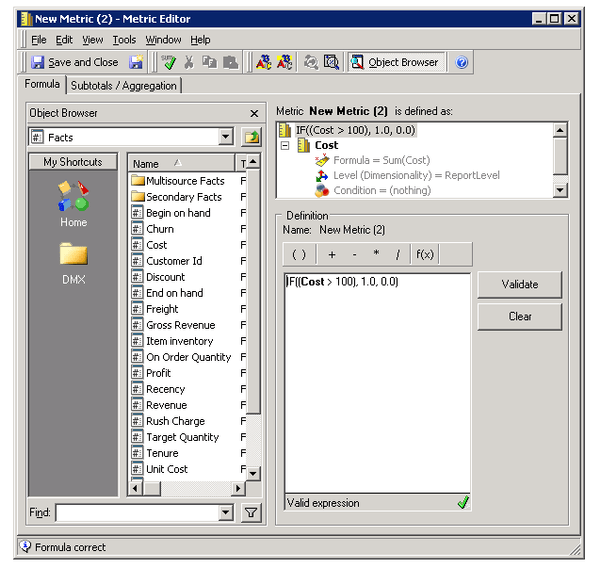
4) Clear the expression and click f(x) to open the formula editor and navigate to the logical operators, IF function
5) Select a metric such as Cost and enter > 100 in the Condition
6) Enter constants in the TrueBranch and FalseBranch, such as 1.0 and 0.0 respectively

7) Click Finish and see that an incorrect expression is entered such as: IF( [Cost > 100], 1.0, 0.0)

CAUSE:
This has been identified as a defect in Strategy Developer 10.3.
ACTION:
Currently this issue is still being reviewed for feasibility by our Technology team and it is not scoped for any upcoming scheduled Strategy release.
WORKAROUND:
1)
2) Instead of using the formula editor, manually enter the formula expression.
This issue is being tracked by Strategy internal reference number DE40072.
