EducationSoftwareStrategy.com
StrategyCommunity

Knowledge Base

Product

Community

Knowledge Base

TopicsBrowse ArticlesDeveloper Zone

Product

Download SoftwareProduct DocumentationSecurity Hub

Education

Tutorial VideosSolution GalleryEducation courses

Community

GuidelinesGrandmastersEvents
x_social-icon_white.svglinkedin_social-icon_white.svg
Strategy logoCommunity

© Strategy Inc. All Rights Reserved.

LegalTerms of UsePrivacy Policy
  1. Home
  2. Topics

KB30638: Custom Time Data Format [h]:mm:ss used to display data in excess of 24 Hours does not work as expected in Flash Mode in dashboards.


Stefan Zepeda

Salesforce Solutions Architect • Strategy


Custom Time Data Format [h]:mm:ss used to display data in excess of 24 Hours does not work as expected in Flash Mode in dashboards.

 
SYMPTOM:
When display time data using custom format :mm:ss, that allows accumulation of hours in excess of 24 hours (day) the custom format works fine for regular grid report as well as for dashboard in view/edit/interactive mode. In Flash mode, the value displayed is back to 24 hours mode.
 
STEPS TO REPRODUCE:
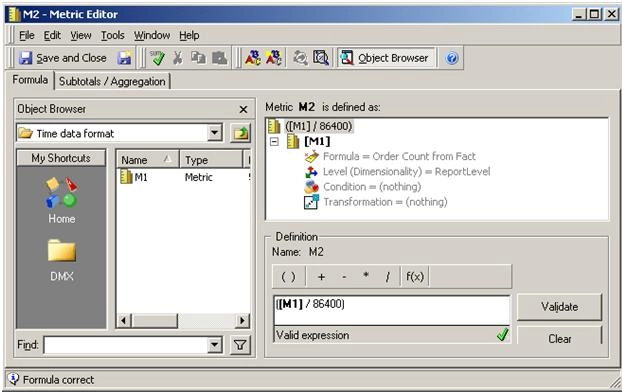
  • Create metric M1 that stores data in seconds.
  • Create a new metric M2 = M1 / 86400, where 86400 = number of seconds in a day. 
     
ka02R000000kcX0QAI_0EM440000002EMX.jpeg
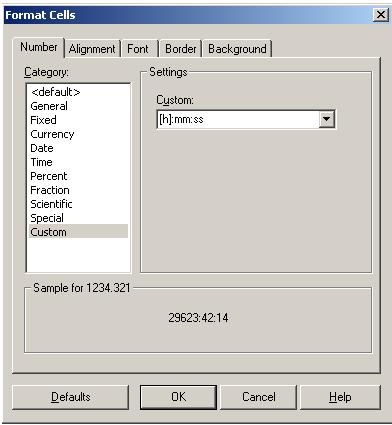
  • Apply custom format :mm:ss to M2.  
     
ka02R000000kcX0QAI_0EM440000002EMb.jpeg
  • Create a report R1 with an attribute and the metric M2.
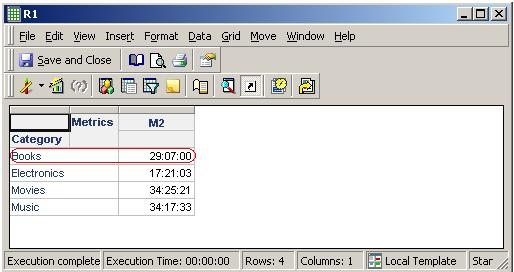
  • Execute report R1. Notice M2 values are displayed in excess of 24 hours.  
     
ka02R000000kcX0QAI_0EM440000002EMj.jpeg
  • Create a dashboard D1 with R1 as the dataset.
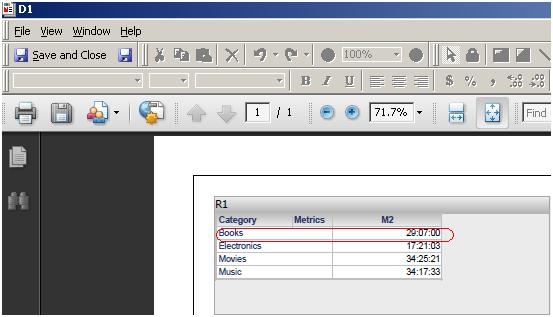
  • Execute dashboard in view/edit/interactive mode. Notice M2 values are displayed in excess of 24 hours.  
     
ka02R000000kcX0QAI_0EM440000002EMZ.jpeg
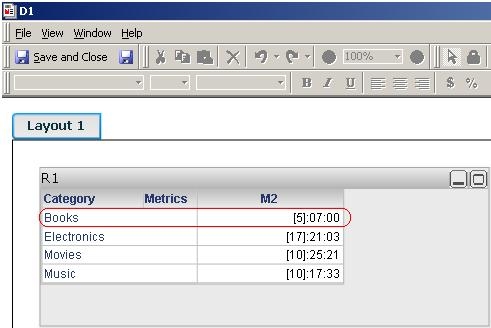
  • Execute dashboard in flash mode. Notice that M2 values displayed are back to 24 hours format    
     
ka02R000000kcX0QAI_0EM440000002EMa.jpeg

 
CAUSE:
This is a known issue and has been logged with the Strategy Technology department.
  
ACTION:
Contact Strategy Technical Support for the latest status of this issue.
 
WORKAROUND:
Use the custom formatting
"00"\:hh:mm:ss;dd:hh:mm:ss; to display in days, hours, minutes, and seconds.
 
For further details refer to Technical Note:
KB12519: How to format number of seconds to display days, hours, minutes, and seconds in Strategy Desktop 8.0.1


Comment

0 comments

Details

Knowledge Article

Published:

April 14, 2017

Last Updated:

April 14, 2017