EducationSoftwareStrategy.com
StrategyCommunity

Knowledge Base

Product

Community

Knowledge Base

TopicsBrowse ArticlesDeveloper Zone

Product

Download SoftwareProduct DocumentationSecurity Hub

Education

Tutorial VideosSolution GalleryEducation courses

Community

GuidelinesGrandmastersEvents
x_social-icon_white.svglinkedin_social-icon_white.svg
Strategy logoCommunity

© Strategy Inc. All Rights Reserved.

LegalTerms of UsePrivacy Policy
  1. Home
  2. Topics

KB30661: How to change the font size display in reports for a select group of users in MicroStrategy Web 8.1.x.


Community Admin

• Strategy


In some environments it may be necessary to modify report displays for certain users that may have vision impairments, or simply desire different views. In most of these cases, menu displays and report fonts need to be made larger or smaller.
 
Use the following steps to change the report and menu display for a select group of users in Strategy Web:

  • Using Strategy Desktop, create a report autosyle using an agreed upon font size and layout for the select group of users.  Save the autostyle.

ka04W000000Od2ZQAS_0EM4400000028Kl.jpeg
  • Logging in as one of the specific users in Strategy Web, access the Web Preferences
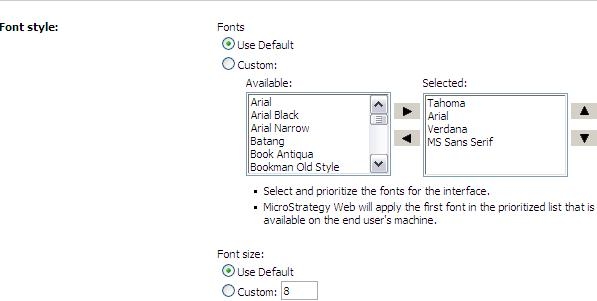
  • Under User Preferences > General, the user can set the Font Style which should control the menus and displays
    while navigating through Strategy Web.


ka04W000000Od2ZQAS_0EM4400000028Kh.jpeg
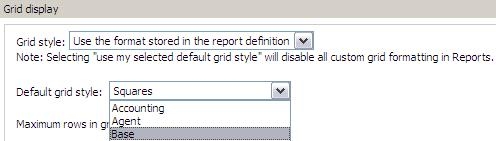
  • From the User Preferences > Grid display menu, the user can further select the custom autostyle created so that all reports that the user runs will appear using the custom autostyle fitting the font requirements at the report level.


ka04W000000Od2ZQAS_0EM4400000028Kj.jpeg
  • The same Preference setting changes will be required for each user.


Comment

0 comments

Details

Knowledge Article

Published:

June 23, 2017

Last Updated:

June 23, 2017