EducationSoftwareStrategy.com
StrategyCommunity

Knowledge Base

Product

Community

Knowledge Base

TopicsBrowse ArticlesDeveloper Zone

Product

Download SoftwareProduct DocumentationSecurity Hub

Education

Tutorial VideosSolution GalleryEducation courses

Community

GuidelinesGrandmastersEvents
x_social-icon_white.svglinkedin_social-icon_white.svg
Strategy logoCommunity

© Strategy Inc. All Rights Reserved.

LegalTerms of UsePrivacy Policy
  1. Home
  2. Topics

KB30857: How to import a file or XSL stylesheet into MicroStrategy Narrowcast Server 9.x - 10.x


Community Admin

• Strategy


In Strategy Narrowcast Server 9.x - 10.x files can be imported from an external file system into the object repository. These external files are stored in their original formats and can be used by the Deliver Engine for various purposes. Storing information in the file format preserves the integrity of the original data since these files cannot be modified with the Delivery Engine.
These imported file cannot be directly included in publications; they first must be associated with a formatted document, which serves as containers for them in the publications. Imported files can also be used as stylesheets or templates for documents. An eXtensible Stylesheet Language (XSL) stylesheet is applied at the document element level and transforms the eXtensible Markup Language (XML) returned by an information object into a format that can be used in a document.
Example:
The following steps describe how to import a file or XSL stylesheet into the Strategy Narrowcast Server system:

  • From the Strategy Narrowcast Administrator console toolbar, click on the 'New' icon and select 'Imported File'

ka04W000000OhQMQA0_0EM440000002B27.jpeg
  • Enter a name for the Imported File:

ka04W000000OhQMQA0_0EM440000002B2H.jpeg
  •  Specify the File Type. It can be changed by selecting a File Type from the following options in the drop-down list:

ka04W000000OhQMQA0_0EM440000002B2D.jpeg
  • The available File types are as follow:
    • Plaintext
    • HTML
    • XML
    • XSL
    • TML
    • WML
    • Excel
    • Word
    • PowerPoint
    • Zip
    • GIF
    • JPEG
    • BMP
    • AVI
    • MPEG
    • AIFF
    • WAV
    • PDF
    • Other
  • Select the Character Set to be used for the file. By default the System character set (ANSI) is selected.

ka04W000000OhQMQA0_0EM440000002B2B.jpeg
  • Below is the list of available Character Sets:
    • System character set (ANSI)
    • US-ASCII
    • Western (ISO-8859-1)
    • Central European (ISO-8859-2)
    • Baltic (ISO-8859-4)
    • Arabic (ISO-8859-6)
    • Greek (ISO-8859-7)
    • Hebrew (ISO-8859-8)
    • Turkish (ISO-8859-9)
    • Kanji (Shift-JIS)
    • Japanese (ISO-2022-JP)
    • Korean (EUC-KR)
    • Chinese Simplified (GB2312)
    • Chinese Traditional (BIG-5)
    • Thai (WINDOWS-874)
    • UTF-7
    • UTF-8
    • Unicode 1.1 (ISO-10646)
  • From the 'Import File' dialog box, select the Browse button to find the desired file.

ka04W000000OhQMQA0_0EM440000002B29.jpeg
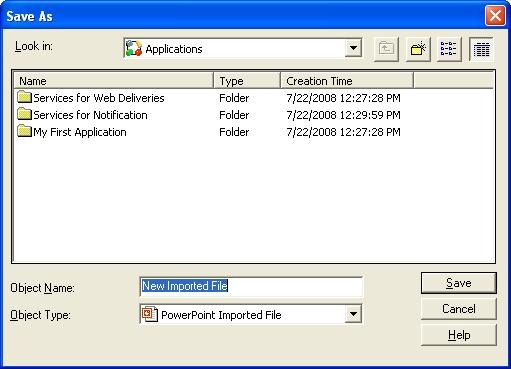
  • Click OK and then select a folder in which to save the new imported file or stylesheet.

ka04W000000OhQMQA0_0EM440000002B2R.jpeg
  • NOTES:
    The following file types are considered forms of text: plain text, HTML, XML, XSL, TML and WML.

The character set that was used when creating the file should be selected, because this character set is used to interpret the file and store it in the Strategy Narrowcast Server 9.x - 10.x Object Repository. When this file object is used within a formatted content document, the locale for the document should be set to a locale whose character set for relevant ITMs is equal to the character set that was selected when the file was imported (or a compatible character set).


Comment

0 comments

Details

Knowledge Article

Published:

May 22, 2017

Last Updated:

May 22, 2017