EducationSoftwareStrategy.com
StrategyCommunity

Knowledge Base

Product

Community

Knowledge Base

TopicsBrowse ArticlesDeveloper Zone

Product

Download SoftwareProduct DocumentationSecurity Hub

Education

Tutorial VideosSolution GalleryEducation courses

Community

GuidelinesGrandmastersEvents
x_social-icon_white.svglinkedin_social-icon_white.svg
Strategy logoCommunity

© Strategy Inc. All Rights Reserved.

LegalTerms of UsePrivacy Policy
  1. Home
  2. Topics

KB30924: How to merge repeated attribute elements when displayed in the detail section of a Report Services document


Stefan Zepeda

Salesforce Solutions Architect • Strategy


When an attribute is displayed in the detail section of a Report Services document, its value is repeated and there is no way of merging the values like in a report grid. This articles provides a wrokaround about how to merge repeated attribute elements when displayed in the detail section of a Report Services document.
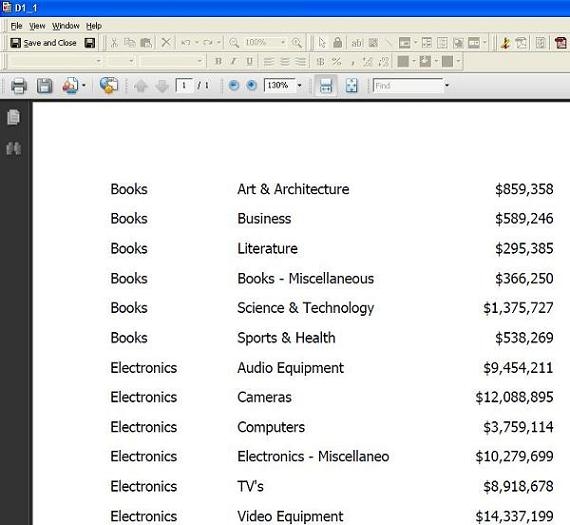
When an attribute is displayed in the detail section of a Report Services document, its value is repeated and there is no way of merging the values like in a report grid.
 

ka02R000000kVfsQAE_0EM440000002EOd.jpeg

 
To avoid repeating the group by attribute value for all rows of data in report services document follow the steps below:
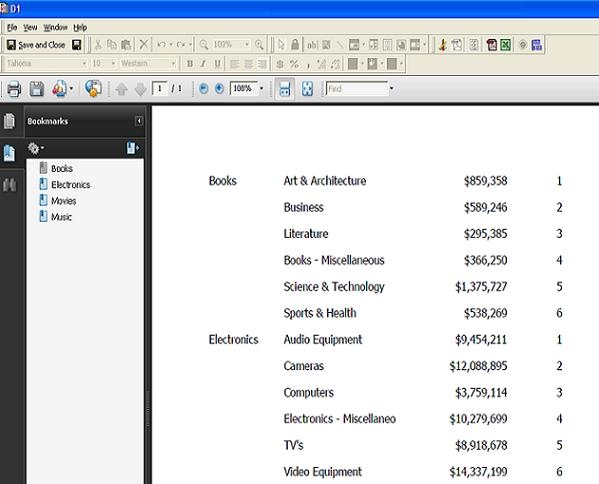
  • Create a metric M1 = Max (1) that returns value 1.
  • Create a metric M2 = RunningSum (M1) and break by the attribute that should be merged. Include M2 in the dataset. The Metric M2 returns value 1 for every first attribute element within the attribute as shown below:
     
ka02R000000kVfsQAE_0EM440000002EOZ.jpeg
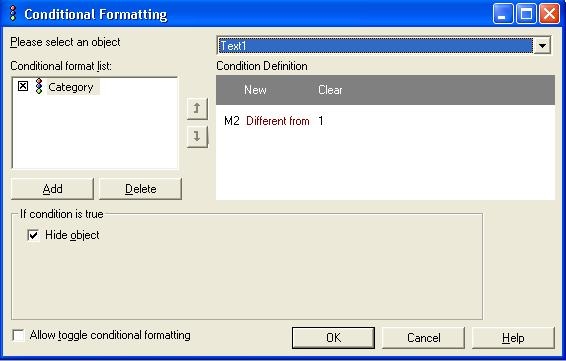
  • Apply conditional formatting to the attribute such that the attribute is displayed only when M2 = 1.
     
ka02R000000kVfsQAE_0EM440000002EOY.jpeg
  • Apply formatting to M1 such that the text is displayed white.
     
ka02R000000kVfsQAE_0EM440000002EOc.jpeg
  • Execute the document. The expected results are opened. The group by attribute is displayed at the detail section level and yet its value is not repeated for all rows of data as shown  below:
     
ka02R000000kVfsQAE_0EM440000002EOe.jpeg

Comment

0 comments

Details

Knowledge Article

Published:

May 30, 2017

Last Updated:

May 30, 2017