BACKGROUND
Strategy Enterprise Manager 10.x implemented a large number of changes in the data warehouse and associated Strategy project. As a result, the process of upgrading the Enterprise Manager Warehouse from version 9.x to 10.x is lengthy and can results in errors especially for those Enterprise Manager Warehouses where multiple Intelligence Servers were monitored.
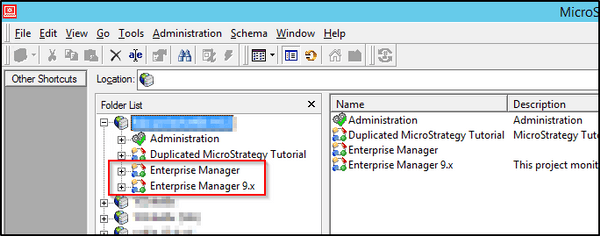
Strategy strongly recommends to keep the existing Enterprise Manager 9.x warehouse and project and create a fresh Enterprise Manager 10.x warehouse and project. These two warehouses and projects can exist side-by-side in the same Intelligence Server, allowing reporting on the historical 9.x data while simultaneously taking advantage of the new 10.x architecture. This technical note will cover the steps to implement this scenario, assuming that Strategy version 10.x software has been installed but that no changes have yet been made to the existing metadata, Enterprise Manager warehouse, or the Enterprise Manager project..
ACTION
Several of the initial steps will be part of the standard Strategy upgrade process. They are included here for the sake of clarity. If the metadata upgrade process has already been completed, skip to step 7 to perform the Enterprise Manager specific steps.
1. Configure the new Intelligence Server to the existing Strategy metadata.
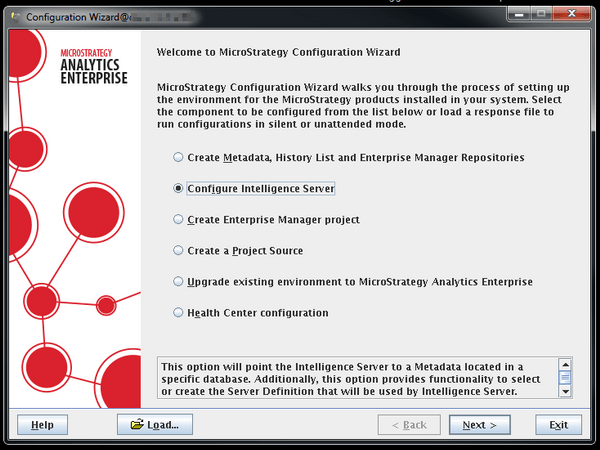
2. At the "Statistics Configuration" screen, uncheck both boxes
Note: This will disable statistics on all projects in this MD. Statistics will be re-enabled during a later step
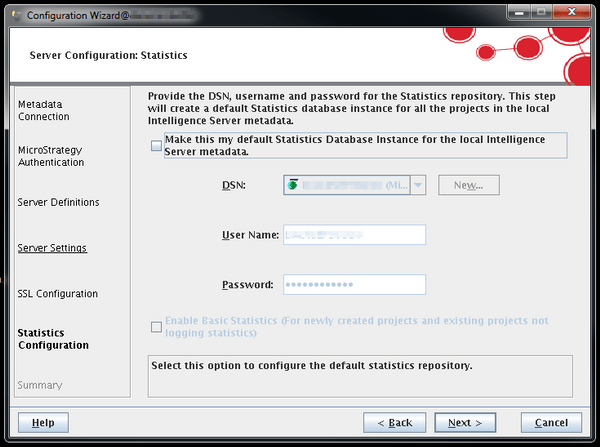
3. Once the configuration process is complete, return to the initial screen of Configuration Wizard and select the option to "Upgrade existing environment to Strategy Analytics Enterprise" to perform the metadata upgrade.
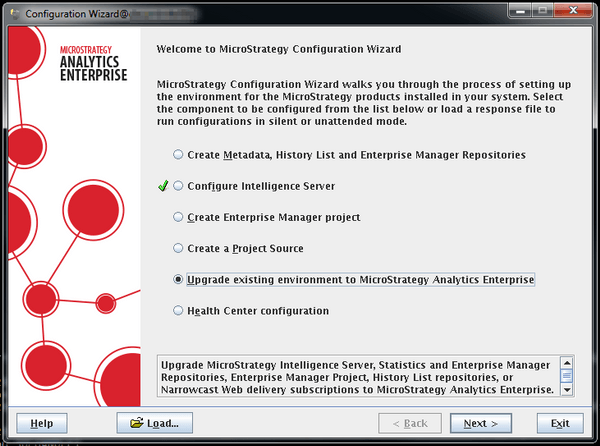
4. Select the option to upgrade Intelligence Server Components. Do not select the option to upgrade the Statistics & Enterprise Manager Repository, or to Upgrade Enterprise Manager Project.
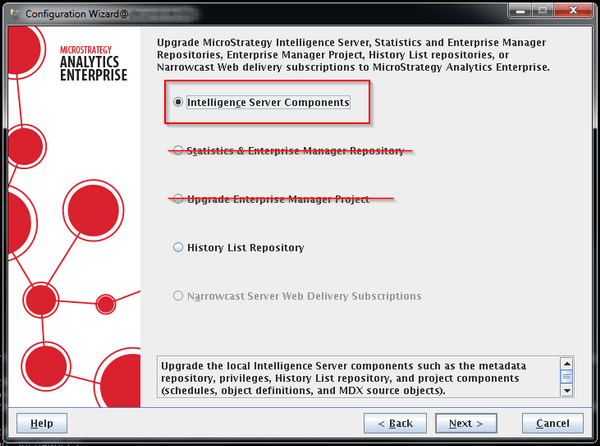
5. Continue through the upgrade process. At the "Select Components to Upgrade" screen, choose the desired options. Do include the Enterprise Manager project upgrade.
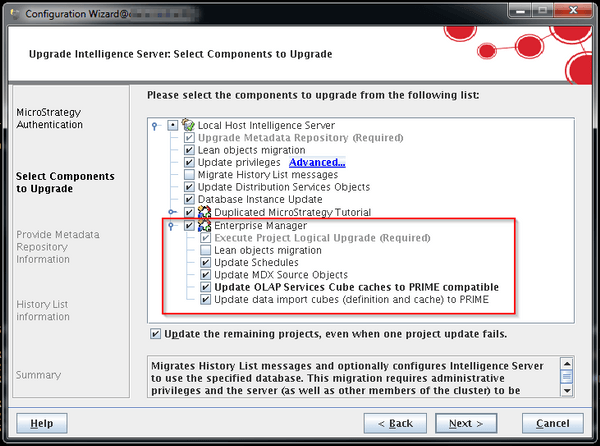
6. Once the upgrade process completes, all Strategy components will be up to date. The existing Enterprise Manager project (from version 9.x) will be ready for reporting use in version 10.x. In order to create the new Enterprise Manager 10.x environment, a new warehouse and project will now need to be created.
7. Prepare a target database for the new Enterprise Manager 10.x warehouse and create a DSN for it on the Intelligence Server machine. This warehouse needs to be in a separate database or schema from the old Enterprise Manager 9.x warehouse.
8. Return to the initial screen of Configuration Wizard and select the "Create Metadata, History List and Enterprise Manager Repositories" option.
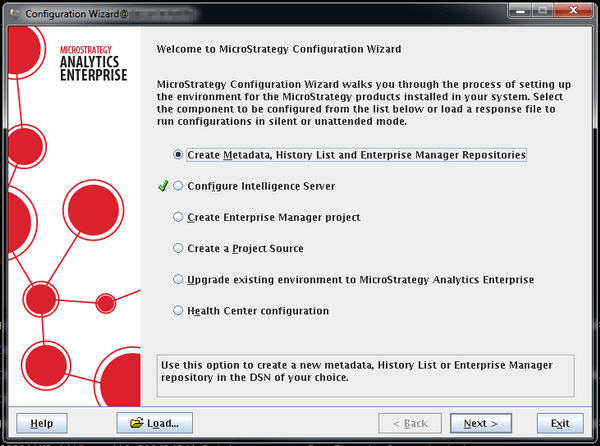
9. Select only the "Statistics & Enterprise Manager Repository" option.
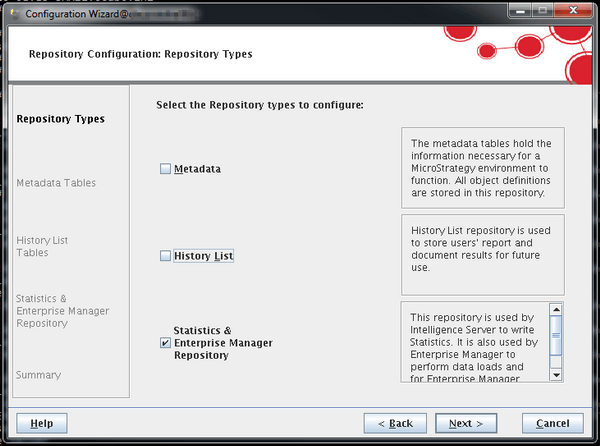
10. Enter the connection information for the new, blank database / schema to be used for the Enterprise Manager 10.x warehouse.
WARNING: entering the connection information for the existing Enterprise Manager 9.x warehouse will cause it to be lost!
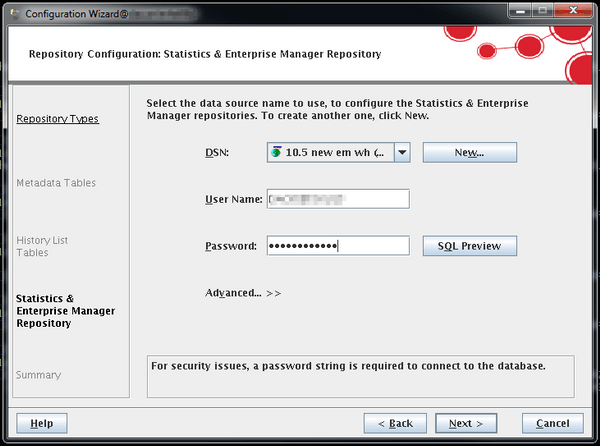
11. Complete the warehouse creation process. This will also automatically configure the Enterprise Manager Data Loader service on this machine to use this warehouse, and start it.
WARNING: If it is desired to run the Data Loader service on a different machine, it must be manually stopped here after the configuration is complete. Running multiple Data Loader services connected to the same Enterprise Manager warehouse will result in unexpected behavior and/or data loss.
12. Once the warehouse creation is complete, open Strategy Developer and connect to the Intelligence Server. If the existing Enterprise Manager 9.x project is named "Enterprise Manager", rename it now. The new Enterprise Manager 10.x project will fail to be created if there is already a project named "Enterprise Manager".
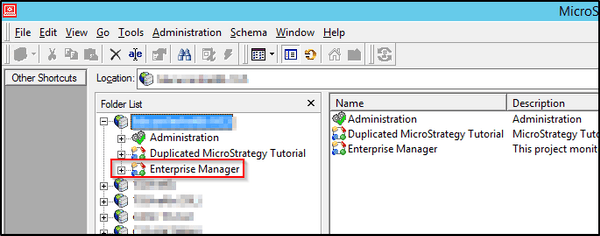
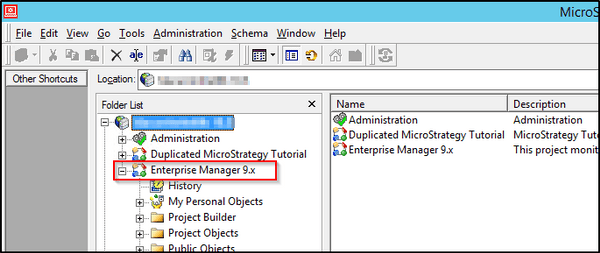
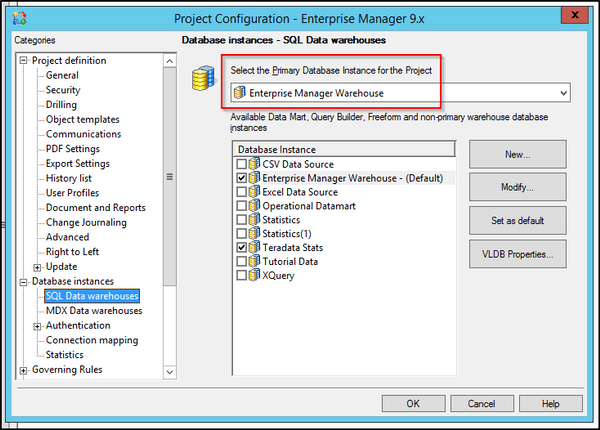
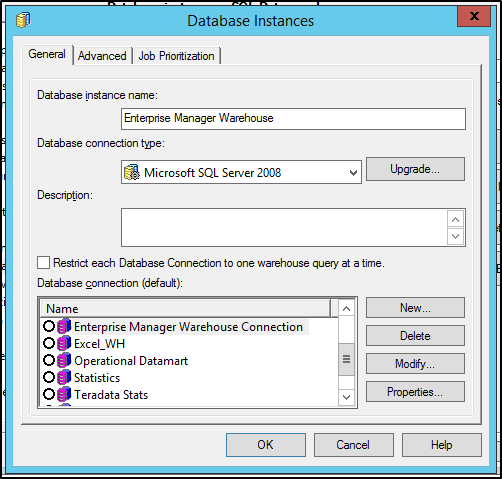
13. Open Project Configuration for the Enterprise Manager 9.x project and modify the primary warehouse database instance. Make a note of the settings here. The Enterprise Manager 10.x project creation will replace the existing default Enterprise Manager Warehouse database instance with updated values, so if the Enterprise Manager 9.x project is using this database instance it will need to have a new one created after the 10.x project is created. At the time of creating the new Enterprise Manager 10.x project, a new database connection object will be created with the name of the Enterprise Manager 10.x warehouse DSN, so the existing 9.x database connection object will be preserved and does not need to be recreated. Users can reuse this database connection object in the later steps (Step 17)
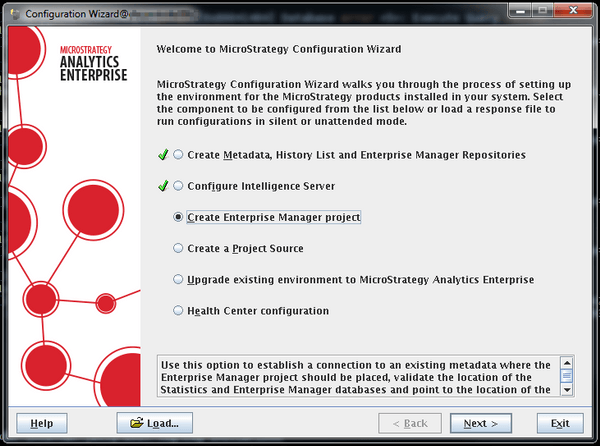
14. Return to Configuration Wizard on the Intelligence Server machine and select the "Create Enterprise Manager project" option. Log in using the Strategy Administrator account, select the DSN for the newly created Enterprise Manager 10.x warehouse (same as step 10), and complete the project creation process.
15. Once the project creation process completes, the new Enterprise Manager 10.x project will exist in the metadata, and will be called "Enterprise Manager". It will also be automatically configured to use the new Enterprise Manager 10.x warehouse as its primary warehouse database instance.
16. Return to the initial Configuration Wizard screen and select "Configure Intelligence Server" again. During this step Statistics will be activated for all projects, logging to the new Enterprise Manager 10.x warehouse. This step can also be performed manually through Statistics configuration for each project in Developer if desired, or if it is not desired to enable Statistics for all projects. Step through the configuration until the "Statistics Configuration" window is reached. Select the DSN for the new Enterprise Manager 10.x warehouse. If the DSN was created while Configuration Wizard was already running, it may be necessary to exit and relaunch Configuration Wizard for the DSN to show up in the list.
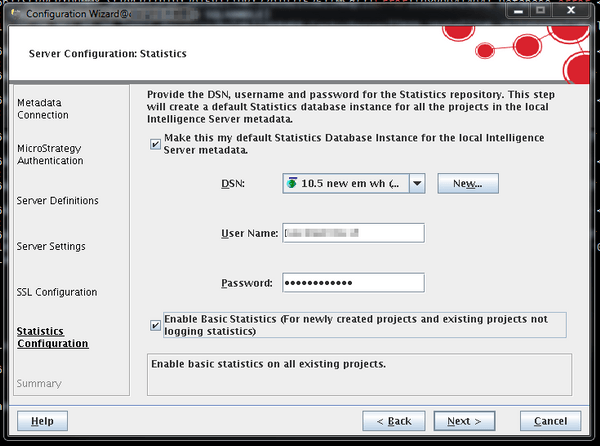
17. Complete the configuration process. Once the Intelligence Server restarts, it will be configured to log Statistics into the new Enterprise Manager 10.x warehouse. Two Enterprise Manager projects will exist, one that uses the Enterprise Manager 9.x warehouse and one that uses the Enterprise Manager 10.x warehouse. At this time, it will be necessary to create a new primary warehouse database instance for the Enterprise Manager 9.x project pointing at the old Enterprise Manager 9.x warehouse database connection if the existing database instance was replaced during the project creation. Use the settings that were noted in step 13 if necessary, and restart the Intelligence Server or unload and reload the Enterprise Manager 9.x project afterward.
The Enterprise Manager configuration is now complete. In case any issues arise with Statistics or reporting in either project, double-check that the Statistics database instance is correctly set to use the new 10.x warehouse, and that the two Enterprise Manager projects are set to use their respective warehouse database instances. If further assistance is required, contact Strategy Technical Support.