EducationSoftwareStrategy.com
StrategyCommunity

Knowledge Base

Product

Community

Knowledge Base

TopicsBrowse ArticlesDeveloper Zone

Product

Download SoftwareProduct DocumentationSecurity Hub

Education

Tutorial VideosSolution GalleryEducation courses

Community

GuidelinesGrandmastersEvents
x_social-icon_white.svglinkedin_social-icon_white.svg
Strategy logoCommunity

© Strategy Inc. All Rights Reserved.

LegalTerms of UsePrivacy Policy
  1. Home
  2. Topics

KB31016: How to display object prompts on grid reports in MicroStrategy 9.4.x-10.x Report Service Documents


Stefan Zepeda

Salesforce Solutions Architect • Strategy


In a Report Services document with the grid containing an object prompt as a dataset, it is possible to display the object selected in the prompt in the document.

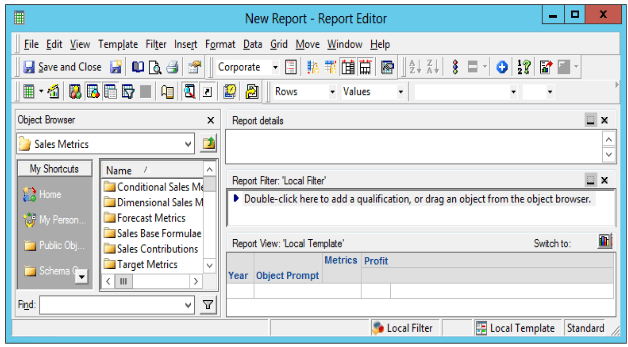
Consider the following object prompt that has three attributes as the pre-defined list of objects:
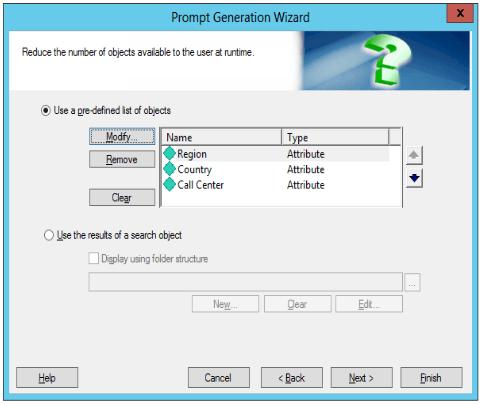
ka02R000000kbDMQAY_0EM44000000Q5ga.png
  • Create a report with Year attribute and the previous object prompt on the rows, and Profit metric on the column, as shown below:
ka02R000000kbDMQAY_0EM44000000Q5gf.png
  • Save and close the report using the 'Filter and Template will be prompted' option
  • Create a document and using this report as its dataset
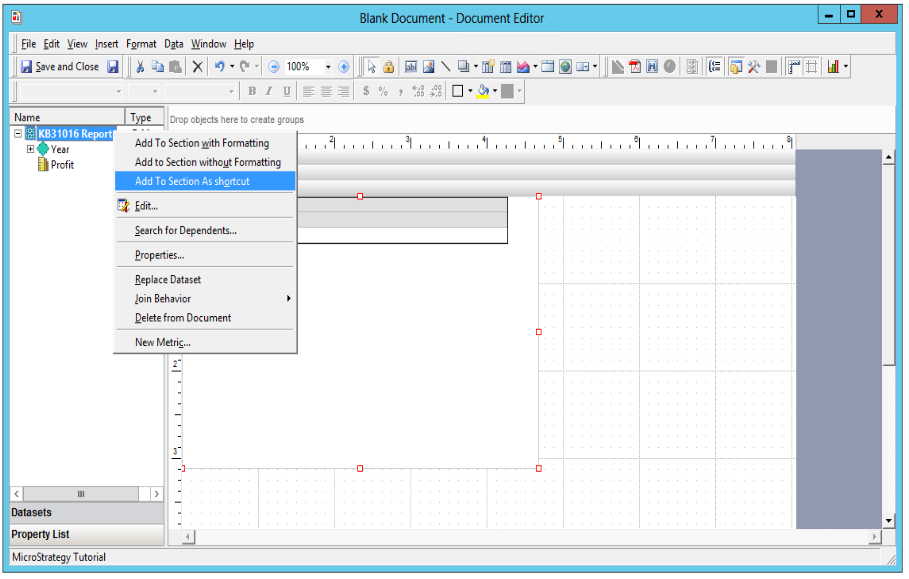
  • In Strategy Developer 9.4.x-10.x, for the object prompt to immediately show up in the PDF document, users need to choose the option 'Add to Section As Shortcut' when adding the grid to document: 
ka02R000000kbDMQAY_0EM44000000Q5gk.png
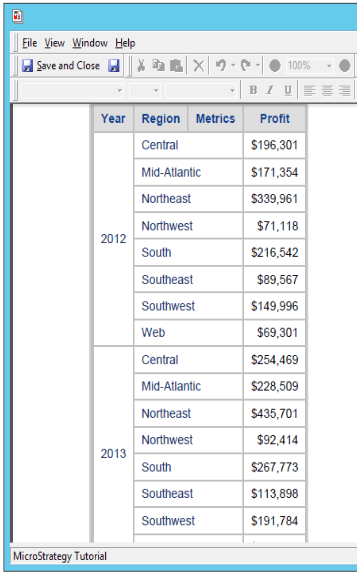
  • Execute the document and choose any attribute when prompted. Notice the attribute selected in object prompt is displayed in PDF document:
ka02R000000kbDMQAY_0EM44000000Q5gp.png

NOTE:
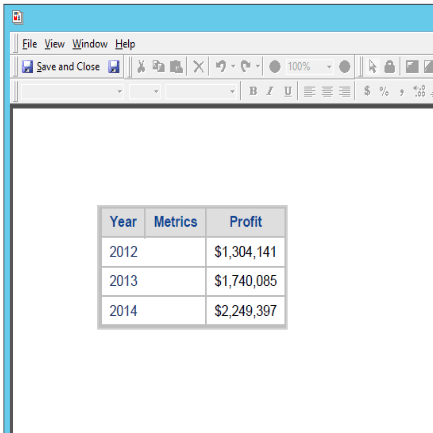
-   In Strategy Developer 9.4.x-10.x, in Step 4 when adding grid to document, if the users choose the option 'Add to Section with Formatting' or 'Add to Section without Formatting', the object selected in the prompt will not immediately appear when running document in PDF, which is shown below: 
ka02R000000kbDMQAY_0EM44000000Q5gu.png

                      
To display the object prompt, follow the steps below:
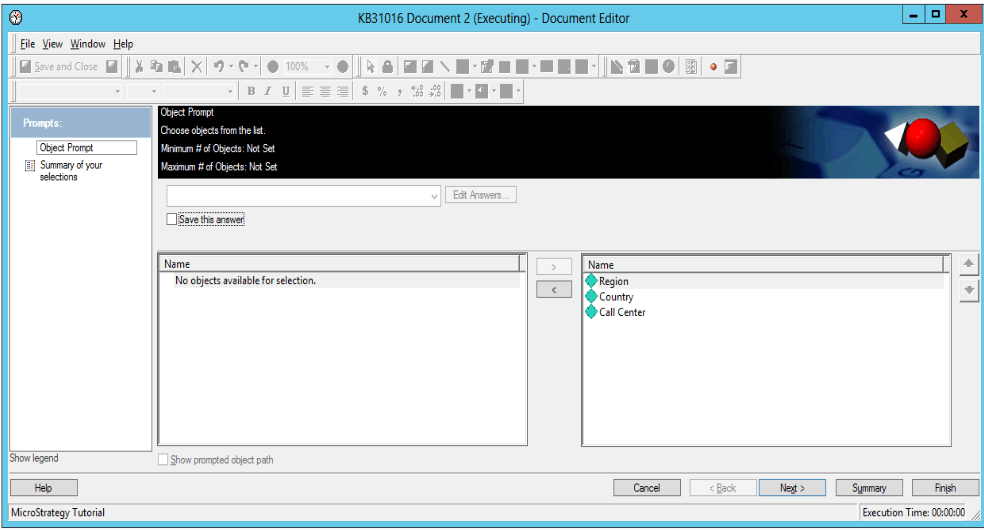
  • Select all potential objects in the object prompt when executing the document: 
ka02R000000kbDMQAY_0EM44000000Q5hE.png
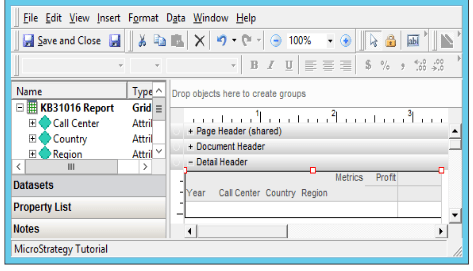
  • Switch to edit mode, add all report objects to the grid: 
ka02R000000kbDMQAY_0EM44000000Q5hJ.png

           
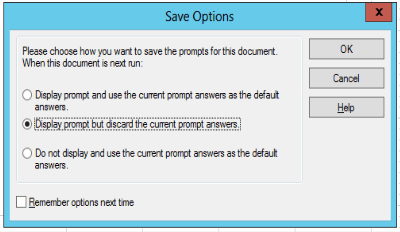
     3.   Save the document with the second option “Display prompt but discard the current prompt answers: 
           

ka02R000000kbDMQAY_0EM44000000Q5hT.png

Next time, when user executes the document, the prompt answer selected in the object prompt will be displayed in the PDF.


Comment

0 comments

Details

Knowledge Article

Published:

November 7, 2017

Last Updated:

November 7, 2017