This document shows how list control works when option "Show by default" is checked or unchecked in transaction documents in Strategy Mobile 10.4 and 10.5.
1. Create a report with attribute Category.
2. Create a transaction report with Category@ID as input.
3. Create one document with text box. Configure transaction on this text box with list control.
Input {Category@DESC} in text box as show below:
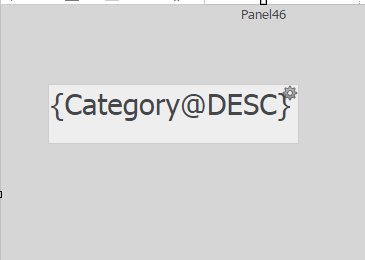
Configure transactions on this text box. Set DESC form as displayed form and ID form as write back form. With such settings, ID form will be always write back to Warehouse via SQL statement but the display of text box varies based on if "Show by default" is checked or not as below:
1.1 "Show by default" option is not enabled.

1) Execute the transaction document in mobile app. Books is the default display.
2) Select Electronics from the list. Before clicking on Done button, Electronics displays in text box.
3) Click on Done. ID value "2" of element Electronics actually displays in the text box.

1.2 "Show by default" option is enabled.
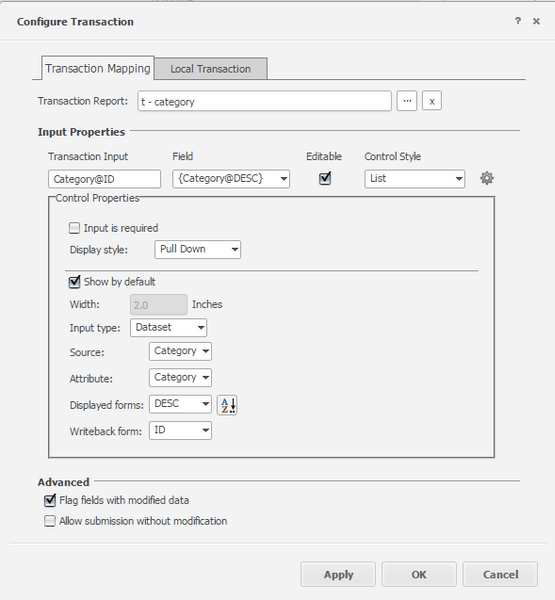
1) Execute the transaction document in mobile app. Null is the default display.
2) Select Electronics from the list. Before clicking on Done button, null displays in text box.
3) Click on Done. DESC form of element Electronics displays in the text box.

Input {Category@ID} in text box as show below:

Configure transactions on this text box. Set DESC form as displayed form and ID form as write back form. With such settings, ID form will be always write back to Warehouse via SQL statement but the display of text box varies based on if "Show by default" is checked or not as below:
2.1 "Show by default" option is not enabled.

1) Execute the transaction document in mobile app. ID value "1" of Books is the default display.
2) Select Electronics from the list. Before clicking on Done button, Electronics displays in text box.
3) Click on Done. ID value "2" of element Electronics displays in the text box.

2.2 "Show by default" option is enabled.

1) Execute the transaction document in mobile app. Books is the default display.
2) Select Electronics from the list. Before clicking on Done button, null displays in text box.
3) Click on Done. DESC form of element Electronics displays in the text box.

In some scenarios, users might have the following requirements:
To meet requirements above, Strategy recommends the settings shown in 2.2:
Note: With settings in 2.2, the default display of text box is null in Strategy Web.
KB310387
