SYMPTOM:
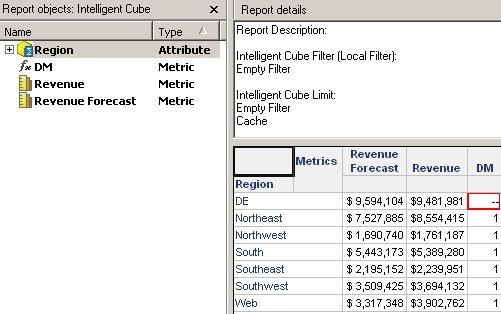
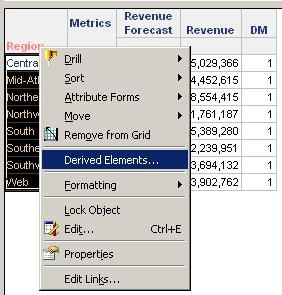
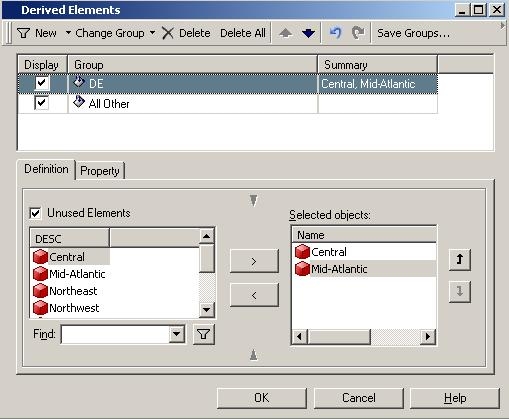
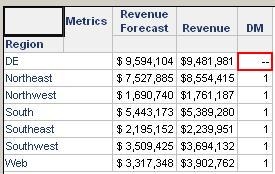
In Strategy Developer and Web 9.4.1, adding derived elements to a report causes a derived metric to display aggregation nulls “--“ as seen below:
STEPS TO REPRODUCE:
CAUSE:
This is working as designed in Strategy 9.4.1. Derived Elements follow the same logic as Dynamic Aggregation. With the default evaluation order, the Derived Metric is calculated before the Derived Element. Since users cannot set the Dynamic Aggregation function for Derived Metrics, the dynamic aggregation function is set to default. In this case, Analytical Engine will look into the metric expression to find out the default aggregation function.
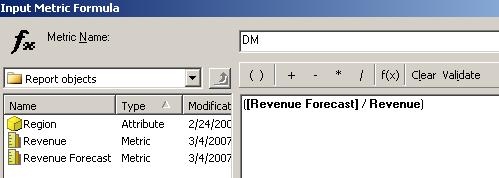
In the example above, the Derived Metric is using the operator division "/", which does not have a default aggregation function, and that is why it returns aggregation null whose null display string is set to "--" by default.
Note: Only functions that have a default aggregatable function are: Sum, Max, Min, Count(non-distinct), Product.
ACTION:
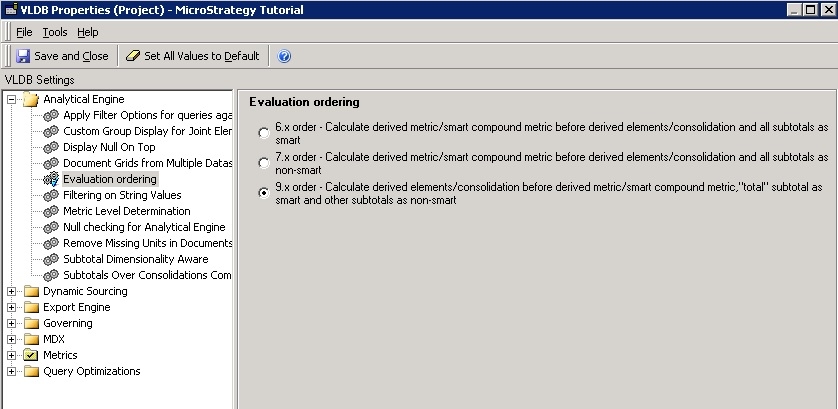
Upgrade to Strategy 10. In Strategy 10 the "evaluation ordering" VLDB property has had a new option added which is set as default. This option calculates derived elements before derived metrics avoiding the aggregation nulls seen. The setting is seen below.
9.x order - Calculate derived elements/consolidations before derived metric/smart compound metric, "total" subtotal as smart and other subtotals as non-smart
WORKAROUND:
Change the default evaluation order to let Derived Metric be evaluated after the Derived Element. There is no way to change the evaluation order in Strategy Web so the following step must be done in Strategy Developer.
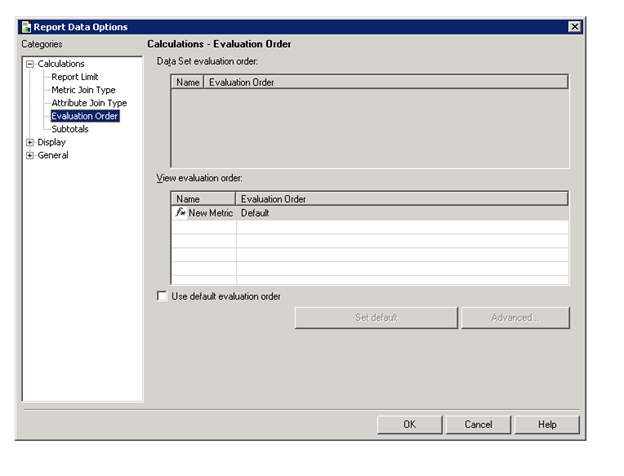
In the design view of the report, go to Data -> Report Data Options -> Evaluation Order. Uncheck the “Use default setting” and change the evaluation order for derived element to 1 and derived metric to 2 as shown below:
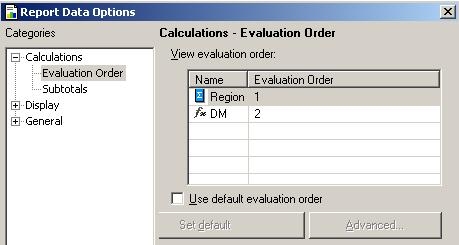
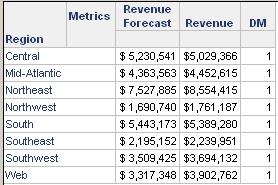
This will generate the expected results as seen below:
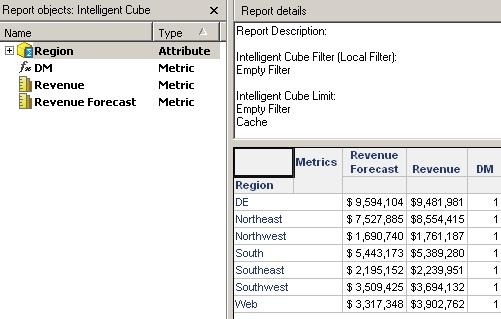
The above screenshots were for an Intelligent Cube based report but the same idea applies to a regular report that uses Derived Elements. Regular reports are able to contain Derived Elements in newer versions if the Derived Element is added in Web. However unlike an Intelligent Cube based report the evaluation order only shows the derived metric. This is due to a separate problem, but the workaround still works by merely changing the value of the derived metric to 1 or 2. The interface will look like the below picture.