EducationSoftwareStrategy.com
StrategyCommunity

Knowledge Base

Product

Community

Knowledge Base

TopicsBrowse ArticlesDeveloper Zone

Product

Download SoftwareProduct DocumentationSecurity Hub

Education

Tutorial VideosSolution GalleryEducation courses

Community

GuidelinesGrandmastersEvents
x_social-icon_white.svglinkedin_social-icon_white.svg
Strategy logoCommunity

© Strategy Inc. All Rights Reserved.

LegalTerms of UsePrivacy Policy
  1. Home
  2. Topics

KB31065: A Trendline from a MicroStrategy Developer 9.x/10.x graph report is different than the one generated in Microsoft Excel


Stefan Zepeda

Salesforce Solutions Architect • Strategy


This technical note describes an issue in which a Trendline from a MicroStrategy Developer 9.x/10.x graph report is different than the one generated in Microsoft Excel

SYMPTOM:
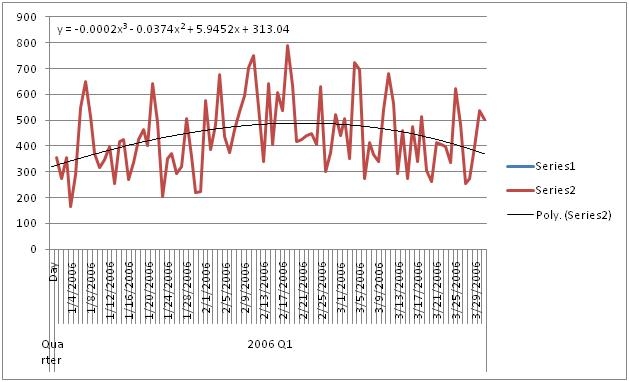
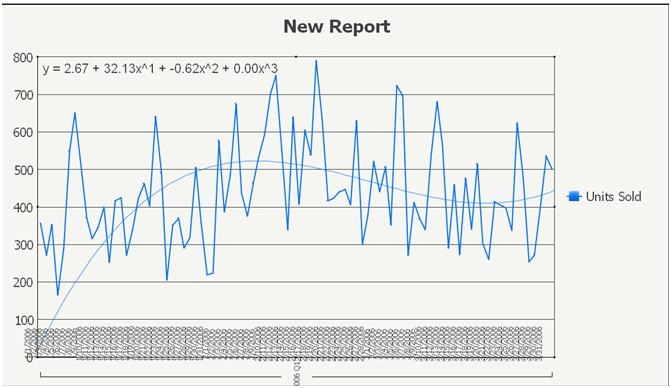
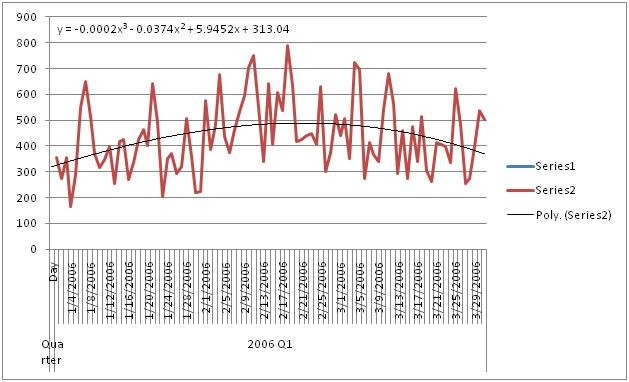
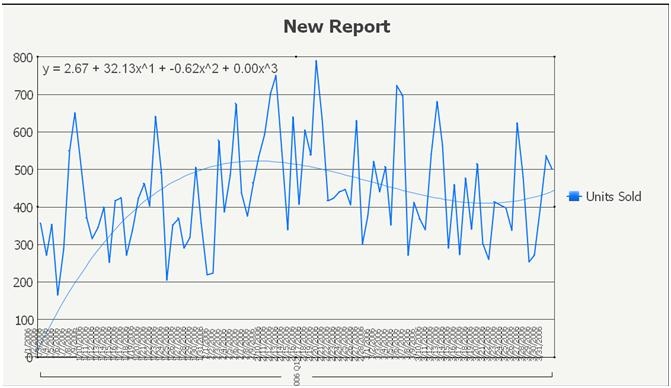
Users notice that the Trendline in a graph looks different in Microsoft Excel to the one generated in Strategy Developer 9.x/10.x as shown in the images below:
 
Strategy Developer 9.x
ka02R000000kY2DQAU_0EM440000002EPj.jpeg

Microsoft Excel

ka02R000000kY2DQAU_0EM440000002EPI.jpeg

 
STEPS TO REPRODUCE:
Execute in Strategy Tutorial:
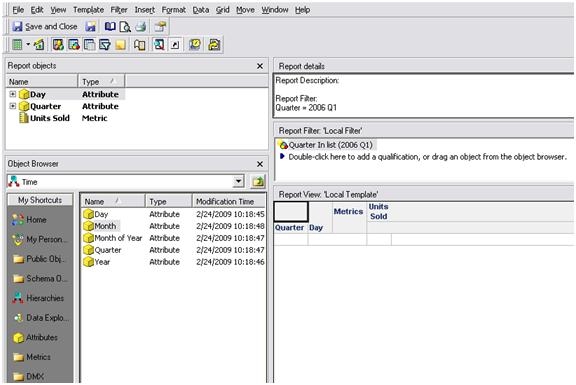
 

  • Create a simple report with the Quarter and Day attributes in the rows, and the metric Units Sold in the columns.  Add a Report filter where Quarter = 2006 Q1 as shown in the image below:
ka02R000000kY2DQAU_0EM440000002EPU.jpeg
  • Run the report as a Vertical Line: Absolute Graph.
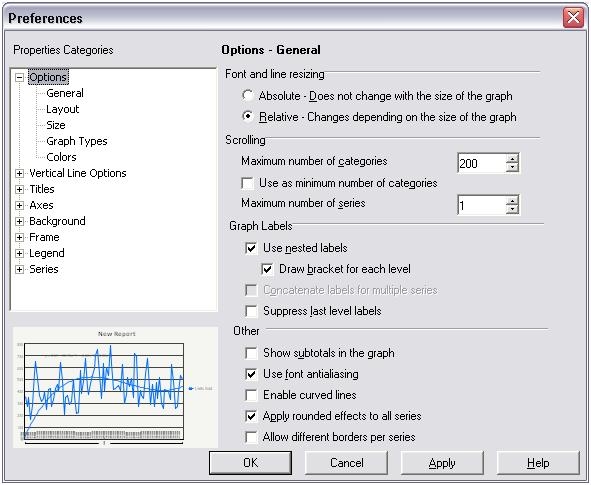
  • Right click on the graph and go to the Graph Preferences -> Options -> General and set the Maximum number of categories to 200 as shown in the image below:
ka02R000000kY2DQAU_0EM440000002EPl.jpeg
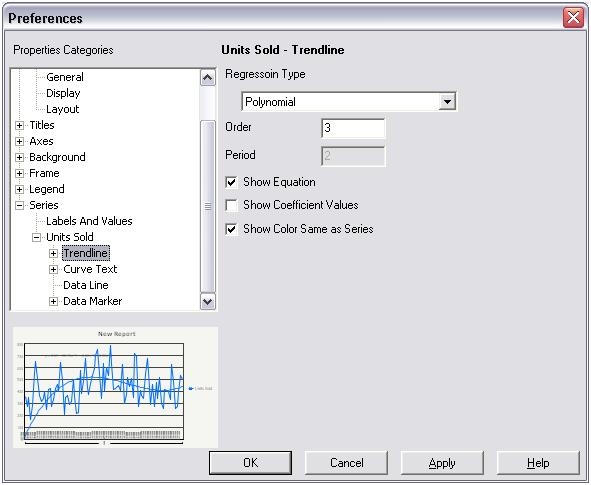
  • Go to Series -> Units Sold -> Trendline and set the following settings:
    a. Regression Type: Polynomial
    b. Order: 3
    c. Enable “Show Equation” as shown in the image below
ka02R000000kY2DQAU_0EM440000002EPM.jpeg
  • Execute the report and the Graph should look like below:
ka02R000000kY2DQAU_0EM440000002EPi.jpeg
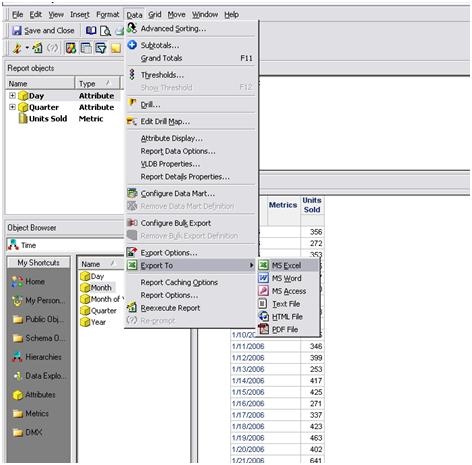
  • Export the Strategy Grid results to Excel as shown below:
ka02R000000kY2DQAU_0EM440000002EPQ.jpeg
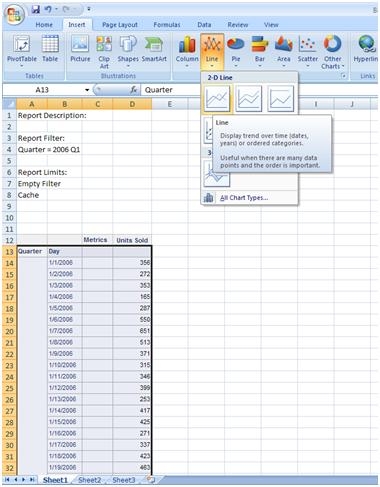
  • In Microsoft Excel highlight the results and go to the Menu toolbar Insert -> Line as shown in the image below:
ka02R000000kY2DQAU_0EM440000002EPg.jpeg
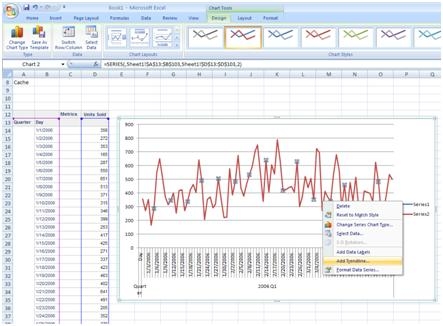
  • Highlight the Series and select “Add Trendline…” as shown below:
ka02R000000kY2DQAU_0EM440000002EPW.jpeg
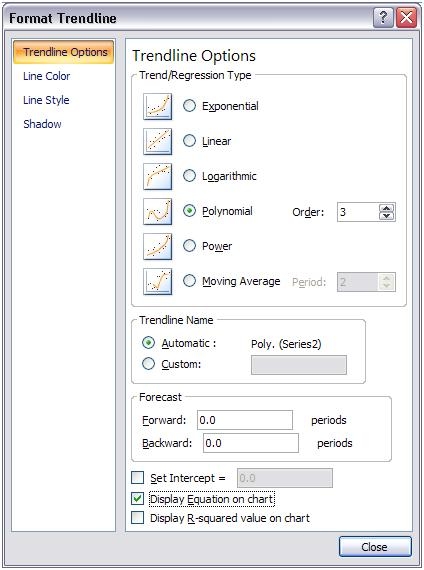
  • From the Format Trendline windows, select Polynomial, set Order to 3 and check “Display Equation on chart” as shown below:
ka02R000000kY2DQAU_0EM440000002EPG.jpeg
  • Now the graph should look similar to the image below:
ka02R000000kY2DQAU_0EM440000002EPS.jpeg

 
CAUSE:
Microsoft Excel and Strategy Developer 9.x/10.x calculate the Trendline differently. 
 
ACTION:
In Microsoft Excel:
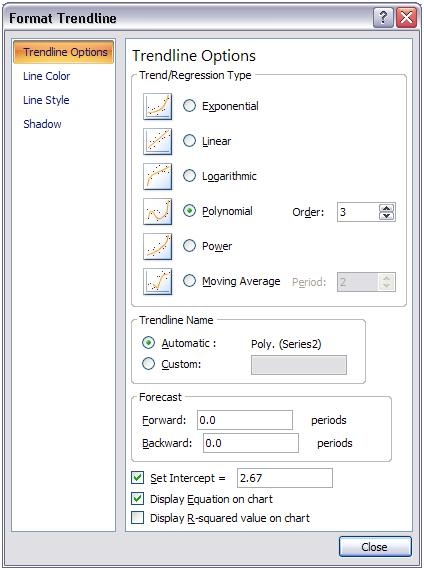
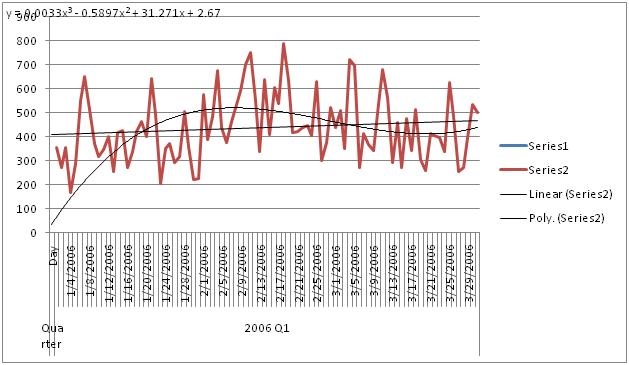
  • Go to the Format Trendline window, check the Set Intercept value to whatever the constant value from Strategy is, in this case the value is 2.67 as shown in the image below:
ka02R000000kY2DQAU_0EM440000002EPa.jpeg
  • The Trendline within the graph in Strategy Excel now should look the same than the one in Strategy Developer as shown in the image below:
ka02R000000kY2DQAU_0EM440000002EPK.jpeg

Note: The formula may still show different due to the decimal values, but the result now should be the same.


Comment

0 comments

Details

Knowledge Article

Published:

June 12, 2017

Last Updated:

June 12, 2017