EducationSoftwareStrategy.com
StrategyCommunity

Knowledge Base

Product

Community

Knowledge Base

TopicsBrowse ArticlesDeveloper Zone

Product

Download SoftwareProduct DocumentationSecurity Hub

Education

Tutorial VideosSolution GalleryEducation courses

Community

GuidelinesGrandmastersEvents
x_social-icon_white.svglinkedin_social-icon_white.svg
Strategy logoCommunity

© Strategy Inc. All Rights Reserved.

LegalTerms of UsePrivacy Policy
  1. Home
  2. Topics

KB311230: Project access privileges assigned to a user are not taken into consideration when using MicroStrategy Integrity Manager 10.1


Community Admin

• Strategy


This article describes an issue with privileges given in MicroStrategy Developer not matching with what is permitted and shown in MicroStrategy Integrity Manager 10.1.

SUMMARY
This article describes an issue with privileges given in Strategy Developer not matching with what is permitted and shown in Strategy Integrity Manager 10.1.
SYMPTOM
After creating a new user with access to only one specific project in Strategy Developer, this user is able to see all projects when creating a test in Strategy Integrity Manager 10.1.
STEPS TO REPRODUCE:
Follow these steps to reproduce the issue:

  1. In Strategy Developer 10.1, create a security role.
  2. Grant the following privileges to the security role:

- All common privileges.
- All Deliveries
- All Analyst
- All Integrity Manager

ka04W000000OdUGQA0_0EM440000002BzO.jpeg
  1. Create a user under the Everyone group
  2. In the user editor window, Project Access category, add the security role to one of the projects.  For this example select the security role for the Human Resources Analysis Module Project.

Note: Adding the security role, will allow access to the project for that specific user.  The user should not be allowed to access any other project.
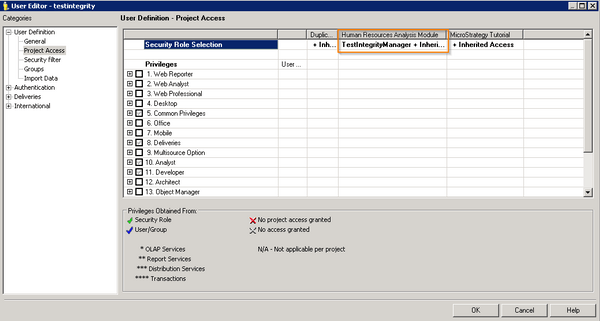
ka04W000000OdUGQA0_0EM440000002BzQ.jpeg
  1. Log in to Developer as the user created in step 3, and verify that access is only granted to the Human Resources Analysis Module project.
ka04W000000OdUGQA0_0EM440000002BzW.jpeg
  1. Log in to Integrity Manager as the user created in step 3.
  2. Create a "Project versus Project" Integrity Manager test.
  3. In the Strategy Integrity Manager wizard, when you select the Base or Target project Information all projects will be listed, even if no access is granted to those projects at the user level.
ka04W000000OdUGQA0_0EM440000002BzP.jpeg
  1. All projects can be accessed and selected in integrity Manager, even if the privilege under "Integrity Manager" has not been granted to the user.

CAUSE:
This has been identified as a defect in Strategy Integrity Manager 10.1
ACTION:
This issue has been fixed in Strategy Integrity Manager 10.6.  Upgrade to this version if you need to take advantage of the fix.


Comment

0 comments

Details

Knowledge Article

Published:

April 5, 2017

Last Updated:

April 5, 2017