EducationSoftwareStrategy.com
StrategyCommunity

Knowledge Base

Product

Community

Knowledge Base

TopicsBrowse ArticlesDeveloper Zone

Product

Download SoftwareProduct DocumentationSecurity Hub

Education

Tutorial VideosSolution GalleryEducation courses

Community

GuidelinesGrandmastersEvents
x_social-icon_white.svglinkedin_social-icon_white.svg
Strategy logoCommunity

© Strategy Inc. All Rights Reserved.

LegalTerms of UsePrivacy Policy
  1. Home
  2. Topics

KB31143: How to merge users from two different metadatas in MicroStrategy Developer?


Stefan Zepeda

Salesforce Solutions Architect • Strategy


Article outlines how to merge users from two different metadatas in MicroStrategy Developer

For ease of administration and to ensure that user objects are syncronized across different environments, an administrator may want to merge the users (objects) from two different metadata repositories in Strategy Developer.
The following procedure describes how to merge users from two different metadata repositories using the Project Duplication Wizard in Strategy Developer
Note: For the purposes of this example, the following steps assume that the source and destination metadatas are contained in separate databases.
 
In Strategy Developer:
  • In the source metadata, create an empty(dummy) project using the Project Creation Wizard.
  • Once the above project has been created, right mouse click on it and choose to "Duplicate Project" so that the project is duplicated using the Project Duplication Wizard.
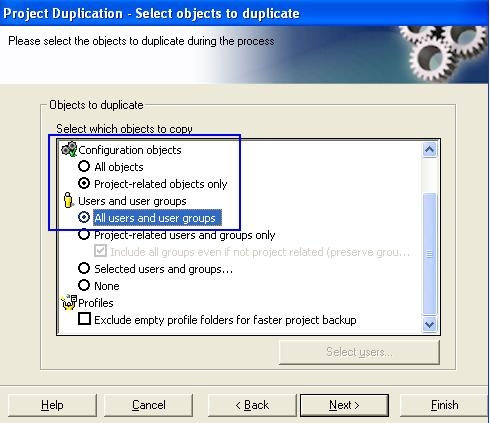
  • In the "Project Duplication - Select objects to duplicate" window, for Configuration objects, select the radio button for "Project-related objects only" and for users and user groups, select the radio button for "All users and user groups", as shown below:

ka02R000000kXTQQA2_0EM440000002EIb.jpeg
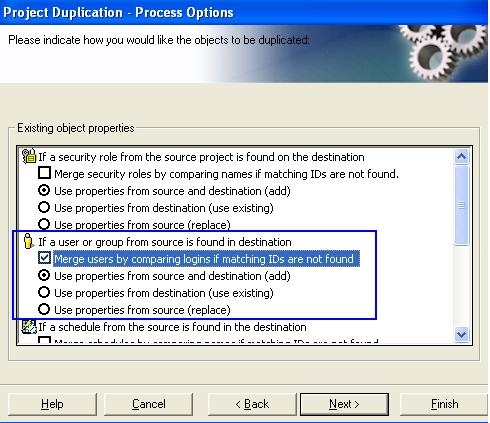
  • In the "Project Duplication - Process Options" window, for "If a user or group from source is found in destination", enable the checkbox to "Merge users by comparing logins if matching IDs are not found" and then select the appropriate radio button to either add the properties from source and destination, use properties from the destination or use the properties from the source, as shown below:

ka02R000000kXTQQA2_0EM440000002EIX.jpeg
  • Follow the steps to finish the project duplication in the Project Duplication Wizard.
  • After the Project Duplication Wizard has finished, the users from the source metadata have been successfully merged into the destination metadata.
  • After the users have been merged, the user can safely delete the empty(dummy) project from both source and destinations metadata.

Comment

0 comments

Details

Knowledge Article

Published:

June 15, 2017

Last Updated:

June 15, 2017