EducationSoftwareStrategy.com
StrategyCommunity

Knowledge Base

Product

Community

Knowledge Base

TopicsBrowse ArticlesDeveloper Zone

Product

Download SoftwareProduct DocumentationSecurity Hub

Education

Tutorial VideosSolution GalleryEducation courses

Community

GuidelinesGrandmastersEvents
x_social-icon_white.svglinkedin_social-icon_white.svg
Strategy logoCommunity

© Strategy Inc. All Rights Reserved.

LegalTerms of UsePrivacy Policy
  1. Home
  2. Topics

KB31293: How to create a report that displays password expiration dates for user objects in the metadata in MicroStrategy Enterprise Manager 9.x and 10.x?


Community Admin

• Strategy


How to create a report that displays password expiration dates for user objects in the metadata in MicroStrategy Enterprise Manager 9.x and 10.x?

For administration purposes a user may desire to know the password expiration date for user objects in the metadata in order to proactively send notifications via email before passwords actually expire.
 
The following document explains how to create a report in Strategy Enterprise Manager 9.x and 10.x that displays user object password expiration dates.
 
In Strategy Enterprise Manager:
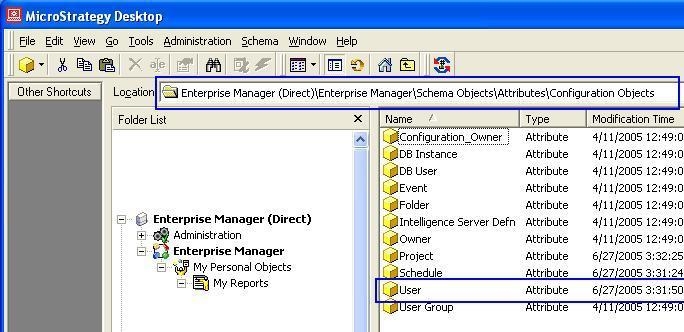
  • Go to Schema Objects\Attributes\Configuration Objects.
  • Locate the "User" attribute, as shown below:

ka04W000000OgkZQAS_0EM440000002Axx.jpeg
  • Create a simple report with the "User" attribute.
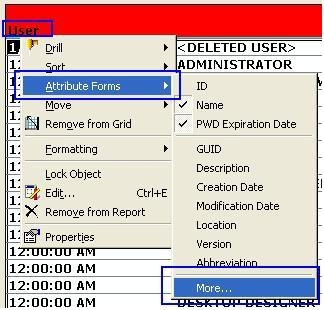
  • In the report editor, right mouse click on the "User" attribute and go to Attribute Forms > More..., as shown below:

ka04W000000OgkZQAS_0EM440000002Axz.jpeg
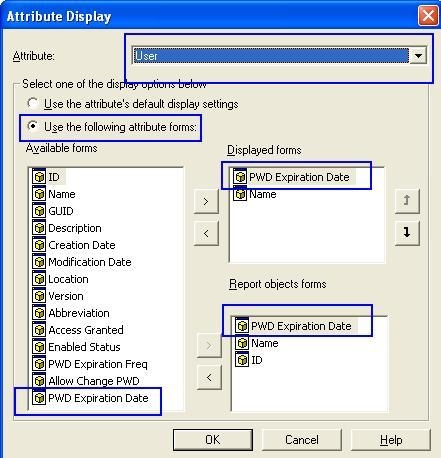
  • Enable the "PWD Expiration Date" attribute form, as shown below:

ka04W000000OgkZQAS_0EM440000002Ay2.jpeg
  • Re-run the report and it will now display the expiration date for the respective users` passwords. 


Comment

0 comments

Details

Knowledge Article

Published:

June 12, 2017

Last Updated:

June 12, 2017