EducationSoftwareStrategy.com
StrategyCommunity

Knowledge Base

Product

Community

Knowledge Base

TopicsBrowse ArticlesDeveloper Zone

Product

Download SoftwareProduct DocumentationSecurity Hub

Education

Tutorial VideosSolution GalleryEducation courses

Community

GuidelinesGrandmastersEvents
x_social-icon_white.svglinkedin_social-icon_white.svg
Strategy logoCommunity

© Strategy Inc. All Rights Reserved.

LegalTerms of UsePrivacy Policy
  1. Home
  2. Topics

KB314158: How to apply the same attribute qualification to both the fact table and the lookup table in the same report


Community Admin

• Strategy


How to apply the same attribute qualification to both the fact table and the lookup table in the same report

SUMMARY
This document describes a way to apply an attribute qualification to both the lookup table and the fact table in a report in Strategy 10.x.
 
DESCRIPTION
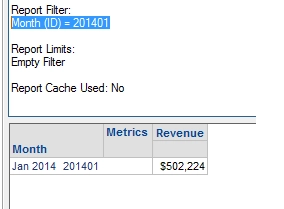
A user may want to apply an attribute qualification to both the lookup table and the fact table in a report.  For example, consider a report with the Month attribute and the Revenue metric from the Strategy Tutorial Project which filters on Month (ID) = 201401.
ka04W000000OhMTQA0_0EM440000002C0m.jpeg

By default the filter will be applied to the fact table as seen below:


select	a11.[MONTH_ID] AS MONTH_ID,
	max(a12.[MONTH_DESC]) AS MONTH_DESC0,
	max(a12.[MONTH_ID]) AS MONTH_ID0,
	sum(a11.[TOT_DOLLAR_SALES]) AS Revenue
from	([MNTH_CATEGORY_SLS]	a11
	inner join	[LU_MONTH]	a12
	  on 	(a11.[MONTH_ID] = a12.[MONTH_ID]))
where	a11.[MONTH_ID] = 201401
group by	a11.[MONTH_ID]

However, the user may want the qualification to be applied to both the fact table and the lookup table:


where	a11.[MONTH_ID] = 201401
 and a12.[MONTH_ID] = 201401


The following steps can be used to achieve this.
 
STEPS TO FOLLOW

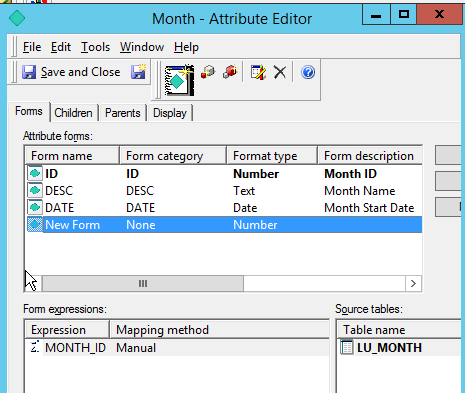
  • Create a new attribute form for the attribute that the qualification will be based on.  The attribute form should use the same column as the ID attribute form, but it should only be sourced from the lookup table for the attribute.
ka04W000000OhMTQA0_0EM440000002C0f.jpeg
  • Create 2 attribute filters in the report.  One filter uses the original ID form of the attribute
ka04W000000OhMTQA0_0EM440000002C0d.jpeg
  • and the second filter is defined in the same way except it uses the attribute form created in  step 1
ka04W000000OhMTQA0_0EM440000002C0o.jpeg
  • Confirm that the WHERE Clause Driving Table VLDB property is set to use the fact table, which is the default value.

And the SQL will now be generated as desired.


select	a11.[MONTH_ID] AS MONTH_ID,
	max(a12.[MONTH_DESC]) AS MONTH_DESC0,
	max(a12.[MONTH_ID]) AS MONTH_ID0,
	sum(a11.[TOT_DOLLAR_SALES]) AS Revenue
from	([MNTH_CATEGORY_SLS]	a11
	inner join	[LU_MONTH]	a12
	  on 	(a11.[MONTH_ID] = a12.[MONTH_ID]))
where	(a11.[MONTH_ID] = 201401
 and a12.[MONTH_ID] = 201401)
group by	a11.[MONTH_ID]

Additional steps can be taken if the filter should be based off of a prompt. In that scenario the second filter qualification needs to be created as an advanced filter qualification with a definition similar to the following:
Applycomparison(“#0=#E1”,month@[new form],element prompt)


Comment

0 comments

Details

Knowledge Article

Published:

May 24, 2017

Last Updated:

May 24, 2017