EducationSoftwareStrategy.com
StrategyCommunity

Knowledge Base

Product

Community

Knowledge Base

TopicsBrowse ArticlesDeveloper Zone

Product

Download SoftwareProduct DocumentationSecurity Hub

Education

Tutorial VideosSolution GalleryEducation courses

Community

GuidelinesGrandmastersEvents
x_social-icon_white.svglinkedin_social-icon_white.svg
Strategy logoCommunity

© Strategy Inc. All Rights Reserved.

LegalTerms of UsePrivacy Policy
  1. Home
  2. Topics

KB31443: How to create a new Application Pool in Microsoft IIS 6.0 for use with an existing installation of MicroStrategy Web 9.x


Community Admin

• Strategy


This Knowledge Base article describes how to create a new Application Pool in Microsoft IIS 6.0 for use with an existing installation of MicroStrategy Web 9.x

On occasion, users or administrators may need to recreate an application pool for troubleshooting or diagnostic purposes.   The following procedure explains how to create a new web application pool for use with an existing installation of Strategy Web using IIS 6.0:
 
On the Web Server machine, navigate to the Internet Information Services (IIS) Manager located in Control Panel > Administrative Tools.

  • From the tree menu on the left, expand the entries under the machine name and right-click on the Application Pools folder. Select New > Application Pool.
  • In the resulting menu, name the Application Pool, and specify to use an existing application pool as template. Select the existing StrategyWebPool as the template. Click OK.
ka04W000000OczCQAS_0EM4400000028ET.jpeg
  • With the new pool created, expand the Web Sites folder and expand the web site under which the Strategy virtual directory appears (Default Web Site in a fresh installation)
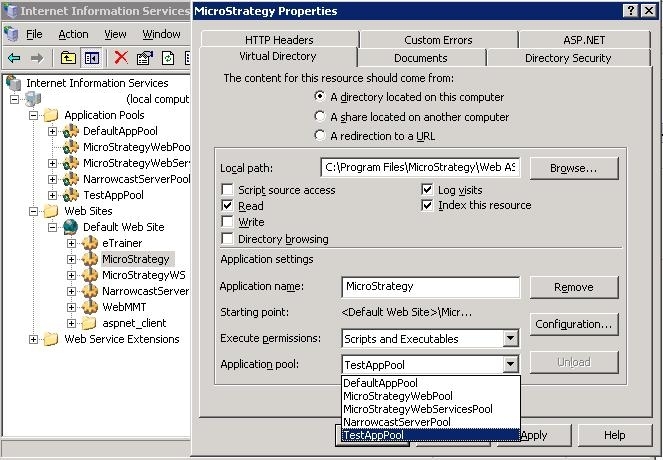
  • In order to specify that the Strategy web site should use the new application pool, right click on the Strategy virtual directory and go to Properties.
  • On the Virtual Directory tab, use the drop-down menu near the bottom to specify which Application pool should be used. Click Apply/OK.
ka04W000000OczCQAS_0EM4400000028EV.jpeg
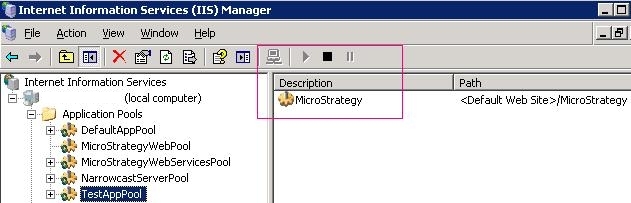
  • Ensure that the new Application Pool is running and hosting the Strategy web site by highlighting the Application Pool in the tree menu and noting the associated web site and that the play button is pressed near the top of the window.
ka04W000000OczCQAS_0EM4400000028EW.jpeg
  • The Strategy web site application should now be running using the newly created TestAppPool. 

Comment

0 comments

Details

Knowledge Article

Published:

June 23, 2017

Last Updated:

June 23, 2017