EducationSoftwareStrategy.com
StrategyCommunity

Knowledge Base

Product

Community

Knowledge Base

TopicsBrowse ArticlesDeveloper Zone

Product

Download SoftwareProduct DocumentationSecurity Hub

Education

Tutorial VideosSolution GalleryEducation courses

Community

GuidelinesGrandmastersEvents
x_social-icon_white.svglinkedin_social-icon_white.svg
Strategy logoCommunity

© Strategy Inc. All Rights Reserved.

LegalTerms of UsePrivacy Policy
  1. Home
  2. Topics

KB315014: A DSN-less connection cannot be created to Teradata when the MicroStrategy Intelligence Server is installed on UNIX/Linux operating systems in MicroStrategy 9.4.1 and newer.


Community Admin

• Strategy


A DSN-less connection cannot be created to Teradata when the MicroStrategy Intelligence Server is installed on UNIX/Linux operating systems in MicroStrategy 9.4.1 and newer.

SUMMARY
This issue has been classified as expected behavior by Strategy.  A solution for this issue is available in the following document.
 
SYMPTOM
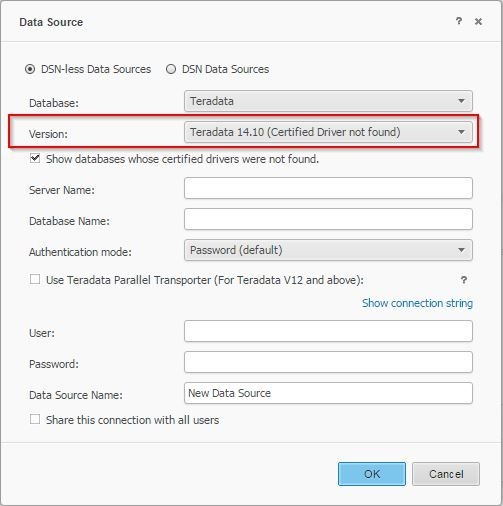
On Strategy Intelligence Server running on UNIX/Linux operating systems, when trying to create a DSN-less connection to a Teradata database, the interface shows "Certified Driver not found", even when the driver has been installed correctly on the Strategy Intelligence Server and a DSN has been created and it works correctly.
 

ka04W000000ObbSQAS_0EM4400000025RL.jpeg


Teradata 14.10 (Certified Driver not found)
 
STEPS TO REPRODUCE

  1. Install the Teradata driver on the Intelligence Server, and create an entry in the odbc.ini file to create a DSN to a Teradata Database.
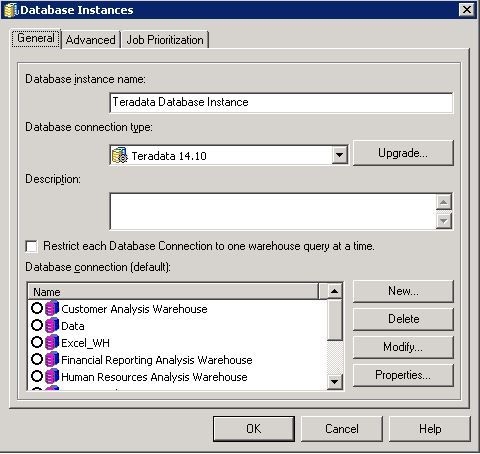
  2. Create a Database Instance using the DSN just created to test that the driver is working correctly:
ka04W000000ObbSQAS_0EM4400000025RQ.jpeg


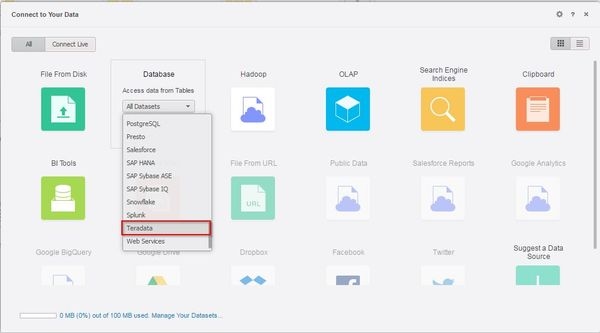
  1. Log in Web and go to Add External Data, select Database – Teradata:
ka04W000000ObbSQAS_0EM4400000025RS.jpeg


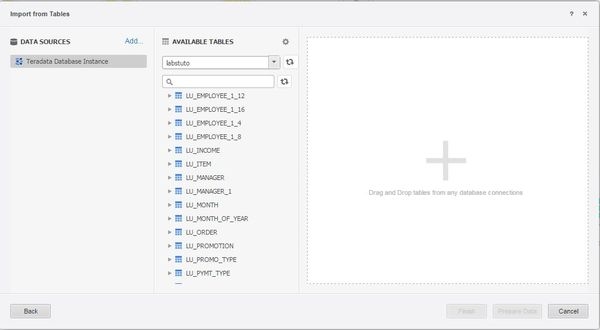
  1. Select any of the three options, confirm the driver is working correctly by selecting the Database Instance created, notice the tables populate correctly for the Database Instance:


ka04W000000ObbSQAS_0EM4400000025RJ.jpeg
  1. Try to create a DSN-less connection by selecting the 'Add…' link next to data sources, and notice that the Teradata Driver 14.10 that has been installed, cannot be found, and that a DSN-less Data source cannot be created.

 
CAUSE
This is expected behavior. If the odbcinst.ini has not been updated with the correct path to the Teradata driver, then the Web data import will report back to the user with the 'Certified driver not found" message.
 
 
ACTION
Find and edit the odbcinst.ini file in the Strategy home directory. Locate the entry for the Teradata driver and add the Teradata path in the Driver and Setup values, making sure that they point to the tdata.so, as seen below:


[Teradata]
Driver=/opt/teradata/client/ODBC_64/lib/tdata.so
Description=Server running Teradata
APILevel=0
ConnectFunctions=YYY
DriverODBCVer=3.52 
FileUsage=0 
Setup=/opt/teradata/client/ODBC_64/lib/tdata.so
SQLLevel=0
SessionMode=Teradata
NoScan=Yes
RunInQuietMode=Yes
StCheckLevel=0
DateTimeFormat=AAA
CharacterSet=Enable
ExtendedStmtInfo=Yes
UseNativeLOBSupport=No


Also, the ODBC.sh file needs to be updated, this can be found under the following directory: <MSTR_HOME_PATH>/env; modify the Teradata path, as seen below:
 

#
# ODBC Driver for Teradata
# MSTR_TERADATA_PATH=/opt/teradata/client/ODBC_64

if [ "${MSTR_TERADATA_PATH}" != '<MSTR_TERADATA_PATH>' ]; then
mstr_append_path LIBPATH "${MSTR_TERADATA_PATH:?}"/lib
export LIBPATH
 
NOTE: The Teradata path used in this example will vary depending on where the Teradata driver was installed.
 
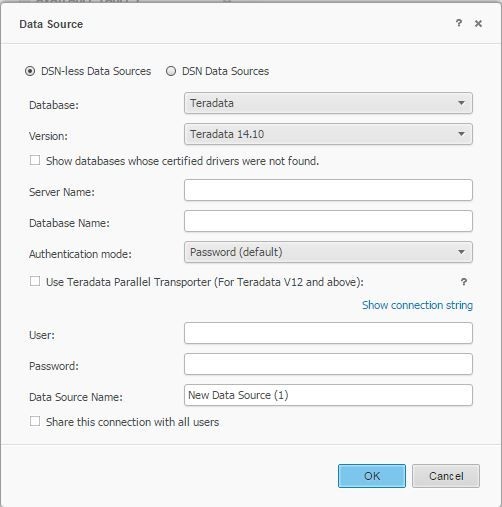
After making the changes, restart the Strategy Intelligence Server. Users will no longer see the message "Certified driver not found" when trying to create a DSN-less connection:

ka04W000000ObbSQAS_0EM4400000025RU.jpeg

Comment

0 comments

Details

Knowledge Article

Published:

May 30, 2017

Last Updated:

May 30, 2017