EducationSoftwareStrategy.com
StrategyCommunity

Knowledge Base

Product

Community

Knowledge Base

TopicsBrowse ArticlesDeveloper Zone

Product

Download SoftwareProduct DocumentationSecurity Hub

Education

Tutorial VideosSolution GalleryEducation courses

Community

GuidelinesGrandmastersEvents
x_social-icon_white.svglinkedin_social-icon_white.svg
Strategy logoCommunity

© Strategy Inc. All Rights Reserved.

LegalTerms of UsePrivacy Policy
  1. Home
  2. Topics

KB31530: How to configure MicroStrategy Web Services for use with MicroStrategy Office.


Community Admin

• Strategy


This guide on how to configure Strategy Web Services 9.x is divided into 3 sections:
 

  1. Installation
    1. ASP version
    2. J2EE version
  2. Installation considerations
  3. Configuration

Strategy Web Services integrates Strategy Web with the simple Object Access Protocol (SOAP) and Web Services Description Language (WSDL) internet technologies.  Strategy uses Web Services to connect Strategy Office with the Microsoft Office suite.
 

  • Installation
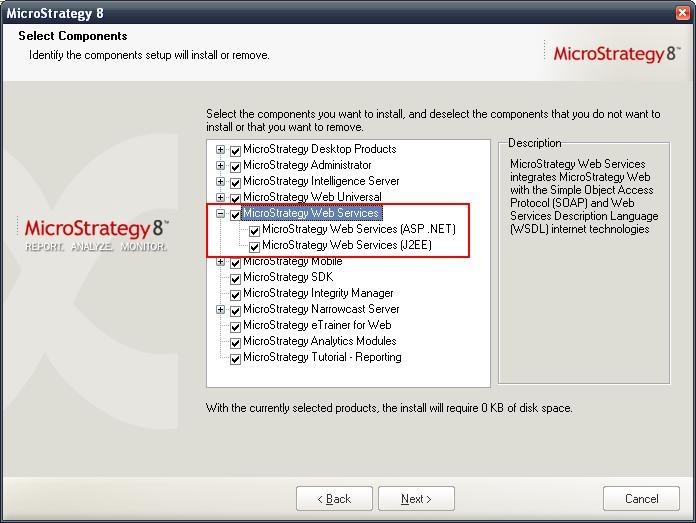
    There are two versions of Strategy Web Services, like shown in the image below.

ka04W00000148tRQAQ_0EM4400000028DO.jpeg
    • ASP version
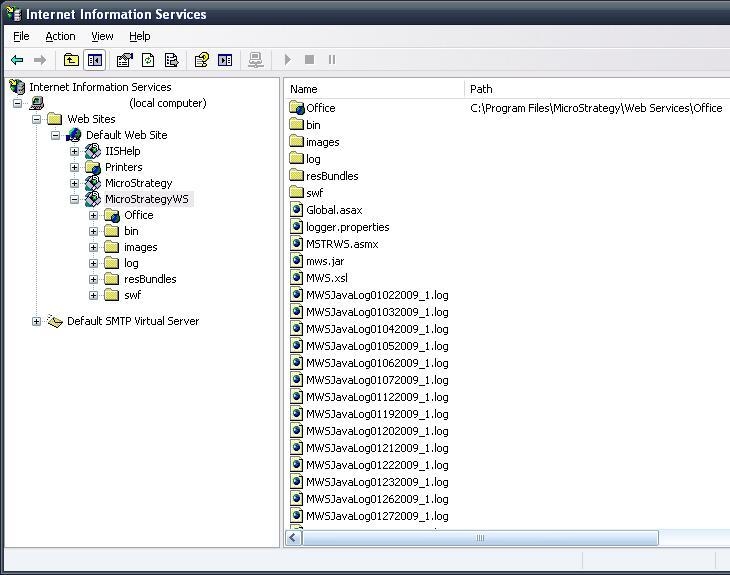
      The ASP version is automatically installed through the Strategy 9.x Windows installer. It runs in a Microsoft .NET environment, so a virtual directory is created in IIS. If the default installation is followed, the directory should look like the following image.
       
ka04W00000148tRQAQ_0EM4400000028DS.jpeg
    • J2EE version
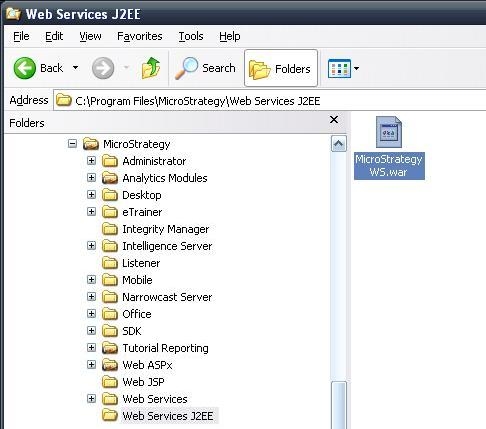
      The J2EE version runs in a J2EE environment. When the Windows installer has finished installing all components, the following Strategy WS.war file is created like shown in the image below.
       
ka04W00000148tRQAQ_0EM4400000028Dc.jpeg
    •  


      C:\Program Files\Strategy\Web Services J2EE\StrategyWS.war


      This file needs to be deployed using an application server.
      Note: For more information on how to deploy the StrategyWS.war file refer to the Product Manual Installation and Configuration Guide (PDF) installation documentation > General steps to deploy Strategy Web Universal.
       
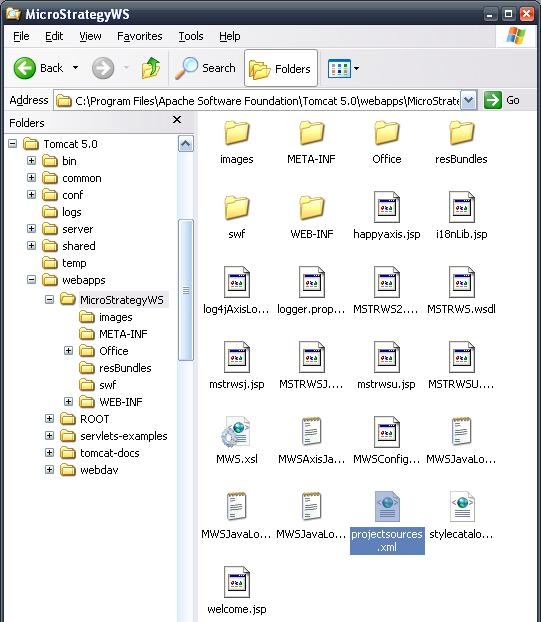
      A default deployment of this file would look like the image below, which is a deployment using Apache Tomcat in Windows.
       
ka04W00000148tRQAQ_0EM4400000028De.jpeg
  • Installation Considerations.
    Strategy Web Services 9.x also has a feature to create reports and documents from Strategy Office 9.x, and uses Strategy Web 9.x to do so.

    For this reason, the machine where Strategy Web Services will be installed needs an application server to facilitate communications with Strategy Web and Strategy Intelligence Server. The ASP and the JSP versions of Strategy Web Services, can be installed/deployed on:
    • A new machine by itself, as long as it has IIS or an application server.
    • The Web Server machine, i.e. the machine where Strategy Web was installed.  In this case the Web Server machine name and Web Services machine name are the same.
    • The Intelligence Server machine, i.e. the machine where Strategy Intelligence Server was installed, as long as it has IIS or an application server.
  • If the installation of Strategy Web Services has been successful, the following URL should work from any browser:
    • For ASP - http://<web services server name>/StrategyWS/MSTRWS.asmx
    • For J2EE - http://<web services server name>:<port>/StrategyWS/services/MSTRWSJ
  • Note: for ASP, this is the URL that will be used in the Strategy Office configuration for Web Services URL, but for JSP it is not. The URL used for JSP can be found in the following tech note KB16492: 'The Root Element is Missing' error occurs when trying to initialize MicroStrategy Office Universal (J2EE) 9.x .
     
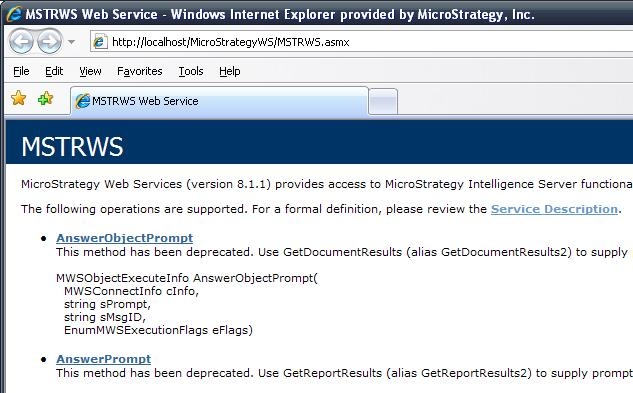
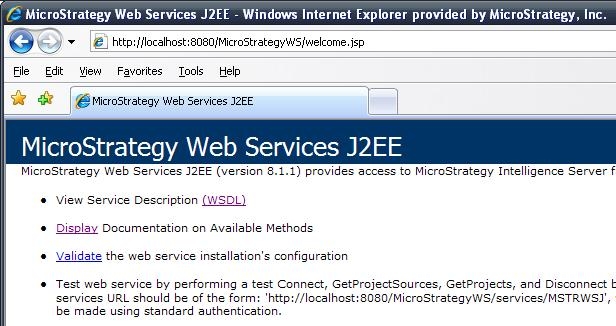
    The resulting page should look like the following images.

    ASP:
ka04W00000148tRQAQ_0EM4400000028DR.jpeg
  •  
    JSP:
ka04W00000148tRQAQ_0EM4400000028Dd.jpeg
  •  
    Note: If this page does not display correctly in IIS, refer to tech note KB20628: 'The underlying connection was closed: The remote name could not be resolved' or an HTTP 404 error message appears when accessing MicroStrategy Office 9.x or the MSTRWS.asmx file, respectively, after a new installation.' for information on the most probable cause.
     
    Now that Strategy Web Services 9.x is installed and working correctly, it should be configured.
     
  • Configuration
    To connect Strategy Web Services 9.x to the Strategy Intelligence Server, the projectsources.xml file is used. By default, this file is located under:
     
    • For ASP: C:\Program Files\Strategy\Web Services\projectsources.xml
    • For JSP: <install directory>\StrategyWS\projectsources.xml
  • This file is the same for both versions and has the following structure:
     
    
    <ProjectSources>
      <ProjectSource>
        <ProjectSourceName>Strategy Tutorial</ProjectSourceName>
        <ServerName>localhost</ServerName>
        <AuthMode>MWSStandard</AuthMode>
        <PortNumber>0</PortNumber>
        <MaxPooledConnections>100</MaxPooledConnections>
      </ProjectSource>
    </ProjectSources>

    One <ProjectSource> element can be used per I-Server or per port. Multiple <ProjectSource> elements can be defined within the <ProjectSources> tags. The parameters are used as follows:
     
    ProjectSourceName: can be any name chosen by the user. It is associated with the IntelligenceServer to be used as a project source, and is a mandatory field.
    ServerName: is the name of the Intelligence Server to be used as a project source, and is a mandatory field.
    AuthMode: designates which authentication mode will be used to connect to the associated Intelligence Server , and is a mandatory field. Possible field values include MWSStandard, MWSNTCredential, WMWSPassThru, MWSAnonymous, MWSLDAP, and MWSWarehousePassThru.
    PortNumber: designates the port on which the Intelligence Server is contacted. A value of zero (0) defaults the port number to 34952, which is the default Intelligence Server port. This field is not mandatory. If this field is missing, a value of zero (0) is used.
    MaxPooledConnections: designates the number of available connections that the associated Intelligence Server will provide for connecting users. It is set upon first connection to a specific Intelligence Server . This field is not mandatory. If this field is missing, a value is chosen from the web.config file configuration parameter.

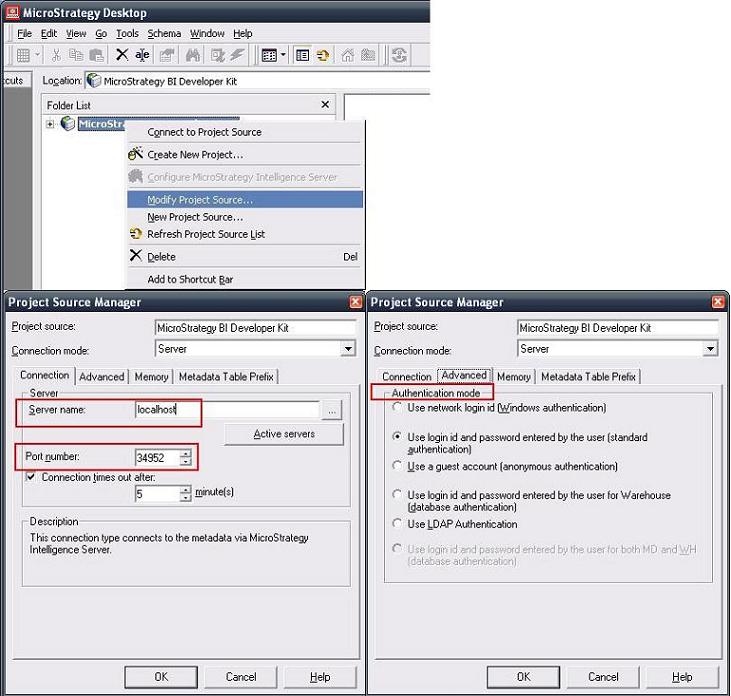
    The ServerName, PortNumber, and AuthMode information should resemble the one seen in Strategy Desktop or Developer 9.x ‘Modify Project Source’, like shown in the image below.
     
ka04W00000148tRQAQ_0EM4400000028Db.jpeg
  •  
    Note: localhost can only used if the component being configured resides in the same machine as the IntelligenceServer , otherwise, a specific server name is required.

    Note: To configure Strategy Web Services in an Intelligence Server clustered environment, refer to tech note KB11762 - ‘How can the projectsources.xml file be used to configure MicroStrategy Office 8.x in a clustered environment?‘

After following the above steps, Strategy Web Services should be ready to serve Strategy Office requests.
31530


Comment

0 comments

Details

Knowledge Article

Published:

May 30, 2017

Last Updated:

March 21, 2019