EducationSoftwareStrategy.com
StrategyCommunity

Knowledge Base

Product

Community

Knowledge Base

TopicsBrowse ArticlesDeveloper Zone

Product

Download SoftwareProduct DocumentationSecurity Hub

Education

Tutorial VideosSolution GalleryEducation courses

Community

GuidelinesGrandmastersEvents
x_social-icon_white.svglinkedin_social-icon_white.svg
Strategy logoCommunity

© Strategy Inc. All Rights Reserved.

LegalTerms of UsePrivacy Policy
  1. Home
  2. Topics

KB31534: How to enable HTTP tracing of Office and Web Services 9.0 SOAP messages using TCPTrace?


Community Admin

• Strategy


When debugging Strategy Office connection issues it is sometimes useful to trace the SOAP messages exchanged between Office and Strategy Web Services .TCPTrace, a simple and straightforward utility for tracing SOAP messages, may be downloaded from Pocket SOAP (http://www.pocketsoap.com/tcptrace).
 
STEPS TO SET UP TRACING:
 

  • Download TCPTrace from Pocket SOAP at http://www.pocketsoap.com/tcptrace and unzip the contents to a local folder on the machine where Strategy Office is installed.
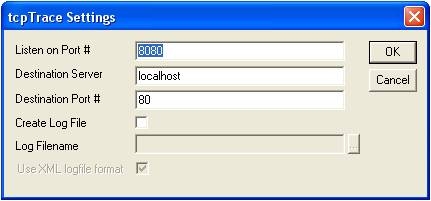
  • Run tcptrace.exe and configure the listening port number, destination server and destination port number.
    • Listen on port is the port number on which TCPTrace will accept SOAP messages and forward them onto the destination port. Any unused port may be configured but port 8080 is typically used for debugging.
    • Destination server and port number are the server and port where Strategy Web Services are running; for example, localhost, port 80. Note: Strategy Web Services is configured to use port 80 by default.
    • If Web Services is installed on the same machine as Strategy Office, use localhost as the destination server. Otherwise, set destination server to the machine where Web Services is installed.
ka04W000000ObF2QAK_0EM4400000028Da.jpeg
  • Add the trace URL to the Strategy Office configuration file (moimain.dll.config) using the key “Web Services URL Trace”.  The URL will be the Web Services URL with the server port set to the port number matching the Listen on Port # setting in TCPTrace.  Note: the configuration file is found under the user’s profile folder; i.e. C:\Documents and Settings\user-name\Application Data\MicroStrategy\Office\moimain.dll.config.
     

    Sample Code/Error

    <?xml version="1.0"?>
    <configuration>
      <appSettings>
        <add key="MozartAddIn.MSTRWebServices.mstrws" value="http://localhost/microstrategyws/mstrws.asmx" enable="1" override="0" />
        <add key="Web Services URL Trace" value="http://localhost:8080/microstrategyws/mstrws.asmx" enable="1" override="0" />
      </appSettings>
    </configuration>


  • Save the configuration file changes, restart Strategy Office and connect to Web Services.
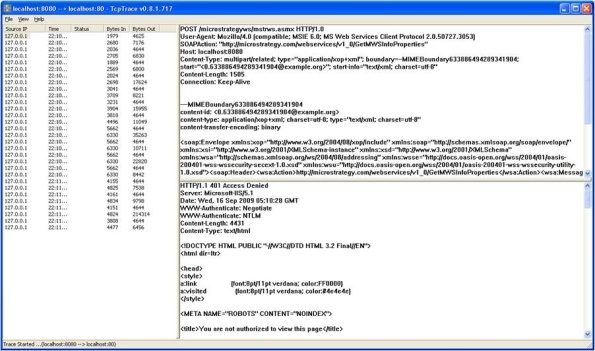
  • SOAP requests and responses will appear in the TCPTrace dialog.
ka04W000000ObF2QAK_0EM4400000028DZ.jpeg

Third Party Software Installation:
 
WARNING:
 
The third-party product(s) discussed in this technical note is manufactured by vendors independent of Strategy. Strategy makes no warranty, express, implied or otherwise, regarding this product, including its performance or reliability.
31534


Comment

0 comments

Details

Knowledge Article

Published:

July 10, 2017

Last Updated:

March 21, 2019