EducationSoftwareStrategy.com
StrategyCommunity

Knowledge Base

Product

Community

Knowledge Base

TopicsBrowse ArticlesDeveloper Zone

Product

Download SoftwareProduct DocumentationSecurity Hub

Education

Tutorial VideosSolution GalleryEducation courses

Community

GuidelinesGrandmastersEvents
x_social-icon_white.svglinkedin_social-icon_white.svg
Strategy logoCommunity

© Strategy Inc. All Rights Reserved.

LegalTerms of UsePrivacy Policy
  1. Home
  2. Topics

KB31560: How to pass a selector value through Report Links in MicroStrategy 9.4.x - 10.x


Stefan Zepeda

Salesforce Solutions Architect • Strategy


This technical note documents the steps to pass a selector value through Report Links in MicroStrategy 9.4.x - 10.x

Passing a selector value through report links is possible using a prompt on the destination report and selecting "Answer Dynamically"
 
These instructions are outlined using Strategy Tutorial Project.

  • Create a report with Region and Revenue and save this as R1.
  • Create a report with Region, Revenue and a filter on Region which is defined as an attribute element list prompt and save this as R2.
     
ka02R000000kcLVQAY_0EM440000002EA4.jpeg
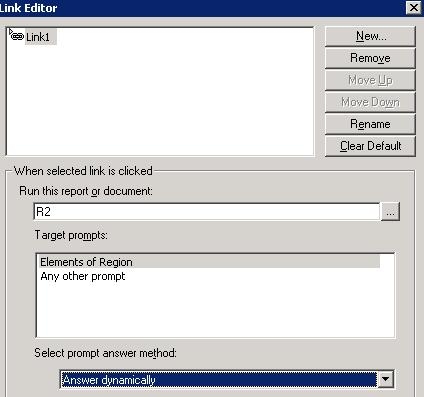
  • In R1 right mouse click on the metric and select "Edit Links".
  • Define a link to R2 and for the prompt resolution for Region prompt select "Answer Dynamically".
     
ka02R000000kcLVQAY_0EM440000002EA0.jpeg
  • Create a Document and add R1 as a dataset.
  • Add R1 to the Detail Header as a grid.
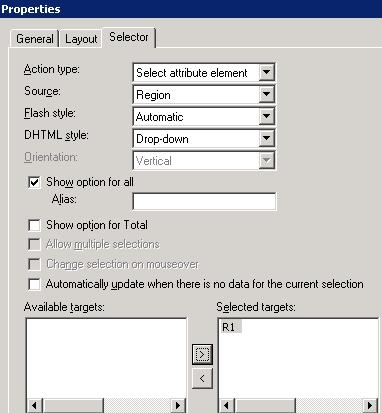
  • Insert a selector and define the properties so that the selector is on Region and targets R1.
     
ka02R000000kcLVQAY_0EM440000002EA6.jpeg

This dashboard will now link to R2 through R1 and will pass the selector value to the Region prompt.


Comment

0 comments

Details

Knowledge Article

Published:

May 9, 2017

Last Updated:

May 9, 2017