EducationSoftwareStrategy.com
StrategyCommunity

Knowledge Base

Product

Community

Knowledge Base

TopicsBrowse ArticlesDeveloper Zone

Product

Download SoftwareProduct DocumentationSecurity Hub

Education

Tutorial VideosSolution GalleryEducation courses

Community

GuidelinesGrandmastersEvents
x_social-icon_white.svglinkedin_social-icon_white.svg
Strategy logoCommunity

© Strategy Inc. All Rights Reserved.

LegalTerms of UsePrivacy Policy
  1. Home
  2. Topics

KB316225: How to make the project name displayed with a designed domain name instead of IP address when creating a mobile configuration in MicroStrategy Mobile 10.4


Community Admin

• Strategy


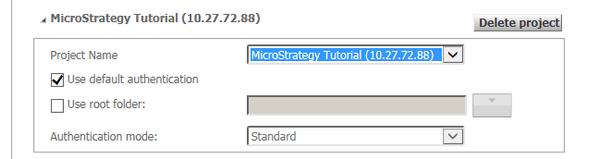
When creating mobile configuration for a mobile device, IP address might be displayed beside the project name and there is no option for users to change it to a domain name in the drop down list.

When creating mobile configuration for a mobile device, IP address might be displayed beside the project name and there is no option for users to change it to a domain name in the dropdown list.


ka04W000000OhdyQAC_0EM4400000029nd.jpeg

Technically, this won’t affect the usage of Strategy Mobile app on mobile devices. However, in some usage scenarios (for instance to make it easier to switch from a production server to a backup server which are not clustered), users may want to point the project to the domain name. Here are the detailed steps on how to do this:
 

  • Access the mobile server and edit the hosts file at "C:\Windows\System32\drivers\etc".
  • Add the IP address and the DSN name of the intelligence server to the hosts file. For instance:
    10.27.72.88 www.YALIUMSTR104.com
  • Go to Strategy Mobile Admin -> Servers and delete the current server connection.
  • Add a server manually and enter "www.YALIUMSTR104.com" as the server name. Make sure the intelligence server is connected successfully in this scenario.

ka04W000000OhdyQAC_0EM4400000029nZ.jpeg
  • Go to your mobile configuration link and select project under www.YALIUMSTR104.com.

ka04W000000OhdyQAC_0EM4400000029nb.jpeg


Comment

0 comments

Details

Knowledge Article

Published:

May 5, 2017

Last Updated:

May 5, 2017