User may have the requirement to limit the date range selection within a specified period based on a single date prompt. For example, a prompt can be created to provide the list of dates between a date selected in a date prompt and next 30 days. Steps to create such a prompt in Strategy Tutorial is given as follows.
1. Create a date prompt called Start which is a type of Value prompt
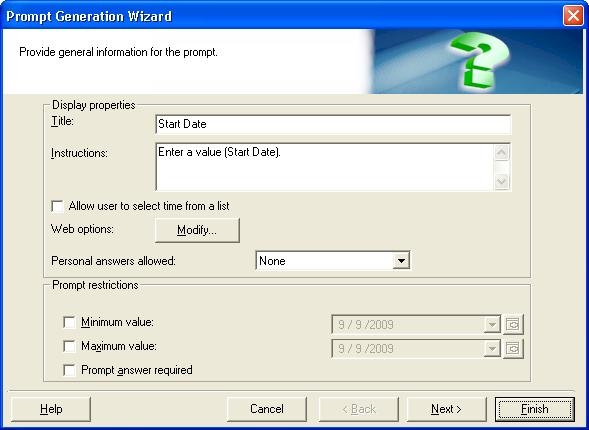
2. Create a filter using the following definition based on attribute qualification of Day. Save the filter, name it as 30 days

Sample Code/Error
Day ID Between ApplySimple("#0",? Start) AND ApplySimple("#0",AddDays(? Start,30))
3. Create a filter definition prompt -> Choose from an attribute element list. Choose the Day attribute in Tutorial project, select the second option to Use a filter to reduce the number of elements. Choose filter 30 Days. Save the prompt, name it as Elements of Day filtered by 30 days
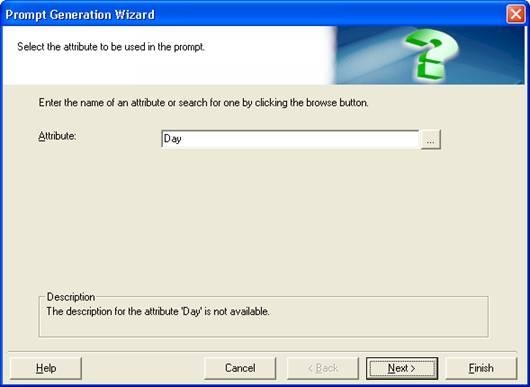

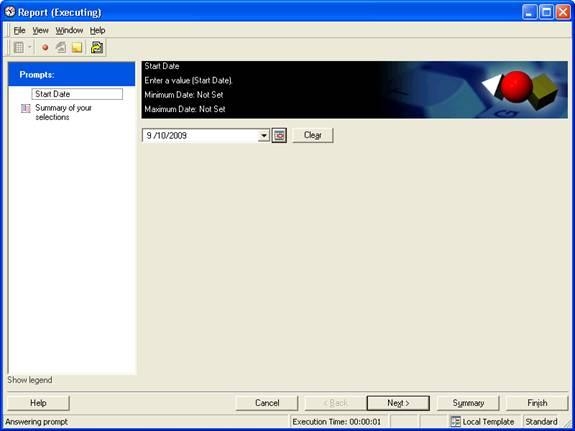
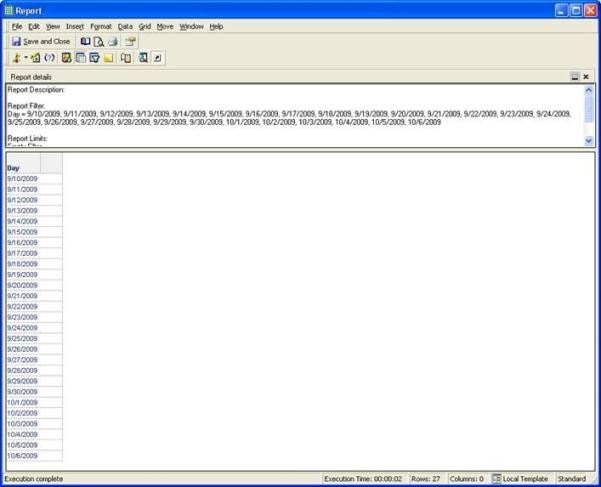
4. Create a report, add prompt Elements of Day filtered by 30 days to report filter, Day attribute on template. Run the report, user will be first prompted to choose a start date, then the second prompt window returns Day attribute element that is within 30 days of the chosen start date. User can use Shift key to select a date range to display on the report. For example,

31668
