EducationSoftwareStrategy.com
StrategyCommunity

Knowledge Base

Product

Community

Knowledge Base

TopicsBrowse ArticlesDeveloper Zone

Product

Download SoftwareProduct DocumentationSecurity Hub

Education

Tutorial VideosSolution GalleryEducation courses

Community

GuidelinesGrandmastersEvents
x_social-icon_white.svglinkedin_social-icon_white.svg
Strategy logoCommunity

© Strategy Inc. All Rights Reserved.

LegalTerms of UsePrivacy Policy
  1. Home
  2. Topics

KB317800: Custom number formatting syntax does not validate in MicroStrategy Developer but is accepted in MicroStrategy Web 9.4.x-10.x. The formatting, however, is lost after exporting to Excel.


Stefan Zepeda

Salesforce Solutions Architect • Strategy


This KB article describes a limited capability with Excel that affects custom formatting syntax when used in MicroStrategy Developer, and when exporting to Excel from both MicroStrategy Developer and MicroStrategy Web. Workarounds are available.

SYMPTOM
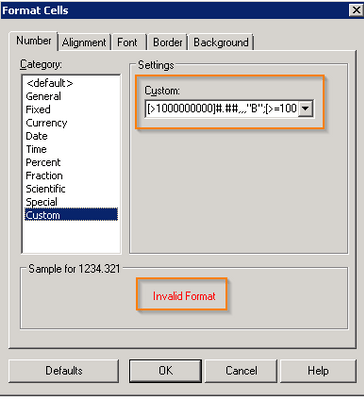
After trying to add a custom formatting in Developer when the custom formula has more than three conditions (each "[ ]" defines a condition) an error message: “Invalid Format” is shown in the Format Cells GUI:
ka02R000000kb6NQAQ_0EM440000002Bzb.jpeg

 
STEPS TO REPRODUCE:
Follow these steps to reproduce it with Tutorial:

  1. In Strategy Developer, create a Report with Year attribute and Revenue metric.
  2. In the template of the Report, go to Revenue metric and select Formatting "Revenue" values.
  3. In the Number tab, select "Custom" category and paste the following: [>1000000000]#.##,,,"B";[>=1000000]#.##,,"M";[>=1000]#.##,"K"; 0
  4. It will return a message "Invalid Format"
  5. Go to Strategy Web
  6. Run the Report created in step 1.
  7. Once the report has been executed, go to Revenue column, right-click and select "Advanced Formatting"
  8. In the Format GUI, go to "Number" tab and select "Custom" as category.
  9. Copy the following in the Type field: [>1000000000]#.##,,,"B";[>=1000000]#.##,,"M";[>=1000]#.##,"K"; 0
  10. Click Apply and OK. The Custom format is accepted without any "Invalid Format" message as from Developer. However, when running the report from Strategy Developer or when exporting the report to Excel, the formatting will be lost and it will use the default.

CAUSE:
This behaviour is outside Strategy and due to a limitation of Excel.
When the same custom format string is applied in Excel (right click a cell - > Format Cells -> Custom), an error occurs: "Microsoft Excel cannot use the number format you typed".
When exporting to Excel, Excel receives the same custom format string applied in Strategy Web and tries to apply the custom format. Unable to use that format, Excel will show the report without the custom formatting.
Strategy Developer uses a third-party module named "F1Book", which is provided by Actuate Corp, to deal with the format of number in cell. When "F1Book" cannot support a format with more than three conditions, this type of formula will lead to an "Invalid format" error.
On the other hand, when formatting a report on Strategy Web, the Intelligence Server will handle it and allow to display it as expected.
 
ACTION:
Microsoft Support may be contacted to to request an enhancement/assistance with this limitation.
 
WORKAROUND:
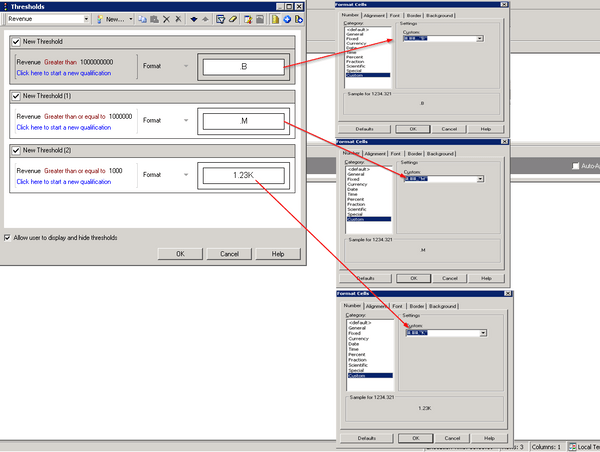
  1. In a Report or Document, create thresholds based on the conditions needed. For example review the definition in the image below to add the formatting based on three separate conditions:
ka02R000000kb6NQAQ_0EM440000002BzZ.jpeg

2. In a Document, conditional formatting could also be used in text boxes, to define the three separate conditions the same way that the thresholds were defined in the Report.
 
Third Party Warning:
The third-party product(s) discussed in this technical note is manufactured by vendors independent of Strategy. Strategy makes no warranty, express, implied or otherwise, regarding this product, including its performance or reliability.
 
KB317800


Comment

0 comments

Details

Knowledge Article

Published:

June 8, 2017

Last Updated:

June 18, 2018