EducationSoftwareStrategy.com
StrategyCommunity

Knowledge Base

Product

Community

Knowledge Base

TopicsBrowse ArticlesDeveloper Zone

Product

Download SoftwareProduct DocumentationSecurity Hub

Education

Tutorial VideosSolution GalleryEducation courses

Community

GuidelinesGrandmastersEvents
x_social-icon_white.svglinkedin_social-icon_white.svg
Strategy logoCommunity

© Strategy Inc. All Rights Reserved.

LegalTerms of UsePrivacy Policy
  1. Home
  2. Topics

KB31829: How to enable MicroStrategy Web users to import an element list into a filter using prompts in MicroStrategy Developer 9.4.x - 10.x


Stefan Zepeda

Salesforce Solutions Architect • Strategy


This technical note documents a behavior observed in MicroStrategy Web, where a text file with a list of elements cannot be imported into a prompt.

SYMPTOM:
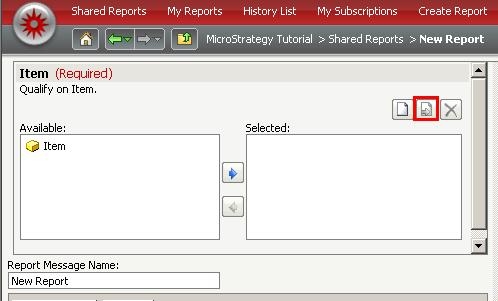
In Strategy Web and Web Universal, there is a prompt type that imports a list of elements from a text file; however it cannot import an element list into a filter, the 'Import file...' button is not visible in Strategy Web as shown below:


ka02R000000kc93QAA_0EM440000002EEd.jpeg


CAUSE:
In Strategy Desktop 9.0.0, the option 'Allow import elements' is disabled by default. 
 
 
ACTION:
Follow the steps below to enable the 'Import file...' function on Strategy Web:

ka02R000000kc93QAA_0EM440000002EEe.jpeg


  1. In Strategy Developer, create a new prompt or open an existing prompt -> Modify Web options -> Display Style, select Shopping cart.                                                                                     
  2. Check the option of 'Allow import elements' .
  3. Execute the report in Strategy Web. The prompt screen appears and 'Import files...' button is now visible on the upper right corner. Click on that button to import  text file.


ka02R000000kc93QAA_0EM440000002EEg.jpeg


Comment

0 comments

Details

Knowledge Article

Published:

May 24, 2017

Last Updated:

May 24, 2017