EducationSoftwareStrategy.com
StrategyCommunity

Knowledge Base

Product

Community

Knowledge Base

TopicsBrowse ArticlesDeveloper Zone

Product

Download SoftwareProduct DocumentationSecurity Hub

Education

Tutorial VideosSolution GalleryEducation courses

Community

GuidelinesGrandmastersEvents
x_social-icon_white.svglinkedin_social-icon_white.svg
Strategy logoCommunity

© Strategy Inc. All Rights Reserved.

LegalTerms of UsePrivacy Policy
  1. Home
  2. Topics

KB31832: How to use Database Authentication


Community Admin

• Strategy


This technical note documents the steps to enable and use Database Authentication.

What is Database Authentication in Strategy 9.4.x - 10.x?
Database Authentication is a method of identifying users at login time based on the user's credentials on one or another warehouse database. Where standard authentication verifies the user's login name and password against the user's information on the metadata, database authentication passes the login and password to the database. If the database allows the connection, the user is permitted access to the project. If the database refuses, the user will not be allowed to log in to Strategy.
 
Database authentication may be used in conjunction with Linked Warehouse Execution, so that both project and data security may be maintained in the database.
Considerations
Each project can authenticate against a different database; the database instance to use for authentication is a Project Configuration setting. There is no global Intelligence Server level authentication database instance.
 
Because of this, database authentication can be used only to log into projects. It is not possible to log into Strategy Developer or Web using database authentication and perform server-level administration tasks. For server administration, another authentication method must be used.
 
 
A user object in Strategy can store one database login name for authentication, and one login/password for linked warehouse execution. If different projects use different databases for authentication, the user credentials should be the same across these databases.
 
Database authentication workflow: Strategy Developer

  1. Strategy Developer opens a server-level session to get a list of the projects available on the Intelligence Server. Because database authentication applies to projects only, this is a Guest session that takes the privileges of the Public/Guest user group. The user is prompted for a username and password, but they are not validated.
     
    NOTE: The Public/Guest group must be granted minimal-privilege access to any projects that should enable database authentication. See instructions below.
     
  2. When the user opens a project, she is again prompted for a username and password. The Intelligence Server will attempt to log into the project's authentication database instance. If unsuccessful, the user will not have access.
     
  3. If the database authentication is successful, Strategy will look for a user object in the metadata with the same database login name. If a matching user is found, the project session will be created for the user and the session will have that user's privileges, profile folder and history list. If no matching user exists, the user may receive an error "User not found."

Database authentication workflow: Strategy Web
The Strategy Web server can be configured to require the user to login before showing a list of projects, or allow the user to choose the project before entering credentials. In both cases, the user is prompted for credentials only once.
 
If the user chooses the project first and then enters credentials, Strategy Web will present a list of all projects loaded on the Intelligence Server. The credentials entered will then be passed directly to the database.
 
If the user logs in first and then sees a list of projects, the following procedure is taken:

  1. After the user enters the user ID and password, Strategy Web logs into the Intelligence Server using the Public/Guest account. The only projects displayed are those to which Public/Guest has access. Note that the credentials entered by the user here are not used for the Guest session.
  2. When the user selects a project, the credentials entered in step 1 are sent to the Intelligence Server for database authentication. The user is not re-prompted for credentials.

Configuring database authentication

  • If there is no database instance for the authentication database(s), create DSNs and database instances as necessary.
  • For each project requiring database authentication:
    • Open Project Configuration.
    • Go to Database Instances > Authentication > Metadata. From the drop-down menu, choose the database instance against which the user ID should be verified.

ka04W00000148ZBQAY_0EM440000002EIy.gif
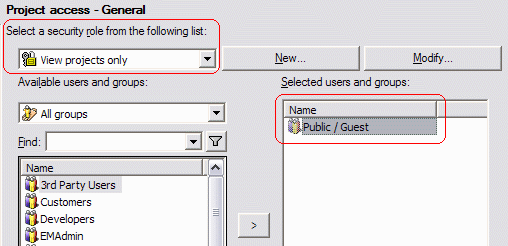
    • Go to Project access, to give Public/Guest basic access to the project. To restrict the ability of Guest sessions to use the project, a security role may be created with no privileges using the New... button at the top of the dialog box. To grant project access, choose the dummy security role. Then locate Public/Guest in the user list and move it to the right-hand panel.

ka04W00000148ZBQAY_0EM440000002EIv.gif
  • For each user with database credentials:
    • Edit the user in Strategy Developer. Under Authentication, provide the user's database login name in the Database Authentication box. There is no need to provide a password because the password will be checked against the database. If linked warehouse execution will be used, the username and password may be entered at this time as well.

ka04W00000148ZBQAY_0EM440000002EIx.gif
    • Alternately, the warehouse login ID can be set using Command Manager. The WHLINK option sets the login name for both database authentication and linked warehouse execution. WHPASSWORD may be omitted if linked warehouse execution is not used.

      ALTER USER "<login_name>" WHLINK "<warehouse_login>" WHPASSWORD "<warehouse_password>";

Enabling database authentication in Strategy Developer
A project source should be created in which warehouse authentication is selected:
 

ka04W00000148ZBQAY_0EM440000002EIw.gif

 
Enabling database authentication in Strategy Web
On the Strategy Web administrator page, go to Intelligence Servers > Default properties. The permitted login modes may be chosen here.
 

ka04W00000148ZBQAY_0EM440000002EIu.gif


Comment

0 comments

Details

Knowledge Article

Published:

April 24, 2017

Last Updated:

April 24, 2017