EducationSoftwareStrategy.com
StrategyCommunity

Knowledge Base

Product

Community

Knowledge Base

TopicsBrowse ArticlesDeveloper Zone

Product

Download SoftwareProduct DocumentationSecurity Hub

Education

Tutorial VideosSolution GalleryEducation courses

Community

GuidelinesGrandmastersEvents
x_social-icon_white.svglinkedin_social-icon_white.svg
Strategy logoCommunity

© Strategy Inc. All Rights Reserved.

LegalTerms of UsePrivacy Policy
  1. Home
  2. Topics

KB31836: How to select n days within a rolling date range based on a single date prompt in MicroStrategy 10.x


Stefan Zepeda

Salesforce Solutions Architect • Strategy


A user would like to create a report that returns data for a number of days within a rolling date range. The rolling date range can be constructed from a single prompt answer. For example, a report can be created to provide the Revenue for a date selected in a date prompt and next 30 days, automatically.

A user would like to create a report that returns data for a number of days within a rolling date range. The rolling date range can be constructed from a single prompt answer. For example, a report can be created to provide the Revenue for a date selected in a date prompt and next 30 days, automatically.
The following procedure describes how to create a report that will use a date prompt to establish a rolling date range in the Strategy Tutorial project:
ka02R000000kc5dQAA_0EM440000002EHB.png
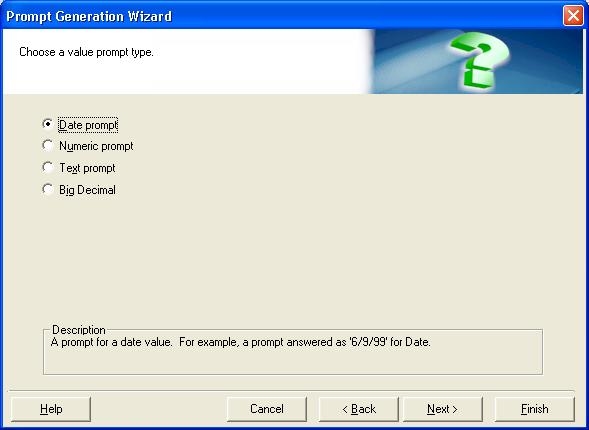
  • Create a value prompt called "Start Date". Select 'Date prompt', as the prompt type as shown below:
ka02R000000kc5dQAA_0EM440000002EGk.jpeg
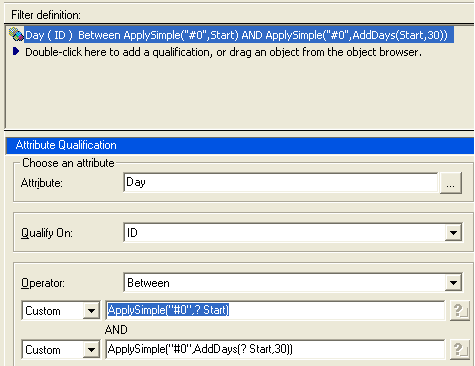
  • Create an attribute qualification filter called "30 days", that should be based off of the Day attribute. The filter should qualify on the attribute form that has a date or datetime format of the day attribute and the Operator should be set to "Between" causing the appearance of two text fields. Both of the text fields should be set to custom so that Applysimple statements can be inserted, as shown below:
ka02R000000kc5dQAA_0EM440000002EH9.png
  •  
    The combination of the two statements inside of the attribute qualification filter creates a date range for the day attribute. In this example, the date range extends from the date provided in prompt through the date provided in the prompt + 30 days. If the day attribute is on the template and the filter is added to the report or created locally, the results of the report will be filtered by the rolling date range.
    NOTE: The syntax of the pass-through statements in this example is for Microsoft Access Database. Clients should contact a Database Administrator for the SQL syntax specific to the database against which this statement will run.
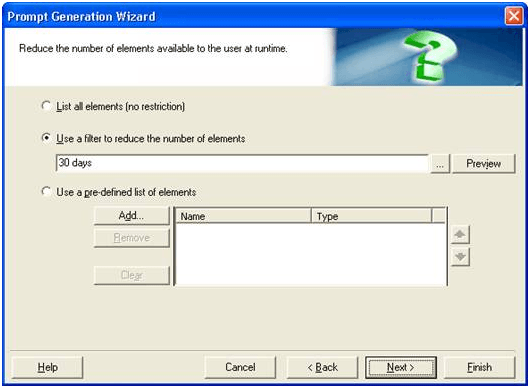
  • Create a filter definition prompt, choose from Day attribute element list. Select the second option to "Use a filter to reduce the number of elements", choose the filter "30 days" created on step 2. Save the prompt as "Elements of Day filtered by 30 days", as shown below:
     
ka02R000000kc5dQAA_0EM440000002EGh.png
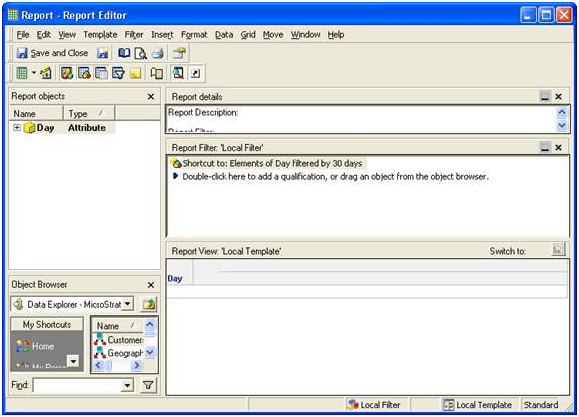
  • Create a report and add the prompt "Elements of Day filtered by 30 days" to the report filter. After that, insert the attribute Day on template, as shown below:
ka02R000000kc5dQAA_0EM440000002EHD.png
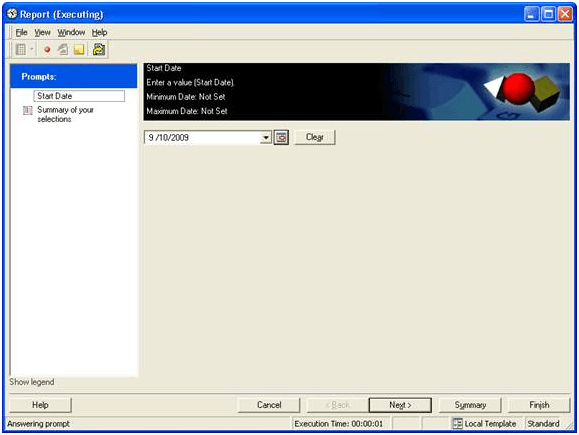
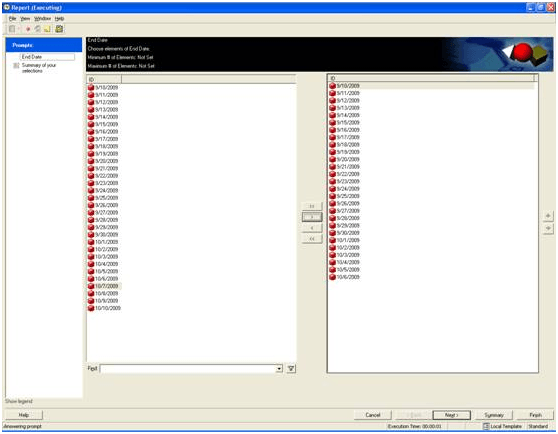
  • Run the report, choose a start date and click on Finish. When the second prompt window pops up, it returns a Day attribute element that is within 30 days of the chosen start date.
ka02R000000kc5dQAA_0EM440000002EHF.png
  •  The user can use Shift key to select a range number of elements to display on the report, as shown below:

Once following steps above, the prompt at the last step will display a rolling date range based on the single date prompt at the first step.


Comment

0 comments

Details

Knowledge Article

Published:

May 30, 2017

Last Updated:

May 30, 2017