EducationSoftwareStrategy.com
StrategyCommunity

Knowledge Base

Product

Community

Knowledge Base

TopicsBrowse ArticlesDeveloper Zone

Product

Download SoftwareProduct DocumentationSecurity Hub

Education

Tutorial VideosSolution GalleryEducation courses

Community

GuidelinesGrandmastersEvents
x_social-icon_white.svglinkedin_social-icon_white.svg
Strategy logoCommunity

© Strategy Inc. All Rights Reserved.

LegalTerms of UsePrivacy Policy
  1. Home
  2. Topics

KB318398: Range is incorrectly spelled on the Properties panel in Visual Insight when using the KPI Visualization in MicroStrategy Web 10.x


Community Admin

• Strategy


SYMPTOM:
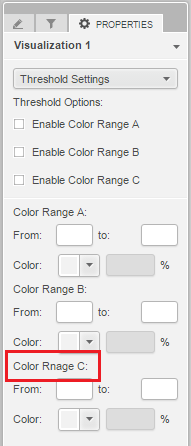
Strategy’s Visualization Gallery is a place where users can easily download code for visualizations which can be used in Strategy Desktop or Strategy Web. One of the visualizations available for download in the Visualization Gallery is the KPI Visualization. However, Range is misspelled on the Properties panel for the visualization in Visual Insight as seen below.
 

ka04W000000OfshQAC_0EM4400000025QB.jpeg

 
STEPS TO REPRODUCE:

  1. Deploy the KPI Visualization following the installation instructions located here. 
  2. Create a new blank Visual Insight dashboard.
  3. Insert a KPI visualization into the dashboard.
  4. Navigate to the Properties panel.
  5. Selection Threshold Settings in the dropdown.
  6. Notice that Range in Color Range C is misspelled.

 
CAUSE:
This is an identified defect in Strategy Web 10.x.
 
ACTION:
This issue has been addressed in Strategy 10.7.
 
WORKAROUND:
The following steps will resolve the issue:

  1. Navigate to the KPIWidgetEditorModel.js file in the KPIWidget plugin. By default, this is located at C:\Strategy_Web_Installation_Path\plugins\KPIWidget\javascript\mojo\js\source.
  2. Edit the KPI WidgetEditorModel.js file.
  3. Search for “Rnage” and replace it with “Range”.
  4. Save the file.
  5. Clear all web related caches following KB42534. 
  6. Restart the web server.
  7. Follow the steps in the Steps to Reproduce section again. You should now see the correct spelling.

Comment

0 comments

Details

Knowledge Article

Published:

June 13, 2017

Last Updated:

June 13, 2017