EducationSoftwareStrategy.com
StrategyCommunity

Knowledge Base

Product

Community

Knowledge Base

TopicsBrowse ArticlesDeveloper Zone

Product

Download SoftwareProduct DocumentationSecurity Hub

Education

Tutorial VideosSolution GalleryEducation courses

Community

GuidelinesGrandmastersEvents
x_social-icon_white.svglinkedin_social-icon_white.svg
Strategy logoCommunity

© Strategy Inc. All Rights Reserved.

LegalTerms of UsePrivacy Policy
  1. Home
  2. Topics

KB31850: How to access the Security Role Editor and Security Role Manager in MicroStrategy Developer 9.4.x - 10.x


Stefan Zepeda

Salesforce Solutions Architect • Strategy


This technical note lists the steps to access the Security Role editor and the Security Role manager, in MicroStrategy Developer 9.4.x - 10.x.

A security role is a collection of project-level privileges that are assigned to users and groups. Security roles exist at the project source level, and can be used in any project registered with the Strategy Intelligence Server.
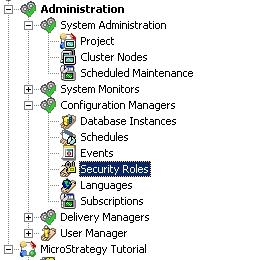
Creating and editing security roles is an Intelligence Server configuration management activity. The Security Roles Editor in Strategy Developer can be accessed by going to Administration ->Configuration Managers as seen below:
ka02R000000kchQQAQ_0EM440000002EHR.jpeg

 
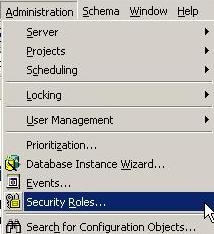
In Strategy 8.1.x, the Security Roles Editor could be accessed via the Administration menu as seen below:
ka02R000000kchQQAQ_0EM440000002EHO.jpeg

 
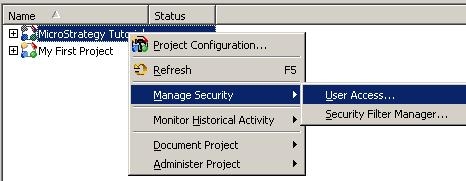
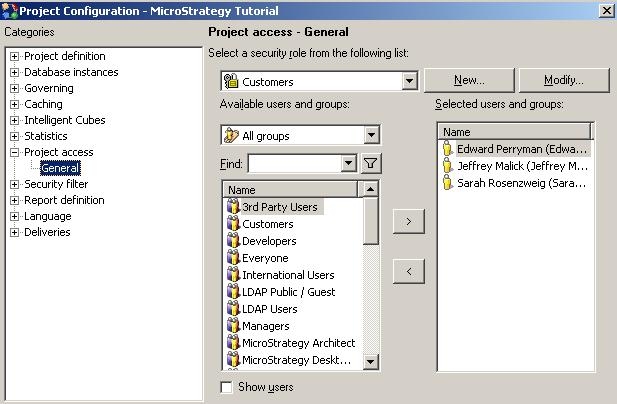
Security Role related tasks such as role assignment, revoking roles etc. are project administration activities that are handled by the Security Role Manager. This manager lists all the security roles available in a project source and can be accessed in one of the following three ways:
1. Project Monitor ->Right Mouse Click on Project ->Manage Security ->User Access:
 

ka02R000000kchQQAQ_0EM440000002EHW.jpeg

 
2. Project Configuration Editor -> Project Access ->General:
ka02R000000kchQQAQ_0EM440000002EHT.jpeg


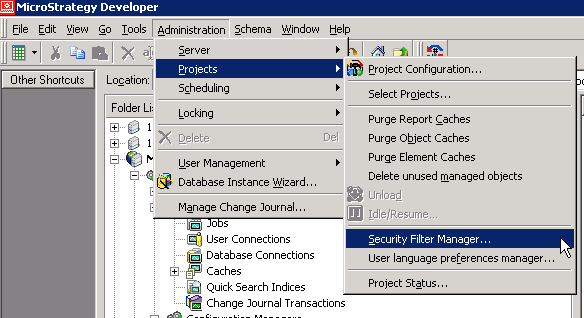
3. Administration menu > Projects > Security Filter Manager
ka02R000000kchQQAQ_0EM440000002HpW.png


Comment

0 comments

Details

Knowledge Article

Published:

April 4, 2017

Last Updated:

April 4, 2017