EducationSoftwareStrategy.com
StrategyCommunity

Knowledge Base

Product

Community

Knowledge Base

TopicsBrowse ArticlesDeveloper Zone

Product

Download SoftwareProduct DocumentationSecurity Hub

Education

Tutorial VideosSolution GalleryEducation courses

Community

GuidelinesGrandmastersEvents
x_social-icon_white.svglinkedin_social-icon_white.svg
Strategy logoCommunity

© Strategy Inc. All Rights Reserved.

LegalTerms of UsePrivacy Policy
  1. Home
  2. Topics

KB318576: Attribute values longer than 11 digits are converted to scientific notation in MicroStrategy Web for columns that have the BIGINT data type.


Community Admin

• Strategy


SUMMARY:
This issue has been classified as a defect by Strategy.  A workaround is available in the current document. A solution/code fix for this issue is not available in current releases but has not been scoped for a future Strategy release.
SYMPTOM:
When running a report in Strategy Web, if the column used for an attribute form has the data type BIGINT, the format will display by default as scientific notation.
STEPS TO REPRODUCE:

  1. Create a table with a column that has the BIGINT data type.
  2. Create an attribute using the column mentioned above, and map it as a BigDecimal. Make sure attribute element has 11 digits or more such as Attribute ID 123456789123456.
  3. Create a report using that Attribute and run it in Developer; notice it shows the expected format:


ka04W000000OePeQAK_0EM4400000025Na.jpeg


  1. Run the report in Web with notice the format turns into scientific notation.


ka04W000000OePeQAK_0EM4400000025NY.jpeg

 
CAUSE:
This is a known issue in Strategy Web 10.2 and above.
ACTION:
This issue has been reviewed by the Technology team and has not been scoped for a future Strategy release.
WORKAROUND:
There are two possible workarounds for this issue:

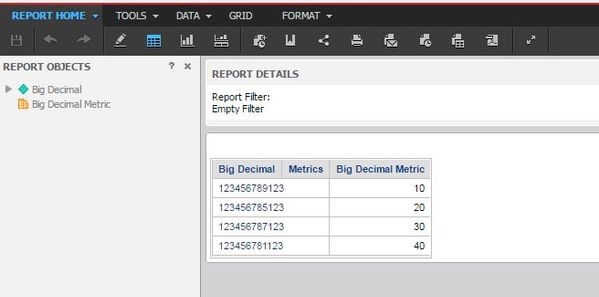
  1. Change the format of the attribute form in Web by going to Format – Advanced Formatting – Number and changing the Category to Fixed.
  2. Change the column alias to Big Decimal in Developer by editing the attribute form, then going to Column Alias.

These two options will show the desired format, as seen below:
ka04W000000OePeQAK_0EM4400000025NU.jpeg

Comment

0 comments

Details

Knowledge Article

Published:

June 9, 2017

Last Updated:

June 9, 2017