Summary:
This Technical Note describes the behavior pertaining to project loading for an asymmetrically clustered configuration. With Asymmetric clustering, different projects can be loaded in each node of a Strategy Intelligence Server cluster. For more details on how to set up asymmetric clustering, refer to the Strategy System Administration Guide for the section on 'Distributing projects across nodes in a cluster' in Chapter 5, 'Scaling the System to Many Users.'
Symptom:
Users are seeing their projects loaded on the wrong I-Server nodes. In one environment for example, one may have 4 I-Server nodes and utilize a 50/50 split/asynchronous type setup where the first 10 projects are configured to load on nodes 1 and 2 and the remaining projects are loaded on nodes 3 and 4. One will then notice that whenever one performs a project reload for a project on node3, the same project automatically gets loaded on nodes 1 and 2 as well but the server configuration clearly shows that the project is only to be loaded on 3 and 4.

Steps to Reproduce:
1. Configure 3 node cluster that has 3 projects
2. Configure Intelligence server so that each node loads 2 projects at startup

3. Unload all projects
4. Reload 2 projects that are supposed to be loaded on node 1
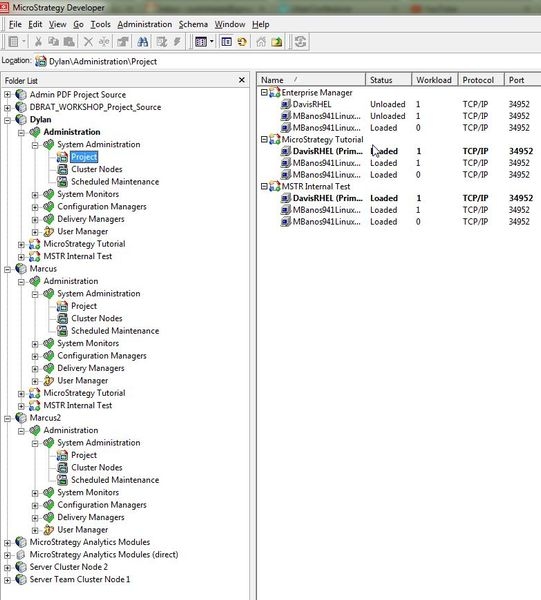
5. Notice that it has loaded incorrectly on separate nodes and shows up incorrectly in project section of system admin
Cause:
The behavior experienced with loading and unloading projects through project portion of system administration may not reflect the Intelligence Server configuration. This behavior is expected.
When one controls a project through System Administration > Project, the project loading/unloading is being performed across all nodes and is not the specific project source that you are connected to. Also, once one performs this action i.e., chooses to load a project or unload a project from this section, the Intelligence Server will do what one chose here. It will not go back to the configuration that one had chosen under intelligence server configuration > Projects > General. The project loading configuration from the Intelligence Server configuration > Projects > General section only applies when one restarts the Intelligence Servers. If one wants to apply the settings configured without restarting their Intelligence Servers, one can go to that editor and make sure the last check box 'Apply startup configuration on save' is checked and click on OK. This will make the projects load status the same as what was selected.
Action:
