EducationSoftwareStrategy.com
StrategyCommunity

Knowledge Base

Product

Community

Knowledge Base

TopicsBrowse ArticlesDeveloper Zone

Product

Download SoftwareProduct DocumentationSecurity Hub

Education

Tutorial VideosSolution GalleryEducation courses

Community

GuidelinesGrandmastersEvents
x_social-icon_white.svglinkedin_social-icon_white.svg
Strategy logoCommunity

© Strategy Inc. All Rights Reserved.

LegalTerms of UsePrivacy Policy
  1. Home
  2. Topics

KB31893: How to display the first and last values listed in prompt auto text {&Promptn&} in a Report Services document in MicroStrategy 9.x


Stefan Zepeda

Salesforce Solutions Architect • Strategy


How to display the first and last values listed in prompt auto text {&Promptn&} in a Report Services document in MicroStrategy 9.x

SYMPTOM:
Users need to display the first and last values selected in a prompt auto text  {&Promptn&} in a document in Strategy 9.x. Take the following as an example:
 
If users choose 2005 Q1, 2006 Q2, 2005 Q4 in the prompt, then the {&Promptn&} tag in the document will display as 2005 Q1, 2006 Q2, 2005 Q4. The {&Promptn&} in document will display all values selected in quarter prompt by default.
 
Instead, users want to show 2005 Q1 and 2006 Q2 from the auto text as the first and last values of the range so that they can dynamically have the following string in the document:
"Period 2005 Q1 to 2006 Q2"
 
ACTION
Follow the steps below to display the first and last quarter listed in quarter prompt auto text  {&Promptn&}.

  • Create a report in Tutorial project with the following objects: rows: Quarter and Category; column: Profit; and a prompt filter on Quarter;
  • Create a Metric with expression: Max(Quarter){~}. Name it as Quarter number and add it into the report:
     
ka02R000000kX0SQAU_0EM440000002EGA.jpeg
  • Create a document and add the report as dataset;
  • In the document, create a summary metric: Maximum and Minimum metric for metric Quarter number;
     
ka02R000000kX0SQAU_0EM440000002EFz.jpeg
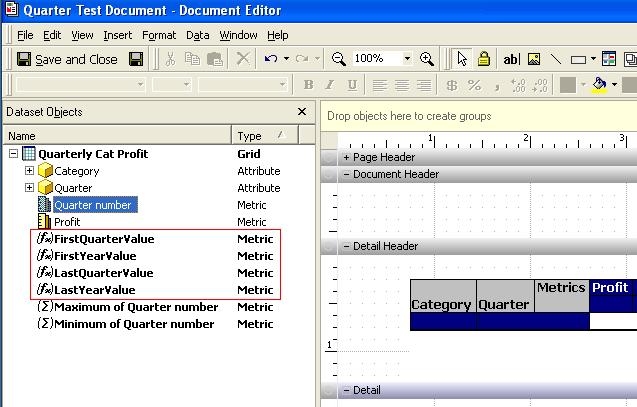
  • Create four Metrics with the following expressions to get the first year number, first quarter number, last year number and last quarter number:
     
ka02R000000kX0SQAU_0EM440000002EG0.jpeg
  • FirstYearValue  = Round(( / 10))
    FirstQuarterValue = ( - (FirstYearValue * 10))
    LastYearValue = Round(( / 10))
    LastQuarterValue = ( - (LastYearValue * 10)) 


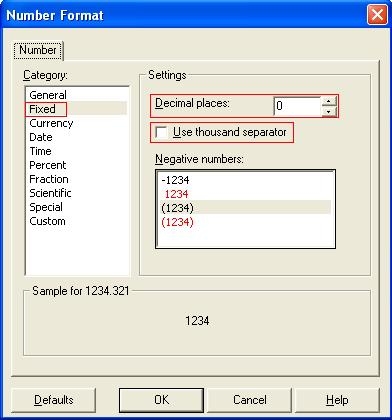
  • Change the format of Metric FirstYearValue and LastYearValue as shown below:
     
ka02R000000kX0SQAU_0EM440000002EG1.jpeg
  • Add the text objects ("Period", "Q" and "to") and the Metrics first year number, first quarter number, last year number and last quarter number into Document.  Arrange the order as shown:
     
ka02R000000kX0SQAU_0EM440000002EGB.jpeg
  • Execute the document. The result: "Period 2005 Q1 to 2006 Q2." can be displayed in the text field:
     
ka02R000000kX0SQAU_0EM440000002EG2.jpeg


Comment

0 comments

Details

Knowledge Article

Published:

April 12, 2017

Last Updated:

April 12, 2017