SYMPTOM
Users notice that their version of Strategy Office is outdated in comparison to the Strategy Web Services version.
Normally, users will see a prompt similar to the one below, informing them of a newer version and allowing them to decide whether or not to upgrade. However certain users will not receive the prompt, preventing them from upgrading.
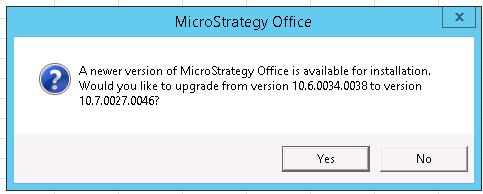
A newer version of Strategy Office is available for installation. Would you like to upgrade from version xxxx to version xxxxxx?
This prompt usually appears the first time that the Strategy Office application is connected to a Strategy Web Services with a higher version.
CAUSE
At a previous time Office was accessed, the user may have received the the following prompt, and chosen no to stop the prompt from appearing again:

Would you like to install version xxxxxxx later?
Selecting ‘No’ means the user will not be prompted to upgrade anymore.
ACTION
1. Access the moimain.dll.config, using Notepad, located at:
C:\Program Files (x86)\MicroStrategy\Web Services\Office
*On Windows 7, the file is located here:
C:\Users\\AppData\Roaming\MicroStrategy\Office
2. Find the following line:
<add key="Refuse Upgrade" value="xxxxxx" enable="1" override="0" />
Note: the value of ‘value’ may vary.
3. Delete the line, save the changes, and reopen the Microsoft Office application being used.
5733
