EducationSoftwareStrategy.com
StrategyCommunity

Knowledge Base

Product

Community

Knowledge Base

TopicsBrowse ArticlesDeveloper Zone

Product

Download SoftwareProduct DocumentationSecurity Hub

Education

Tutorial VideosSolution GalleryEducation courses

Community

GuidelinesGrandmastersEvents
x_social-icon_white.svglinkedin_social-icon_white.svg
Strategy logoCommunity

© Strategy Inc. All Rights Reserved.

LegalTerms of UsePrivacy Policy
  1. Home
  2. Topics

KB31914: How to apply rank metric to specific attribute elements rows on the report in Microstrategy Develper 9.4.x-10.x?


Stefan Zepeda

Salesforce Solutions Architect • Strategy


Users have requirement of applying rank metric to specific attribute elements rows instead of all rows of report. For example, a report with attribute "Quarter" and metric "Revenue".

Users have requirement of applying rank metric to specific attribute elements rows instead of all rows of report. For example, a report with attribute "Quarter" and metric "Revenue".
Follow the steps below to rank rows in regarding to "Quarter" elements "2004 Q1","2005 Q1" and "2006 Q1" in Strategy Tutorial project: 
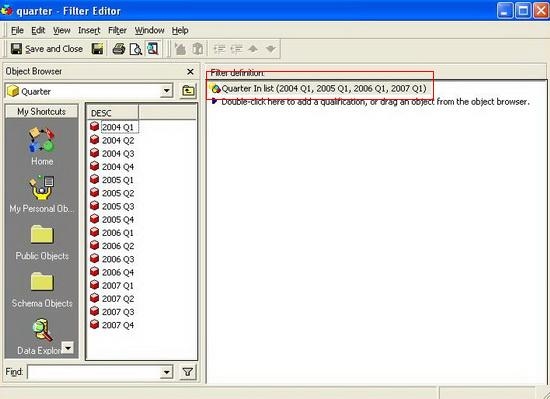
  •  Create a "Quarter" filter with "Quarter" elements "2004 Q1", "2005 Q1" and "2006 Q1", as shown below:
ka02R000000kcOQQAY_0EM440000002EDN.jpeg
  •  Create a "Rank Test" metric with formula "Rank(Sum(Revenu){~})" and add "Quarter" filter as Condition of this metric, as shown below:
ka02R000000kcOQQAY_0EM440000002ED9.jpeg
  •  Create a report with attribute "Quarter", metric "Revenue" and "Rank Test".
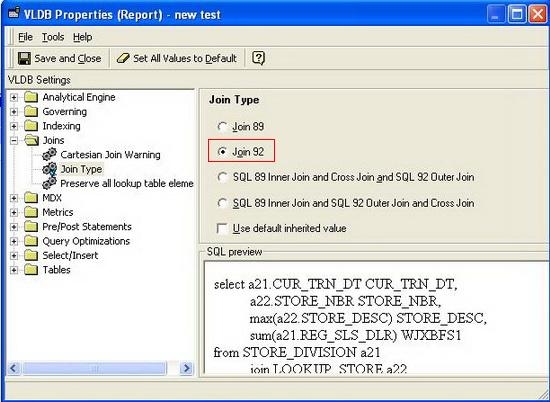
  •  Set "Join Type" to "Join 92" in menu: Data -> VLDB Properties -> Joins -> Join Type, as shown below:     
ka02R000000kcOQQAY_0EM440000002EDB.jpeg

 
Note:
This step is only for users who use Access Database Warehouse to activate outer join type. 
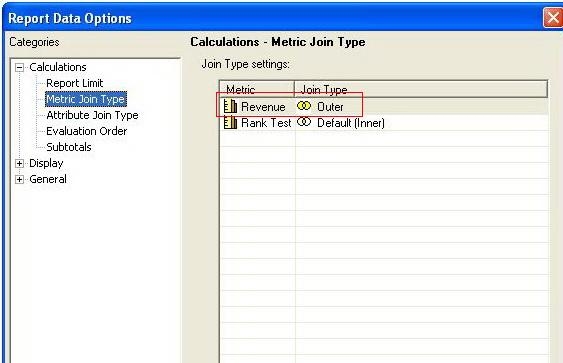
  • Set "Join Type" to "Outer Join" for metric "Revenue" in menu:  Data -> Report Data Options -> Calculations -> Metric Join Type, as shown below:
ka02R000000kcOQQAY_0EM440000002EDV.jpeg
  • Run the report, metric "Rank Test" only ranks rows in regarding to "Quarter" elements "2004 Q1", "2005 Q1" and "2006 Q1", as shown below: 
ka02R000000kcOQQAY_0EM440000002EDX.jpeg

Comment

0 comments

Details

Knowledge Article

Published:

April 11, 2017

Last Updated:

April 28, 2017