EducationSoftwareStrategy.com
StrategyCommunity

Knowledge Base

Product

Community

Knowledge Base

TopicsBrowse ArticlesDeveloper Zone

Product

Download SoftwareProduct DocumentationSecurity Hub

Education

Tutorial VideosSolution GalleryEducation courses

Community

GuidelinesGrandmastersEvents
x_social-icon_white.svglinkedin_social-icon_white.svg
Strategy logoCommunity

© Strategy Inc. All Rights Reserved.

LegalTerms of UsePrivacy Policy
  1. Home
  2. Topics

KB319278: How to manually migrate Google Maps and ESRI Maps plugin to new unified Map visualization using MicroStrategy Web / Mobile 10.6


Community Admin

• Strategy


With MicroStrategy 10.6, the Google Maps and ESRI Maps plugin are merged into a single Map plugin that is required to render both, Google Maps as well as ESRI Maps in MicroStrategy Web 10.6. Whereas previously two separate map configuration files were needed to be maintained, only a single configuration file named mapConfig.xml is needed starting with MicroStrategy 10.6.

SUMMARY
With Strategy 10.6, the Google Maps and ESRI Maps plugin are merged into a single Map plugin that is required to render both, Google Maps as well as ESRI Maps in Strategy Web 10.6. Whereas previously two separate map configuration files were needed to be maintained, only a single configuration file named mapConfig.xml is needed starting with Strategy 10.6. 
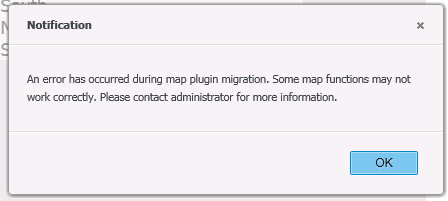
When upgrading Strategy Web will merge both configuration files. If this process to merge Google Maps and ESRI Maps automatically fails the following error is displayed:
ka04W000000OfsmQAC_0EM4400000025QI.jpeg


An error has occurred during map plugin migration. 
Some map functions may not work correctly. 
Please contact administrator for more information.


The following steps should be followed to configure Maps in Strategy 10.6 manually:
1. Create a plug-in folder with the following structure and name it ConnectorForMap.
ConnectorForMap
> WEB-INF
> > xml
> > >config
2. Copy the out-of-the-box map configuration file, mapConfig.xml, located under WEB-INF/xml/config from the Strategy Web installation directory, and paste it under WEB-INF/xml/config inside the newly created plug-in folder. 
3. If there is an ESRI plugin folder, copy the content from esriConfig.xml, and paste it into mapConfig.xml
4. If there is an old Google plugin folder, copy the content from googleConfig.xml, and paste it into mapConfig.xml
 
5. The structure for mapConfig.xml should be:

<mc> 

  <ec>

    The content copied from esriConfig.xml in old ESRI plugin.

  </ec>

  <gc>

    The content copied from googleConfig.xml in old Google plugin.

  </gc>

</mc>

 
6. Copy other content of the ESRI plugin (e.g. custom shapes, kml files) to the new Map plugin by keep the same folder structure. 
 
7. Backup and remove the old ESRI and Google plugins.

KB319278


Comment

0 comments

Details

Knowledge Article

Published:

April 3, 2017

Last Updated:

November 28, 2018