SUMMARY
This Technical Note covers an issue where the Enterprise Manager Data Loader service is not available after an upgrade from Strategy 9.X to Strategy 10.X. There are two possible workarounds to install the service.
SYMPTOM
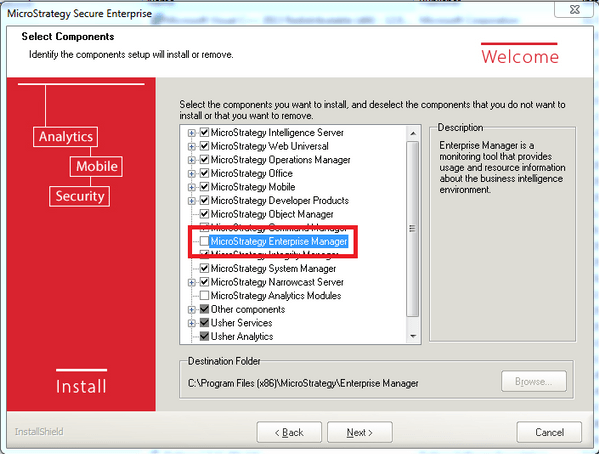
After upgrading from Strategy 9.x to Strategy 10.4 on a Windows machine that had the Enterprise Manager component installed, the Enterprise Manager Data service is not seen as an option in Strategy Service Manager. The service still is not seen even after uninstalling and reinstalling the Enterprise Manager component.
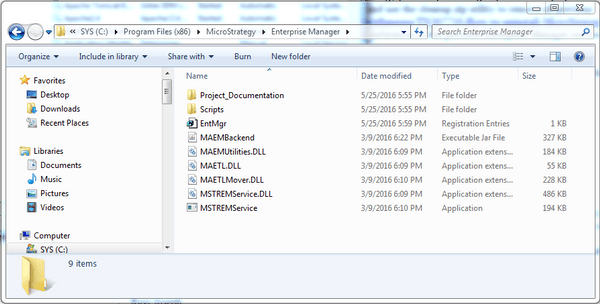
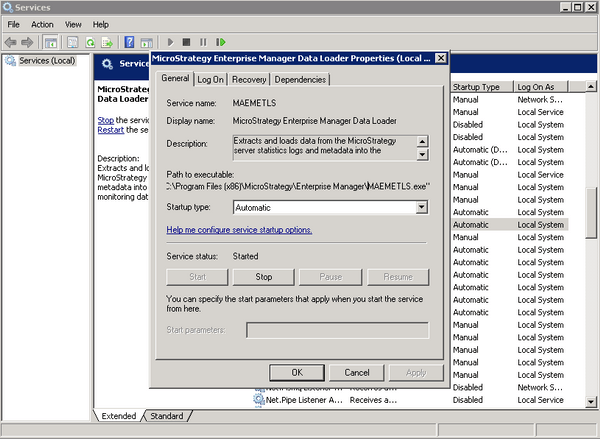
In addition, the 10.4 Strategy Data Loader Service MSTREMService.exe is seen in the correct location on disk while the Windows Service entry still points to the 9.x service MAEMETLS.exe incorrectly.
Disk location C:\Program Files (x86)\Strategy\Enterprise Manager with correct 10.4 Enterprise Manager files:
Windows Service entry with outdated 9.x reference to MAEMETLS.exe. (This window can be seen by searching for and selecting "Services" in the Start menu, then double clicking the Strategy Enterprise Manager Data Loader entry):
CAUSE
After the upgrade, the Windows registry entry for the 9.x Enterprise Manager Data Loader Service still exists even though the application files have been uninstalled.
WORKAROUND
There are two possible workarounds. Option A is to remove the reference to the old service by using the "sc delete" command. Option B is to do a complete uninstall of all Strategy products on the machine.
Option A: Use the "sc delete" command to delete the reference to the old service. NOTE: if using this workaround please be sure to first create a backup of the Windows registry.
Steps:
sc delete MAEMETLS
Option B: Run a complete uninstall of all Strategy products, including a special cleanup utility that will remove all previous Strategy references by following the steps outlined in the following Technical Note:
https://community.Strategy.com/s/article/KB307710-How-to-uninstall-Strategy-Analytics-Enterprise .
After the uninstallation is complete, reinstall the desired Strategy components on the system through the install package as usual.
