EducationSoftwareStrategy.com
StrategyCommunity

Knowledge Base

Product

Community

Knowledge Base

TopicsBrowse ArticlesDeveloper Zone

Product

Download SoftwareProduct DocumentationSecurity Hub

Education

Tutorial VideosSolution GalleryEducation courses

Community

GuidelinesGrandmastersEvents
x_social-icon_white.svglinkedin_social-icon_white.svg
Strategy logoCommunity

© Strategy Inc. All Rights Reserved.

LegalTerms of UsePrivacy Policy
  1. Home
  2. Topics

KB319894: The Title Bar of a selector in a Report Services Document cannot be disabled in MicroStrategy Web 10.4


Community Admin

• Strategy


SYMPTOM:
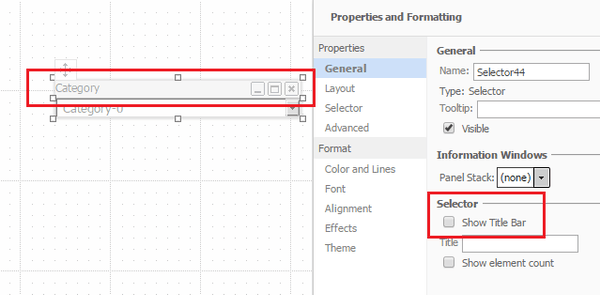
In Strategy Web 10.4, a user can enable the title bar for a selector to show the title of attribute and enable minimize and maximize options. However after enabling the title bar, when the user looks at the state of that property, the check on the box has disappeared and it gives the impression that the setting is currently disabled. This makes it so that the only option available to the user is to enable the setting, and as result it becomes impossible to disable the title bar after that, as shown below.
 
The option for Show Title Bar is unchecked, yet the selector shows the title bar:
 

ka04W000000OeBxQAK_0EM4400000025NV.jpeg

  
STEPS TO REPRODUCE:
Follow these steps to reproduce the issue in a Strategy Tutorial Project.

  1. Create a new document.
  2. Add a dataset with at least 1 attribute.
  3. Insert a drop-down selector.
  4. Add the attribute to the selector.
  5. Right-click on the selector and go to Properties and Formatting.
  6. Enable "Show Title Bar" from the 'General' tab.
  7. Hit apply, notice the title bar gets enabled but the check disappears as if the setting were disabled.
  8. Now it cannot be disabled.

 
CAUSE:
This is an identified defect in Strategy Web 10.4.
 
ACTION:
This issue has been addressed in Strategy Web 10.6. Upgrade to this version to take advantage of this fix.
 
WORKAROUND:
  • Access the Selector properties.
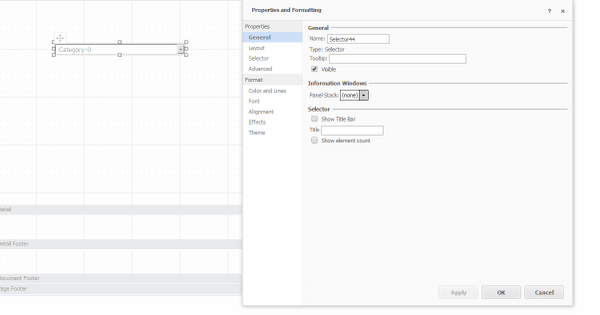
  • "Show Title Bar" will still appear disabled eventhough it's enabled.
  • Enable the checkbox for it.
  • Do not hit Apply or OK. Switch to another tab, for example 'Layout'.
  • Switch back to 'General', the checkbox will still be enabled.
  • Un-check "Show Title Bar" and now hit Apply.
  • Notice that the Title Bar has disappeared, as shown below.
ka04W000000OeBxQAK_0EM4400000025NT.jpeg

The Strategy Internal Reference Number for the issue discussed in this technical note is DE42965.


Comment

0 comments

Details

Knowledge Article

Published:

June 13, 2017

Last Updated:

June 13, 2017