SYMPTOM:
An LDAP user will notice that the user screen name displayed by Strategy Web 9.x is not the one used in the General tab of the user editor, but the CN name used in the LDAP authentication information, like shown in the images below:
The CN for the LDAP user is eric3:
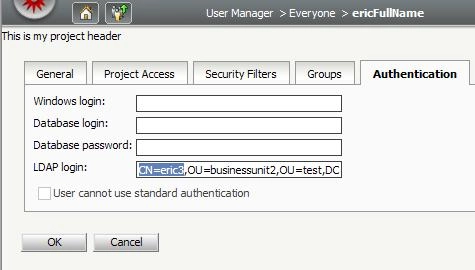
The user Full Name is ericFullName:

Notice that the login name is eric3, or the CN name:

This normally is just a display problem, but has further implications if the user tries to use the dynamic text for User Name when exporting to PDF or viewing Documents, like shown in the images below:

{&User}
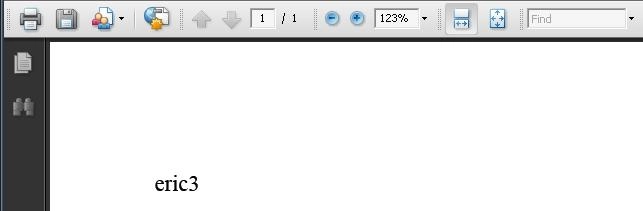
eric3
CAUSE:
The Login name and Full name of the user in the user editor only lasts until the user logs into Strategy Web 9.x . The reason why those values revert back to the original CN Variable automatically is because there is a setting in the Strategy Intelligence Server Configuration > LDAP > User/Group Import > Import Users > 'Synchronize', that is enabled by default.
'Synchronize at login': Select this check box to indicate that Intelligence Server should synchronize the users that are already in the metadata directory each time a user logs in. By default, this check box is selected and users are synchronized.
ACTION:
Disable this setting:
Strategy Intelligence Server Configuration > LDAP > User/Group Import > Import Users > 'Synchronize'
It will no longer synchronize the Strategy User information with the information coming from the LDAP server, and the administrator can update the user information to change the Full Name of the user to display the desired name.
WORKAROUND:
To keep this setting enabled, set the:
Strategy Intelligence Server Configuration > LDAP > User/Group Import > Import Users > Import user name as preference, to Other: (type in the value).
Type in the value of any variable that already exists in the LDAP Server along with the display name desired.
e.g.
If the variable's name is 'displayName', type the following into that textbox:
Other: (type in the value) - displayName
'Other': Select this option to provide an LDAP attribute to be imported that will be used as the Strategy group name, when the Strategy user is imported and created and the user’s groups are imported and created.
Note: Ensure that the authentication user field specified in Intelligence Server Configuration Editor: LDAP category, Configuration contains a valid value for the same attribute specified in the Other field, above.
