EducationSoftwareStrategy.com
StrategyCommunity

Knowledge Base

Product

Community

Knowledge Base

TopicsBrowse ArticlesDeveloper Zone

Product

Download SoftwareProduct DocumentationSecurity Hub

Education

Tutorial VideosSolution GalleryEducation courses

Community

GuidelinesGrandmastersEvents
x_social-icon_white.svglinkedin_social-icon_white.svg
Strategy logoCommunity

© Strategy Inc. All Rights Reserved.

LegalTerms of UsePrivacy Policy
  1. Home
  2. Topics

KB320795: After unselecting the first element of a checkbox selector, the selection type will change from “Include” to “Exclude” in MicroStrategy Web 10.3 – 10.5


Community Admin

• Strategy


This article explains why the Selection type is changed from Include to Exclude when using a checkbox selector based on an attribute with 1,000 elements.

Description

After running a document, when the first element of a checkbox selector based on an attribute that has at least 1,000 elements, if the Selection type has been set to “Include,” this will be changed to “Exclude.”
ka04W000000OfrmQAC_0EM4400000025O5.jpeg

Steps to Reproduce

  1. In Strategy Tutorial create a report that contains Customer and Cost.
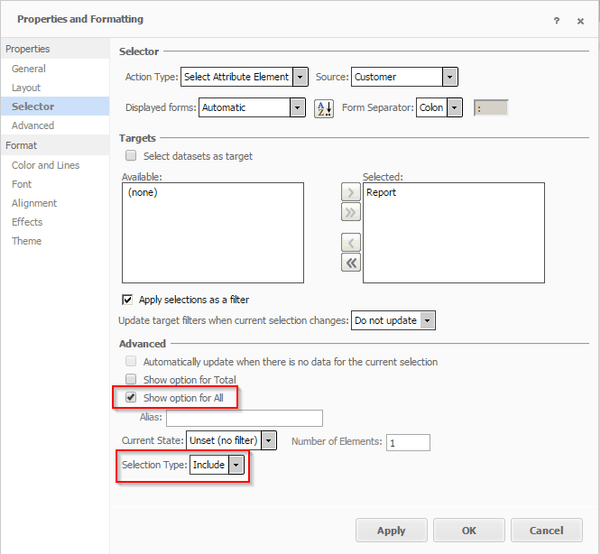
  2. Create a document based on the previous report and add a grid with both attributes and a check box selector for the Customer attribute, making sure the “Show option for All” and Selection Type of the selector is set to “Include” as seen below:


ka04W000000OfrmQAC_0EM4400000025OG.jpeg
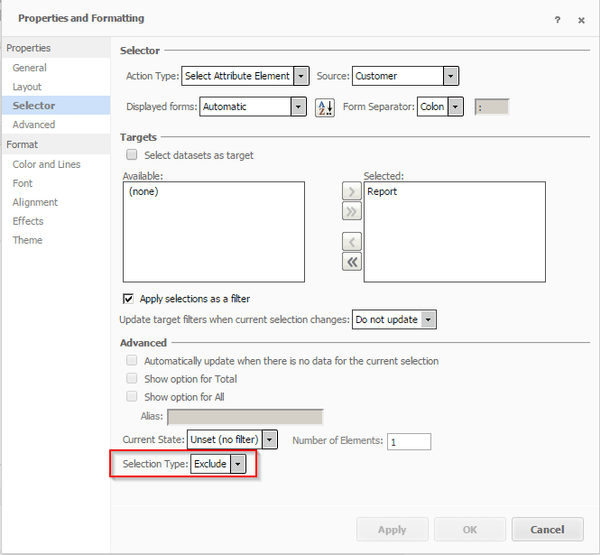
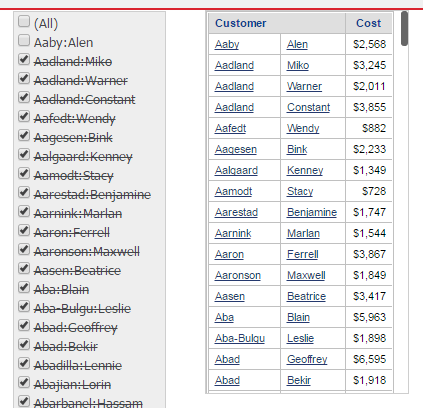
  1. Run the document and uncheck the first attribute element in the selector, you will notice that the selector will change to exclude mode.
ka04W000000OfrmQAC_0EM4400000025OE.jpeg


Why is this happening?


This is an expected behavior due to an initial database limitation that occurs when the number of selections is greater than 1,000. The Selection type is changed to Exclude in an effort to filter the the data efficiently.
 

Solution


If you want the Selection type to remain in Include mode, consider using a dataset with less than 1,000 elements as your checkbox filter. Alternatively, you can choose another filter format, such as a search box.

Workaround

As a workaround, use a filter to reduce the number of attribute elements to be less than 1,000.


Comment

0 comments

Details

Knowledge Article

Published:

June 9, 2017

Last Updated:

August 1, 2019