EducationSoftwareStrategy.com
StrategyCommunity

Knowledge Base

Product

Community

Knowledge Base

TopicsBrowse ArticlesDeveloper Zone

Product

Download SoftwareProduct DocumentationSecurity Hub

Education

Tutorial VideosSolution GalleryEducation courses

Community

GuidelinesGrandmastersEvents
x_social-icon_white.svglinkedin_social-icon_white.svg
Strategy logoCommunity

© Strategy Inc. All Rights Reserved.

LegalTerms of UsePrivacy Policy
  1. Home
  2. Topics

KB32081: How to avoid element concatenation in custom group when individual element contains more than one filter qualification in MicroStrategy Developer


Community Admin

• Strategy


In MicroStrategy Developer if one custom group element contains more than one filter qualification the display for individual items could be shown as concatenated.

What are custom groups?
A custom group is a special filter that can be placed on a template and is comprised of an ordered collection of elements called custom group elements. Each custom group element can be labelled with a header and includes a logical expression of attribute, metric, object, advanced or custom group banding qualifications. These qualifications resolve into a list of attribute elements once the report is run. Custom groups therefore, provide a way to group attribute elements from the same or different attributes to meet user's reporting requirements.
 
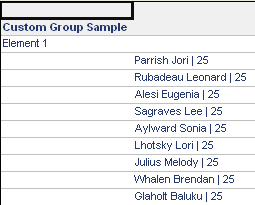
In Strategy Developer 9.4.x-10.x if one custom group element contains more than one filter qualification the display for individual items could be shown as below, the Customer name and the Customer Age is concatenated with character '|':
 

ka04W000000uGFWQA2_0EM440000002EEt.png
ka04W000000uGFWQA2_0EM440000002Jg6.png


How to avoid element concatenation in custom group when more than one filter qualification used:
The following steps may be use as a reference and it is used Strategy Tutorial project:
ka04W000000uGFWQA2_0EM440000002EEu.png


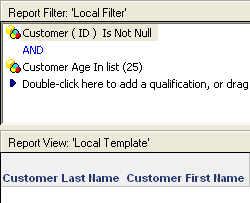
  • Create a report 'Report Filter' as filter, put 'Customer' attribute into the template and add following two filter qualifications
    • Customer (ID) Is Not Null 
    • Customer Age In list (25)
ka04W000000uGFWQA2_0EM440000002EEq.png
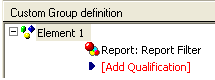
  • Create a Custom Group and adding the report 'Report Filter' as report as filter qualification
ka04W000000uGFWQA2_0EM440000002JgB.png
  • Create a report with Custom Group
ka04W000000uGFWQA2_0EM440000002JgG.png

Now the grid report only displays customer name instead of concatenating the customer name and customer age. 
KB32081


Comment

0 comments

Details

Knowledge Article

Published:

April 18, 2017

Last Updated:

January 9, 2019