EducationSoftwareStrategy.com
StrategyCommunity

Knowledge Base

Product

Community

Knowledge Base

TopicsBrowse ArticlesDeveloper Zone

Product

Download SoftwareProduct DocumentationSecurity Hub

Education

Tutorial VideosSolution GalleryEducation courses

Community

GuidelinesGrandmastersEvents
x_social-icon_white.svglinkedin_social-icon_white.svg
Strategy logoCommunity

© Strategy Inc. All Rights Reserved.

LegalTerms of UsePrivacy Policy
  1. Home
  2. Topics

KB32086: How to trace the time a report or document takes to export in MicroStrategy 9.x


Stefan Zepeda

Salesforce Solutions Architect • Strategy


Sometimes users would like to trace the time that a report or document takes to export in MicroStrategy Developer or Web 9.x. This value can be obtained by enabling the export engine log in DSSErrors.log.

Sometimes users would like to trace the time that a report or document takes to export in Strategy Developer or Web 9.x. This value can be obtained by enabling the export engine log in DSSErrors.log.
 
Follow the next steps to achieve this behavior:
  • Open Strategy Diagnostics Configuration located in the "Tools" menu.
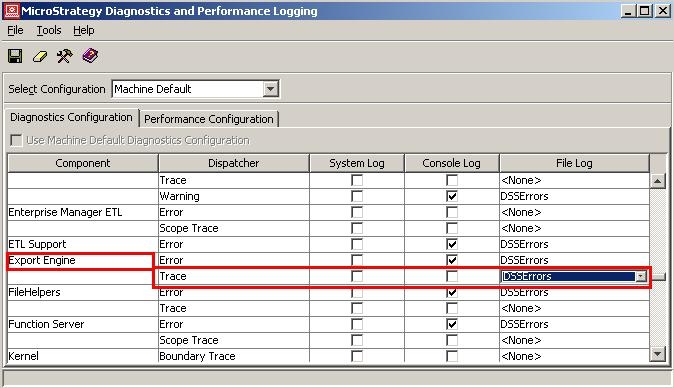
  • Navigate to "Export Engine" in Component,  find "Trace" under Dispatcher column and then select "DSSErrors" under the related File log column as in the picture below to save the results into a log file:
     
ka02R000000kVfrQAE_0EM440000002EEo.jpeg

 
After enabling this trace, the time stamp will be recorded in DSSErrors.log file whenever a report or document is exported.
 
Note. Enabling the Export Engine trace is only recommended for troubleshooting purposes since it could impact performance.


Comment

0 comments

Details

Knowledge Article

Published:

May 30, 2017

Last Updated:

May 30, 2017