EducationSoftwareStrategy.com
StrategyCommunity

Knowledge Base

Product

Community

Knowledge Base

TopicsBrowse ArticlesDeveloper Zone

Product

Download SoftwareProduct DocumentationSecurity Hub

Education

Tutorial VideosSolution GalleryEducation courses

Community

GuidelinesGrandmastersEvents
x_social-icon_white.svglinkedin_social-icon_white.svg
Strategy logoCommunity

© Strategy Inc. All Rights Reserved.

LegalTerms of UsePrivacy Policy
  1. Home
  2. Topics

KB32102: Text garbled when exporting predictive model to CSV file with double-byte character locale machine in MicroStrategy Developer 9.4.1 and 10.x.


Stefan Zepeda

Salesforce Solutions Architect • Strategy


When the MicroStrategy Developer 9.4.1 and 10.x GUI is set to double-byte language and Microsoft Office's primary language is set to a different language.(i.e. MicroStrategy GUI in Japanese and MicroSoft Office primary language in English),  the characters are broken when exporting a predictive model to CSV file and open it from Excel.

SYMPTOM:
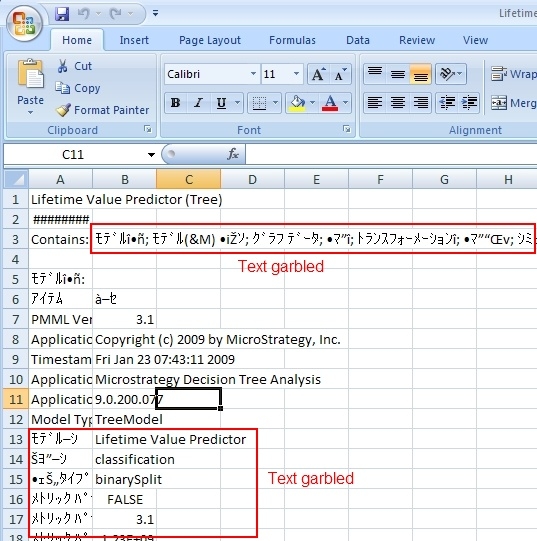
When the Strategy Developer 9.4.1 and 10.x GUI is set to double-byte language and Microsoft Office's primary language is set to a different language.(i.e. Strategy GUI in Japanese and MicroSoft Office primary language in English),  the characters are broken when exporting a predictive model to CSV file and open it from Excel as shown below.:
ka02R000000g4pRQAQ_0EM440000002EEr.jpeg

 
STEPS TO REPRODUCE:
Follow the next steps in the Strategy Tutorial project to reproduce the issue:
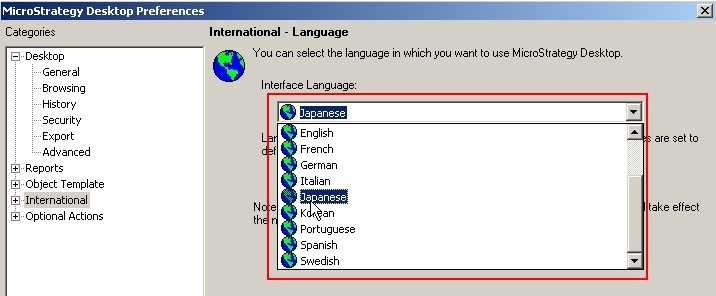
  • Set the Strategy Desktop GUI language to Japanese (or any other double-byte language).
    Go to Tools > Desktop Preferences > International, set the Interface language to Japanese then restart Desktop.
ka02R000000g4pRQAQ_0EM440000002EF3.jpeg
  • Open the predictive metric at "\Strategy Tutorial\Public Objects\Reports\Strategy Platform Capabilities\Strategy Data Mining Services\Decision Tree\Lifetime Value\Lifetime Value Predictor (Tree)"
  • Go to Tools menu and select View Predictive Model.
  • Click Export > Export to CSV and save the CSV file.
  • Open the CSV file by MicroSoft Excel.
     
ka02R000000g4pRQAQ_0EM440000002EEr.jpeg

Notice that the text is garbled in the Excel as shown in the image.
 
CAUSE:
The exported CSV file is saved in ANSI code. When the Microsoft Office primary language is not set to the same as in Strategy Desktop interface, text file can not be correctly decoded.
 
ACTION:
There are two methods to solve this issue.
 
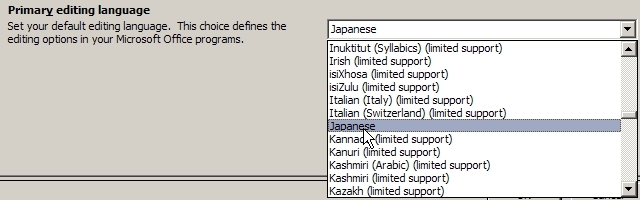
Method 1: Set the MicroSoft Office primary language to the same as in Strategy Desktop interface.
Navigate to Start > Programs > MicroSoft Office > MicroSoft Office Tools > Microsoft Office 2007 Language Settings, set the primary language to the same as in Strategy Desktop then reopen the CSV file as shown below.
 

ka02R000000g4pRQAQ_0EM440000002EF0.jpeg

 
Method 2: Open the CSV file with Notepad save the file in Unicode coding as shown below. Unicode text file can always be decoded correctly in Excel no matter what is set in primary language setting.
 

ka02R000000g4pRQAQ_0EM440000002EF2.jpeg


Comment

0 comments

Details

Knowledge Article

Published:

June 14, 2017

Last Updated:

November 25, 2019