A user can add additional report information such as description, execution time, filter details, etc. on an exported report (either PDF or Excel) through the use of the header and footer options available through the export options in Strategy Web 9.x.
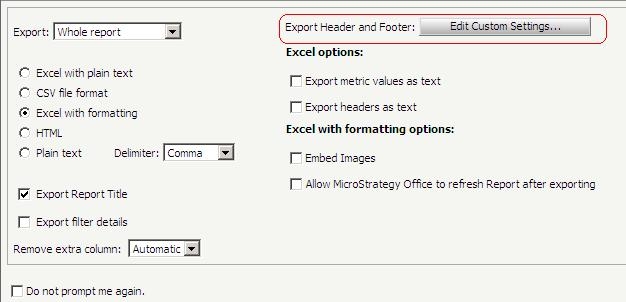
In Strategy Web, when exporting a report to Excel, a new window with export options will pop up (unless this has been disabled from User preferences). The user will see the option for "Header and Footer" where additional options are available through the "Edit Custom Settings..." button:
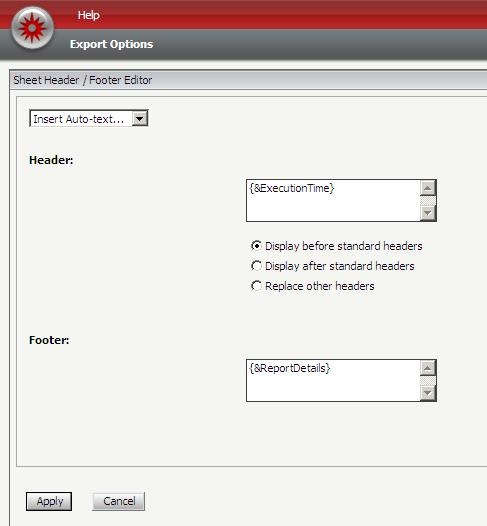
A new window will pop up with all the available options that can be added as header and/or footer on the exported report as shown below:

As an example, a user wants to have the execution time and report details on the report in Excel, so each option from the main drop down menu can be selected and placed in the text field (note that these can also be added manually by typing in the correct syntax)
There are also 3 options for positioning the header if other default headers are already defined for this particular report (standard headers).
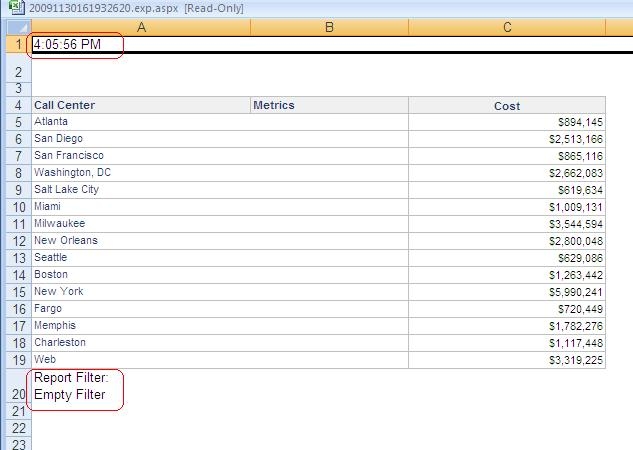
The end result for the example above is the information placed on the Excel exported report as shown below:
For PDF exports, the procedure is the same although the interface options change slightly.
The user has multiple options for headers and footers. However, these can also be customized with specific information as shown below:
As with Excel, when exporting to PDF, the user will be presented with the PDF export options where additional options for header and footer are shown
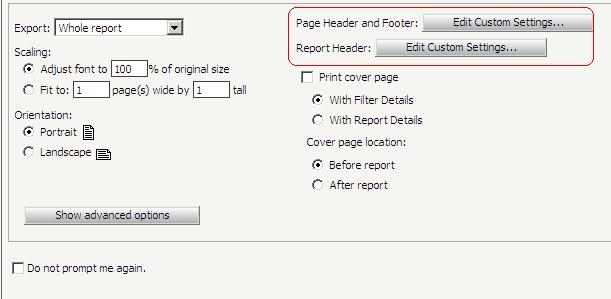
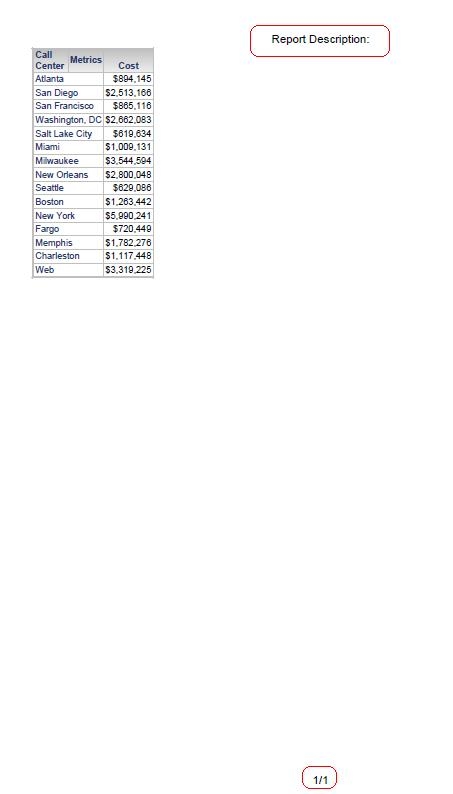
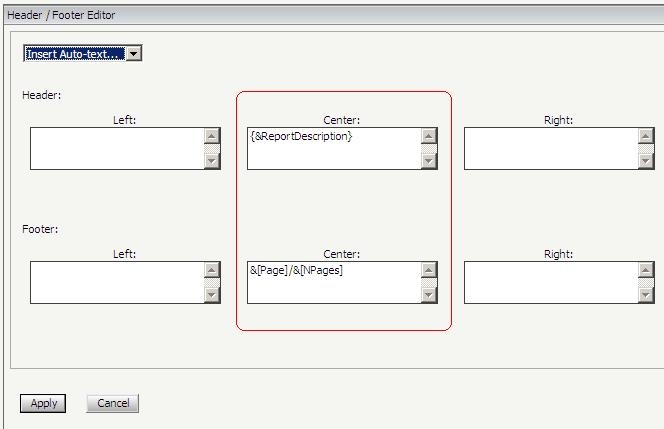
As an example, a user might choose to display as header the report's description and as footer the page number out of all available pages (notice how the positioning can also be selected to be centered or to any of the sides). In this case the positioning is chosen to be at the center of the report.
The end result for the example above is the PDF of the report, with the additional information chosen by the user: