In Strategy Web a user has the option to add header and footer information at 3 levels.
The user level, where all the reports for a particular user will contain a specific user defined header and/or footer.
This can be defined in the 'User preferences' -> Export Reports -> Export Header and Footer -> Edit custom settings.. as shown below:
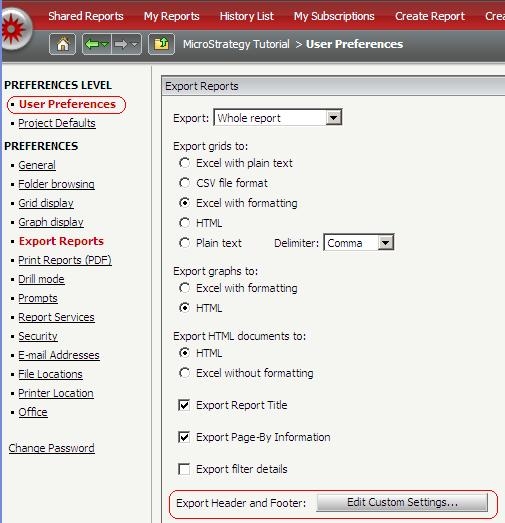
This will lead you to a new window where the different header and footer options are available so that any report this particular user exports will contain that information.
The Project level, the same setting exists, which will apply to all reports for all users in that particular project so that any report exported will contain the specific information in the header and footer. Additionally, there is a project header and footer which will display the information for any report executed via web for the project (not just exported reports).
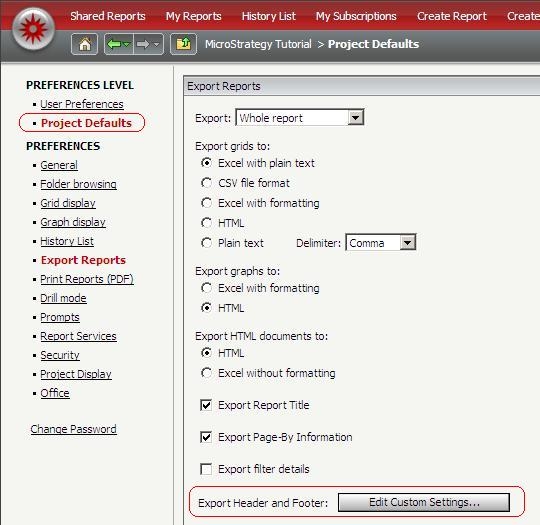
Keep in mind that the project level settings can be done only by the designated Strategy administrator user.
The report level, where only a specific report will display the header and/or footer information defined by a user. For this to take place, the user must define this at least once when exporting (either Excel or PDF) when the export options window pops up and clicks the 'Edit custom settings' button.
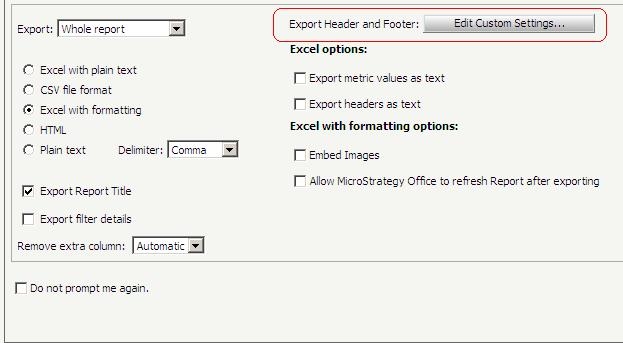
The options displayed would be the same and are configured the same way as the User level preferences, however, if the user would like the header and footer to be permanent for a particular report, the user must save the report again after exporting with the header and/or footer options selected.
This will enable the options for header and/or footer to be saved through the report definition. Any changes to the report, even if prompted will not reset the header and footer. If the header and/or footer need to be removed, it must be done manually through the export options window and saving the report again after exporting.
Please note:
In Strategy 2021 update 3, due to the risk for tab nabbing of the browser, the design was changed to stop tab nabbing function, which led to the options not being able to be kept.
However there is a workaround available starting from Strategy 2021 update 9 - please follow below steps:
Modify the settings in the web server:
<pr des="A flag to allow opener to pass to export page from current report" n="exportOptionReferrer" scp="server" v="1"/>
