EducationSoftwareStrategy.com
StrategyCommunity

Knowledge Base

Product

Community

Knowledge Base

TopicsBrowse ArticlesDeveloper Zone

Product

Download SoftwareProduct DocumentationSecurity Hub

Education

Tutorial VideosSolution GalleryEducation courses

Community

GuidelinesGrandmastersEvents
x_social-icon_white.svglinkedin_social-icon_white.svg
Strategy logoCommunity

© Strategy Inc. All Rights Reserved.

LegalTerms of UsePrivacy Policy
  1. Home
  2. Topics

KB32189: How to force a listbox selector to display using a scrollbar instead of automatically sizing to display all elements in MicroStrategy Web 9.x


Community Admin

• Strategy


When creating a listbox selector for a dashboard in MicroStrategy Web, users note that the listbox will automatically size to display all elements of the selector source.  Based on available dashboard space, the user may prefer to limit the size of the listbox selector by giving it a scrollbar so users can scroll through elements and multiselect accordingly.

SYMPTOM:
When creating a listbox selector for a dashboard in Strategy Web, users note that the listbox will automatically size to display all elements of the selector source.  Based on available dashboard space, the user may prefer to limit the size of the listbox selector by giving it a scrollbar so users can scroll through elements and multiselect accordingly.
 
STEPS TO REPRODUCE:
This behavior can be reproduced using the following steps in the Strategy Tutorial project:

  • Create a base report with Item on rows and Cost on columns.
  • Create a dashboard based on the report in Step 1.
  • Add the grid with formatting on the dashboard.
  • Create a listbox selector based on Item and place it on the dashboard. Be sure it targets the grid.
  • Notice that the listbox selector automatically sizes to display all elements of Item:

ka04W000000OdRAQA0_0EM44000000288k.jpeg

 
CAUSE:
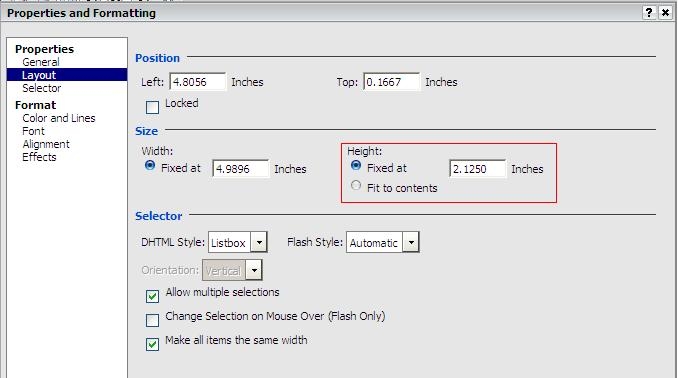
This behavior occurs because by default the listbox selector generates with a height setting of fit to contents.  As such, the height of the listbox will automatically size to fit all contents in one display.
 
ACTION:
Right-click the listbox selector and navigate to Properties and Formatting > Layout.  Set the height for the selector to fixed with an appropriate value according to desired size and display.
 

ka04W000000OdRAQA0_0EM44000000288l.jpeg

 
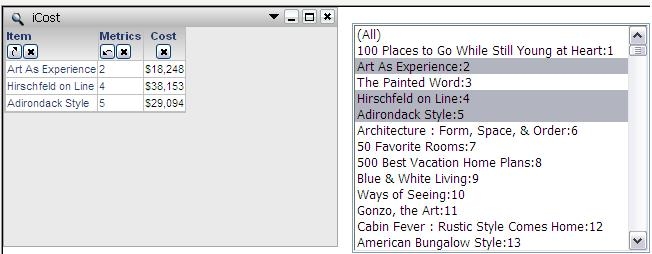
Notice that the listbox now displays smaller and with a scrollbar so all elements can still be found.
 

ka04W000000OdRAQA0_0EM44000000288j.jpeg


Comment

0 comments

Details

Knowledge Article

Published:

June 22, 2017

Last Updated:

June 22, 2017