EducationSoftwareStrategy.com
StrategyCommunity

Knowledge Base

Product

Community

Knowledge Base

TopicsBrowse ArticlesDeveloper Zone

Product

Download SoftwareProduct DocumentationSecurity Hub

Education

Tutorial VideosSolution GalleryEducation courses

Community

GuidelinesGrandmastersEvents
x_social-icon_white.svglinkedin_social-icon_white.svg
Strategy logoCommunity

© Strategy Inc. All Rights Reserved.

LegalTerms of UsePrivacy Policy
  1. Home
  2. Topics

KB322853: The "Hide null/zero" option stops hiding nulls and zeros in a Visual Insight graph after adding new object to the graph in MicroStrategy Web 10.5


Community Admin

• Strategy


SYMPTOM:
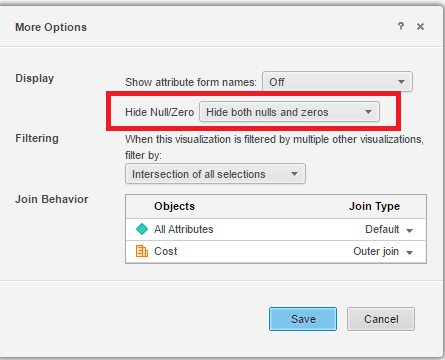
When using Microstartegy Web 10.x, users can change the display of the Null or Zero values within a visualization by changing the setting shown below:
ka04W000000OfrPQAS_0EM4400000025N5.jpeg

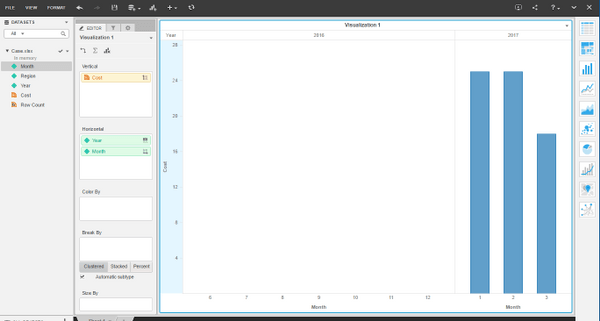
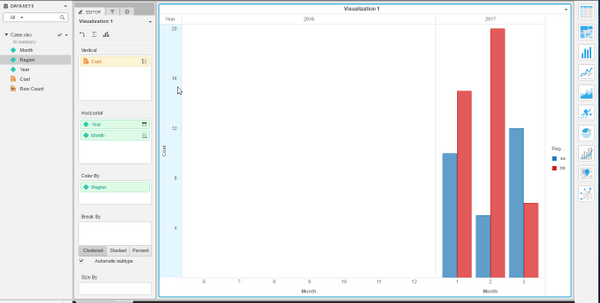
However, in Strategy Web 10.5, when the null or zero values are in a graph, if a user hides the nulls and zeros, using that function and then makes changes to the visualization, like adding a new attribute or metric, the nulls and zeros will appear again and the setting will no longer be able to hide them, as shown below. 
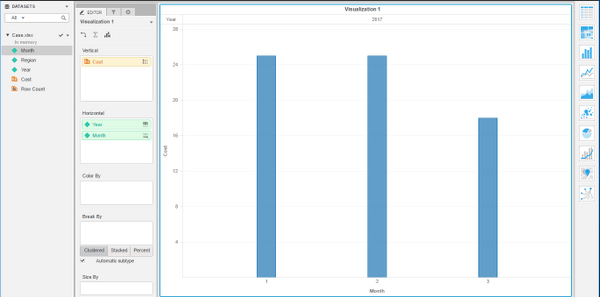
Before "Hide null/zero" is applied: 
ka04W000000OfrPQAS_0EM4400000025NN.jpeg

After "Hide null/zero" is applied:

ka04W000000OfrPQAS_0EM4400000025NP.jpeg

After adding an attribute or metric, nulls and zeros are back: 
ka04W000000OfrPQAS_0EM4400000025NL.jpeg

STEPS TO REPRODUCE: 
Follow these steps to reproduce the issue in a Strategy Tutorial Project.

  1. Create dashboard from data that contains nulls or zeros.
  2. Display the dashboard as a Bar Chart.
  3. On the Vertical dropzone add one metric, in the Horizontal dropzone add 2 attributes.
  4. Click on the gear icon to access the Settings pane.
  5. Select "Title and Container" from the dropdown and select Data Explorartion.
  6. At the bottom, click on the blue "More Options" text.
  7. Change "Show both Null and Zeros" to "Hide both Null and Zeros" and click save. Notice the setting works as expected.
  8. Go back to the editor pane.
  9. Add an attribute to the Color By drop zone. Notice the zeros and nulls appear again.

 
CAUSE:
This is an identified defect in Strategy Web 10.5. 
 
ACTION:
Currently this issue is still being reviewed for feasibility by our Technology team and it is not scoped for any upcoming scheduled Strategy release.
 
WORKAROUND:

  1. Add the metric to the filter pane to create a metric filter.
  2. Change the display style to qualification.
  3. To hide all zero values, select from the dropdown, "Does not equal" and set it "0". This will hide all zero values. 
  4. To hide all null values, select fromt the dropdown, "Is not null". This will hide all null values. 

There is no current way to hide both zeros and nulls through the metric filter option.
 
As an alternative, first design the visualization entirely and then enable the setting, to ensure no more manipulations will be done to the visualization after the setting has been enabled.
 
The Strategy Internal Reference Number for the issue discussed in this technical note is DE54440.


Comment

0 comments

Details

Knowledge Article

Published:

June 13, 2017

Last Updated:

June 13, 2017