EducationSoftwareStrategy.com
StrategyCommunity

Knowledge Base

Product

Community

Knowledge Base

TopicsBrowse ArticlesDeveloper Zone

Product

Download SoftwareProduct DocumentationSecurity Hub

Education

Tutorial VideosSolution GalleryEducation courses

Community

GuidelinesGrandmastersEvents
x_social-icon_white.svglinkedin_social-icon_white.svg
Strategy logoCommunity

© Strategy Inc. All Rights Reserved.

LegalTerms of UsePrivacy Policy
  1. Home
  2. Topics

KB323707: Common Troubleshooting questions for the new export engine in MicroStrategy 10.6 and higher versions


Community Admin

• Strategy


In MicroStrategy 10.6 a new export engine was introduced with new capabilities that enhance the ability to share dashboards in PDF format. 

Starting with the release of Strategy ONE (March 2024), dossiers are also known as dashboards.
In Strategy 10.6 a new standalone export engine service was introduced with new capabilities that enhance the ability to share dashboards in PDF format.  The new export engine is used when exporting Visual Insight dashboards and dossiers to PDF.  Exporting documents or non-PDF formats will still use the old export engine built into the Intelligence Server.
 
The following is a list of common troubleshooting questions that can be asked when using this new feature:
 
1. Does the new export engine need connection to the web server?
Yes, the export engine service will request resources like JS/CSS/Images files from Web Server
The new export engine can be installed on a separate machine as long as it is able to connect and communicate with the Intelligence server on port 20100. 
NOTE:
For customers with a ASP web server and linux Intelligence server.  custom visualizations and images will fail the export because when these resources are requested from the web server it fails authentication. 
Workaround:

  1. Configure the authentication mode of ASP Web Server to Anonymous mode.
    • Open IIS Manager, locate Sites -> Default Web Site -> Strategy -> asp;
    • Double click "Authentication", enable "Anonymous" authentication.
  2. Use J2EE Web Server instead.

 
2. How does the new export engine handle ESRI Maps?
The new export engine must be able to reach out to the arcgis servers and download the basemaps in order to generate the pdf. The work flow in regards to connectivity is similar to KB46526
 
3. What time out settings affect the export?
While exporting with New Exporting Engine, if you get an error page with the following text:


An error has occurred on this page.

Your request has timed out. Please try again later.
 
This means the exporting time exceeds the maximum request timeout. 
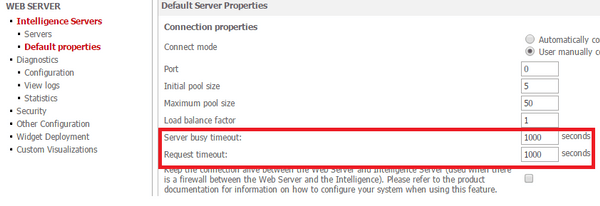
To Solve this, you should go to the Admin page of the Web Server, increase the Server busy timeout and Request timeout value as follows:

ka0PW0000001JWCYA2_0EM4400000025Lv.jpeg

 
4. How do you know if the export engine is started?
While attempting to export if you get the following error message displayed on the page:


<div name="appErrBox" id="appErrBox" class="mstrAlert">
<div class="mstrAlertTitle">An error has occurred on this page.</div>
<div class="mstrAlertMessage">()<br/></div></div>

This means the New Exporting Engine service is not started. 
To solve this, you should:

  1. Try to start the export engine service manually.
    • In Windows, start the MSTR_PDFExporter service in Windows services panel.
    • In Linux, run the script pdfexporter.sh under {path of iserver}//PDFExportService
      1. Run "pdfexporter.sh start" to start export engine service
  2. If the manual startup fails, check if the port number of the export engine service conflicts with others(The default port number of export engine service is 20100)

    If yes, do following steps to change the port:
     
    1. Edit application.properties file under path {path of iserver}/PDFExporterService/
    2. Change server.port to another value, such as server.port = 12345
    3. Restart export engine service
    4. Change I-Server setting to connect to this new port of the export engine service:
      • Edit registry file
      • Define PDFExporterService port as "[HKEY_LOCAL_MACHINE\SOFTWARE\Wow6432Node\MicroStrategy\DSS Server\PDFExporter]": "port"=dword:00003039
      • Restart -IServer

KB323707


Comment

0 comments

Details

Knowledge Article

Published:

June 12, 2017

Last Updated:

March 21, 2024