EducationSoftwareStrategy.com
StrategyCommunity

Knowledge Base

Product

Community

Knowledge Base

TopicsBrowse ArticlesDeveloper Zone

Product

Download SoftwareProduct DocumentationSecurity Hub

Education

Tutorial VideosSolution GalleryEducation courses

Community

GuidelinesGrandmastersEvents
x_social-icon_white.svglinkedin_social-icon_white.svg
Strategy logoCommunity

© Strategy Inc. All Rights Reserved.

LegalTerms of UsePrivacy Policy
  1. Home
  2. Topics

KB32467: "Active Server Pages error 'ASP 0241'" error message appears when trying to access MicroStrategy Narrowcast Subscription Portal 9.x


Community Admin

• Strategy


SYMPTOM:
When users try to access Strategy Narrowcast Subscription Portal 9.x, the following error occurs:
 
Sample Code/Error
Active Server Pages error `ASP 0241`
CreateObject Exception
/NarrowcastServer/login.asp
The CreateObject of `(null)` caused exception C0000005.
Active Server Pages error `ASP 0241`
CreateObject Exception
/NarrowcastServer/login.asp
The CreateObject of `(null)` caused exception C0000005.
 
 
CAUSE:
One possible cause of the error is anonymous access is enabled in the Virtual Directory where Strategy Narrowcast Subscription Portal resides. This issue is related to the following known issue with Strategy Narrowcast Server Subscription Portal 9.0.x.
TN 32861: The Subscription Portal hangs in MicroStrategy Narrowcast Server 9.0.x
 
ACTION:
Apply the workaround documented in TN 32861 OR follow the steps below to disable the anonymous access:

  • Open Microsoft Internet Information Services Management console from Control Panel -> Administrative Tools
  • Expand local computer. Navigate to Web Sites -> Default Web Site -> NarrowcastServer. Right-click on NarrowcastServer and select Properties
ka04W000000OeUFQA0_0EM440000002Aut.png
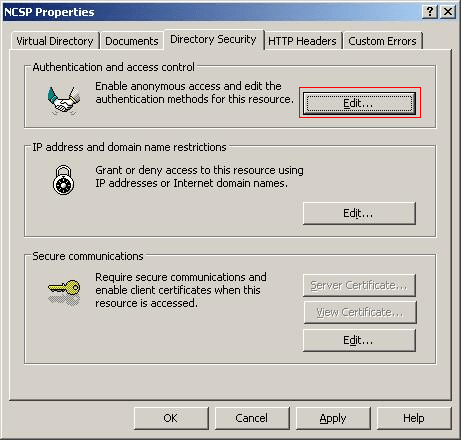
  • On the 'Directory Security' tab, click on the 'Edit' button under 'Authentication and access control',
ka04W000000OeUFQA0_0EM440000002Auu.png

              Uncheck 'Enable anonymous access' option and check “Integrated Windows authentication”. Select 'OK' to close the dialog
             

ka04W000000OeUFQA0_0EM440000002Aur.png

 
      4.    Restart IIS


Comment

0 comments

Details

Knowledge Article

Published:

June 9, 2017

Last Updated:

June 9, 2017