EducationSoftwareStrategy.com
StrategyCommunity

Knowledge Base

Product

Community

Knowledge Base

TopicsBrowse ArticlesDeveloper Zone

Product

Download SoftwareProduct DocumentationSecurity Hub

Education

Tutorial VideosSolution GalleryEducation courses

Community

GuidelinesGrandmastersEvents
x_social-icon_white.svglinkedin_social-icon_white.svg
Strategy logoCommunity

© Strategy Inc. All Rights Reserved.

LegalTerms of UsePrivacy Policy
  1. Home
  2. Topics

KB32508: Even though the properties "Export filter details" and "Remove extra column" are enabled at the User Preference level, when the report is subscribed using MicroStrategy Distribution Services, these two properties are not retained


Community Admin

• Strategy


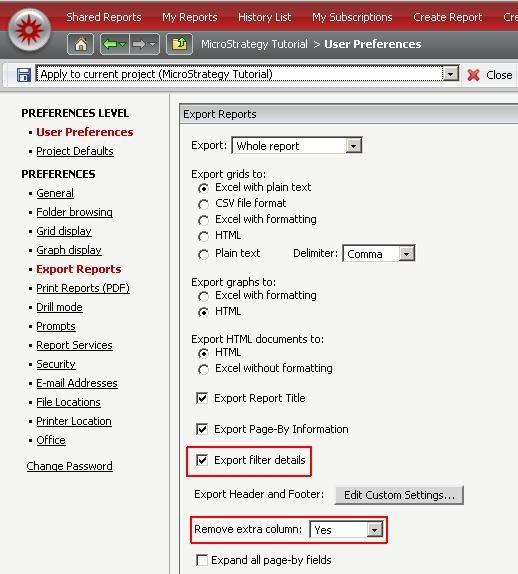
Even though the properties 'Export filter details' and 'Remove extra column' are enabled at the User Preference level as seen below, when the report is subscribed using MicroStrategy Distribution Services, these two properties are not retained.

SYMPTOM:
Even though the properties 'Export filter details' and 'Remove extra column' are enabled at the User Preference level as seen below, when the report is subscribed using Strategy Distribution Services 9.x or 10.x, these two properties are not retained.
ka04W000000OfglQAC_0EM440000002AvK.jpeg

 
ACTION / SOLUTION:
 
1. Since Strategy 9.2.1, Strategy Web preference 'Use header and footer when delivering subscriptions' was added at the project level. This preference is available under the Export reports section. By default, this option is not checked. Users who want to see the filter details in the delivered report, should check this option.
 
2. In order to successfully retain the above properties in a subscribed report, the following steps can be performed to force the properties to be saved at the report level and then subscribing to that particular report.
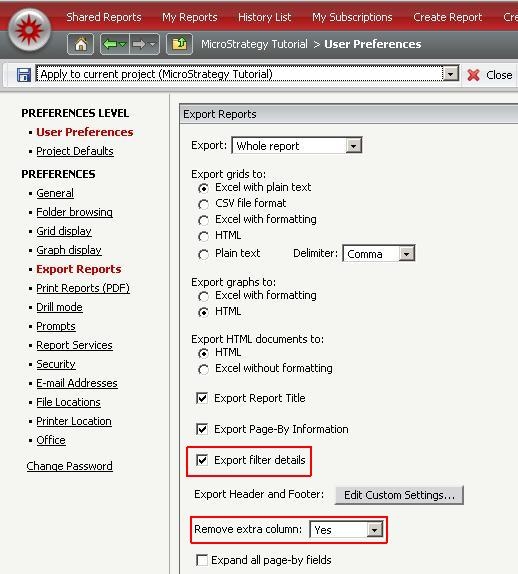
  • In Strategy Web, go to Preferences ->Project Defaults ->Export Reports. Select the two properties highlighted below and click Apply.
ka04W000000OfglQAC_0EM440000002AvG.jpeg
  • Execute a newly created report in Strategy Web
  • Within the report grid, navigate to Home ->Export ->Excel with formatting.
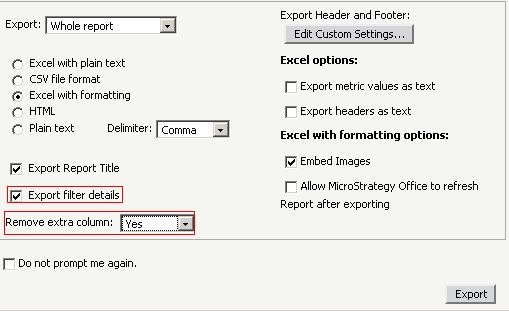
  • The following two setting will automatically be selected as they are set at the user preference level in Step 1.
     
ka04W000000OfglQAC_0EM440000002AvM.jpeg
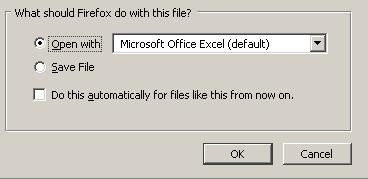
  • Click on Export. When the dialog below prompts to open or save the file, click cancel instead.
     
ka04W000000OfglQAC_0EM440000002AvP.jpeg
  •  
    Note: Clicking on Export is a crucial step in this workaround as it triggers the two above properties to be saved at the report level.
  • Close the Export window and go back to the Report window.
  • Within the report grid, navigate to Home ->Save As and replace the report with the new version from Step 5.
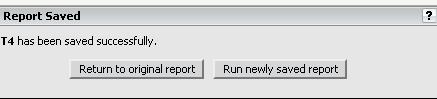
  • When the following option appears, select "Run newly saved report":
ka04W000000OfglQAC_0EM440000002AvS.jpeg
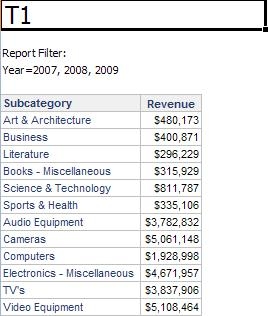
  • At this point the report is ready to be subscribed preserving the filter details and removing the extra metric column as seen below:
     
ka04W000000OfglQAC_0EM440000002AvI.jpeg

If users need to disable this option at the report level, use the same method as described above, except that the option to include report filter details should be unchecked.


Comment

0 comments

Details

Knowledge Article

Published:

November 3, 2017

Last Updated:

November 3, 2017