Strategy is constantly extending the functionality of Health Center by developing new system checks and information collectors, and refining existing ones. Using the Update feature, Health Center can connect to Strategy's servers to download the latest system checks.
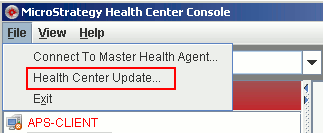
Health Center checks for updates every week, beginning 24 hours after users configure the Master Health Agent. If updates are available, the Health Center Console notifies users at the bottom of the main pane. Users can then review and download the available updates by selecting Health Center Update from the File menu.
The updates are downloaded to the Master Health Agent machine, not necessarily to the machine that is currently running the Health Center Console.
Users can also check for updates at any time, by selecting Health Center Update from the File menu.
Note: If the Strategy maintenance contract has expired, users can see that there are new updates, but users will not be able to download those updates until the maintenance contract has been renewed. For information about renewing your maintenance contract, contact your Strategy Account representative.
The Master Health Agent applies the updates as soon as the download is complete. To do this, the Master Health Agent service (in Windows) or daemon (in UNIX/Linux) stops and restarts.
Once the Master Health Agent has been updated, it pushes the updates out to the Health Agents in the system. This causes the Health Agent service or daemon to stop and restart to apply the updates.
To download the latest Health Center updates,