EducationSoftwareStrategy.com
StrategyCommunity

Knowledge Base

Product

Community

Knowledge Base

TopicsBrowse ArticlesDeveloper Zone

Product

Download SoftwareProduct DocumentationSecurity Hub

Education

Tutorial VideosSolution GalleryEducation courses

Community

GuidelinesGrandmastersEvents
x_social-icon_white.svglinkedin_social-icon_white.svg
Strategy logoCommunity

© Strategy Inc. All Rights Reserved.

LegalTerms of UsePrivacy Policy
  1. Home
  2. Topics

KB326135: How to group data by metric values using derived attributes in MicroStrategy Secure Enterprise 10.x.


Community Admin

• Strategy


OVERVIEW
Consider a scenario where a metric is defined as seen below:


Case(([Metric1] > 0), "Positive", ([Metric1] < 0), "Negative", 0)
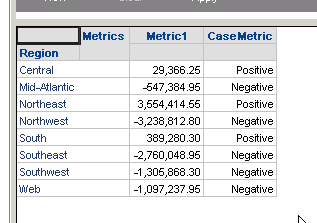
 
 
This metric ("CaseMetric") will have a value of "Positive" when Metric1 is greater than 0, "Negative" when Metric1 is less than 0, and 0 when Metric1 is 0 as seen below.

ka04W000000OeBwQAK_0EM4400000025Mw.jpeg

Users may want to group by the values of "CaseMetric" so that the values of "Metric1" are grouped according to positive and negative values, but since it is only possible to use attributes in the group-by of a document it is not possible to group by "CaseMetric" directly.
 
In Strategy Secure Enterprise 10.x, it is possible to duplicate a metric as a derived attribute so that it is possible to group by the metric values.
 
STEPS TO IMPLEMENT
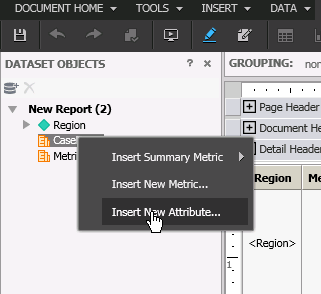
  • In a document in Strategy Web, create a new derived attribute. This can be done by right mouse clicking on an object in the document and choosing the option "Insert New Attribute"
ka04W000000OeBwQAK_0EM4400000025Mu.jpeg
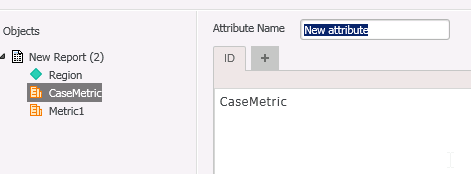
  • In the derived attribute editor define the attribute using the metric whose values the user wishes to use in the grouping. In the screenshot below the metric used in the derived attribute definition is the "CaseMetric" metric discussed above.
ka04W000000OeBwQAK_0EM4400000025N4.jpeg
  •  
    
    CaseMetric

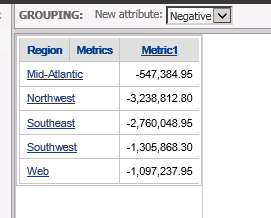
  • Once the new derived attribute is created it can then be added to the grouping of the document as shown below. 
ka04W000000OeBwQAK_0EM4400000025My.jpeg

Comment

0 comments

Details

Knowledge Article

Published:

June 13, 2017

Last Updated:

June 13, 2017