The following technical note explains how to configure an ODBC connection from Strategy Intelligence Server Universal (UNIX/Linux) to Microsoft’s Access database and Microsoft’s Excel spreadsheets. The process is achieved by connecting to a Windows client machine hosting the DataDirect Sequelink Server for ODBC Socket.
Part I. Configuration of the Sequelink ODBC Socket Server
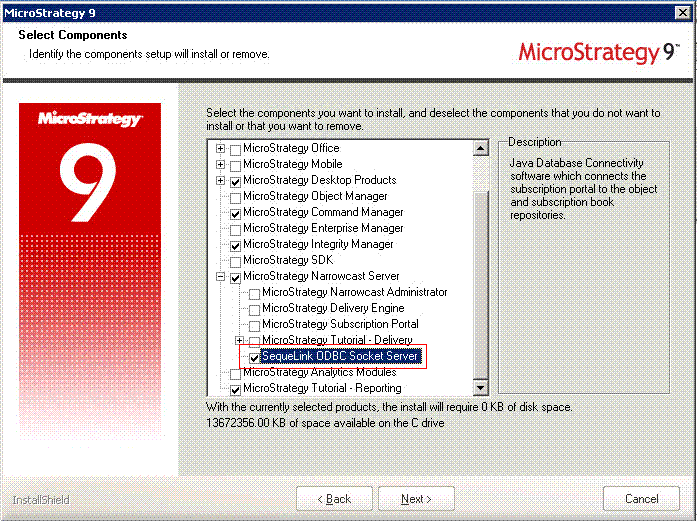
1. Install the Sequelink ODBC Socket Server that is part of the Strategy Narrowcast Server installation. There is no need to install the other Narrowcast components. The screenshot below shows an example:
2. The installation of the SequeLink ODBC Socket Server creates a new program directory called “DataDirect SequeLink 5.5 Service for ODBC Socket”. In order to configure a local ODBC DSN for use by the SequeLink ODBC Socket Server, users need to use the 'SequeLink Management Console Snap-in'. This can be launched from Start > Programs > DataDirect SequeLink 5.5 Service for ODBC Socket > SequeLink Management Console Snap-in
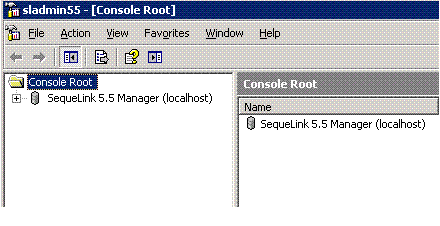
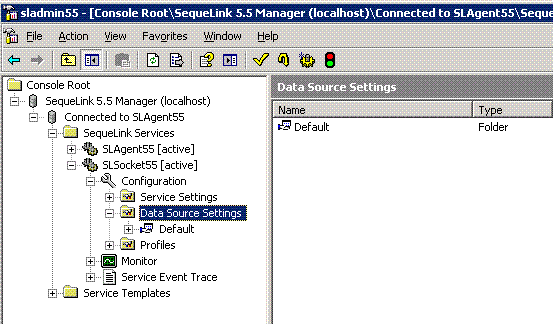
3. Expand the SequeLink 5.5 Manager until the Data Source Settings for the SLSocket55 service can be viewed.
4. Right mouse click on the Data Source Settings and choose to create a new Data Source
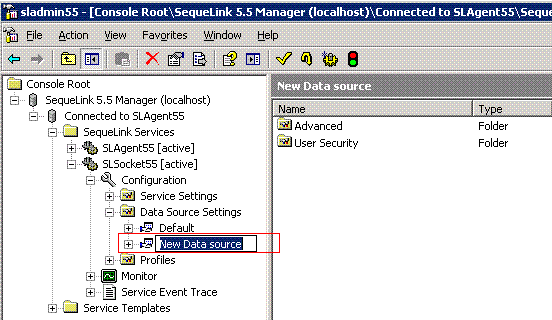
5. Give the Data Source a name and expand it so that the Advanced settings are displayed. In the example below, Excel_WH is the name of the Sequelink Data Source.
NOTE: It is important to remember this Sequelink Data Source Name as it will later be used to configure a DSN from the Strategy Intelligence Server Universal.
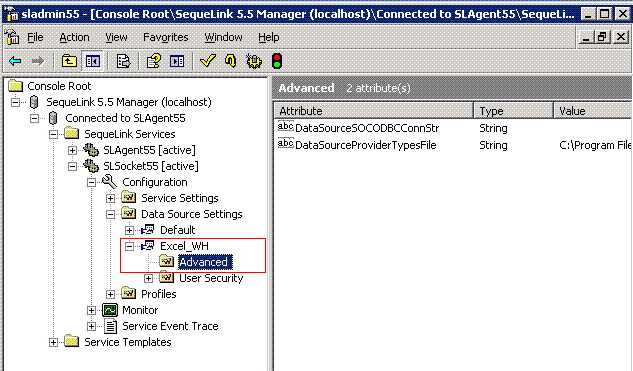
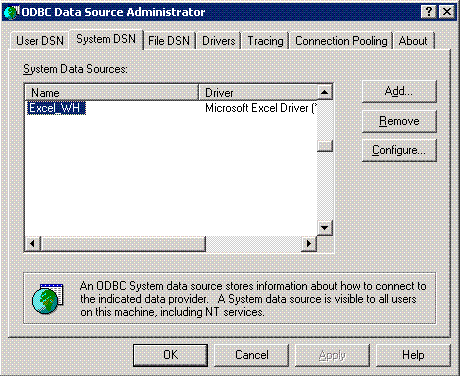
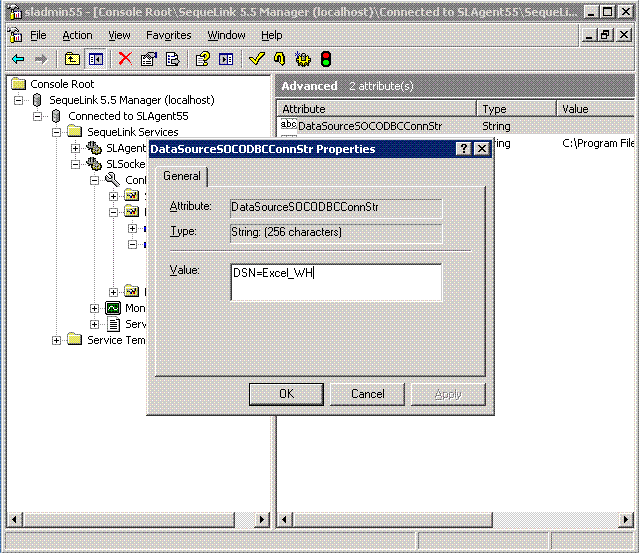
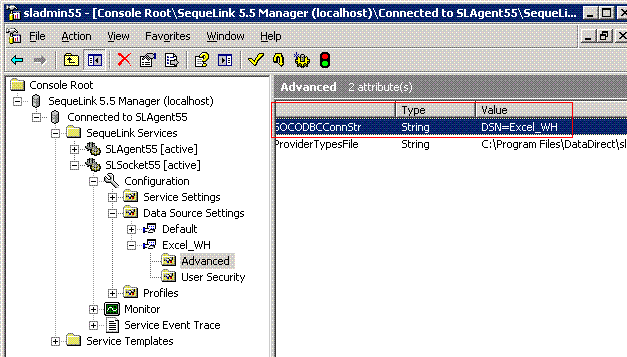
6. Right mouse click on the DataSourceSOCODBCConnStr and choose Properties. This allows the user to add a connection string that uses a local system ODBC DSN (32-bit). The following example screenshots show the configuration of a DSN that uses the Microsoft Excel ODBC Driver.
32-bit ODBC Administrator on Windows
SequeLink Data Source Advanced Properties window
SequeLink Data Source configured to use Microsoft Excel Driver DSN
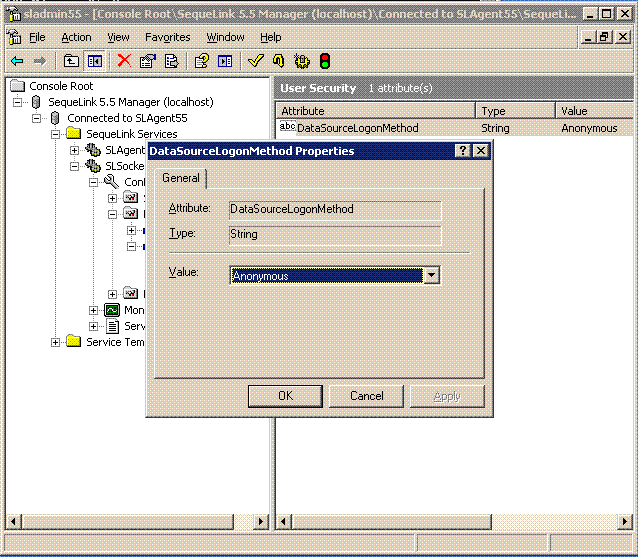
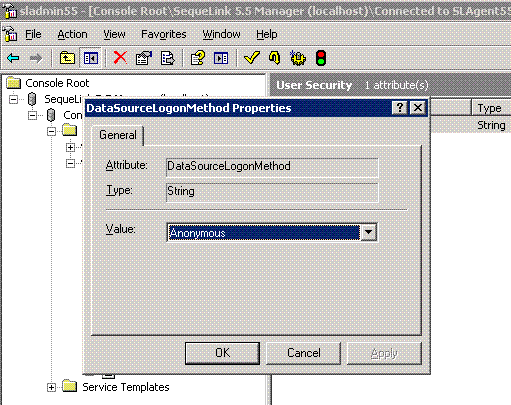
7. To enable anonymous connections to the Sequelink Data Source, modify the User Security for the Data Source. Expand 'User Security', right mouse click the DataSourceLoginMethod, choose Properties, and for Value choose 'Anonymous'.
8. After creating the new Sequelink Data Source name, save the configuration. Right mouse click on the Data Source and choose All Tasks > Save configuration
Part II. Configuration of the Sequelink ODBC Driver on UNIX/Linux
1. Open the odbc.ini file for editing. This file is located in the <HOME_PATH> where <HOME_PATH> is the directory specified as the home directory of the Strategy installation on UNIX/Linux.
2. Add a SequelinkODBC DSN using the example below as a template. Note that the ServerDataSource name must match the name created in step 5 from Part 1:
[ODBC Data Sources]
SequeLinkServer_Excel_WH=Strategy ODBC Driver for SequeLink 6.0

[SequeLinkServer_Excel_WH]
Driver=/usr/odbc/sequelink/MYslk22.so
Description=Strategy ODBC Driver for SequeLink 6.0
Host=10.16.31.6
Port=19996
ServerDataSource=Excel_WH
UseLDAP=0
DistinguishedName=
Encrypted=0
LoadBalancing=0
AlternateServers=
ConnectionRetryCount=0
ConnectionRetryDelay=3
#
# ODBC Driver for Sequelink ODBC Server
#
SQLNK_ODBC_INSTALL=/usr/odbc/sequelink

if [ "${SQLNK_ODBC_INSTALL}" != '<SQLNK_ODBC_INSTALL>' ]; then
export SQLNK_ODBC_INSTALL

SQLNK_ODBC_HOME="${SQLNK_ODBC_INSTALL:?}"/
export SQLNK_ODBC_HOME

mstr_append_path LIBPATH "${SQLNK_ODBC_INSTALL:?}"
export LIBPATH
fi
#
# ODBC Driver for Sequelink ODBC Server
#
SQLNK_ODBC_INSTALL=/usr/odbc/sequelink

if [ "${SQLNK_ODBC_INSTALL}" != '<SQLNK_ODBC_INSTALL>' ]; then
export SQLNK_ODBC_INSTALL

SQLNK_ODBC_HOME="${SQLNK_ODBC_INSTALL:?}"/
export SQLNK_ODBC_HOME

mstr_append_path LD_LIBRARY_PATH "${SQLNK_ODBC_INSTALL:?}"
export LD_LIBRARY_PATH
fi
#
# ODBC Driver for Sequelink ODBC Server
#
SQLNK_ODBC_INSTALL=/usr/odbc/sequelink

if [ "${SQLNK_ODBC_INSTALL}" != '<SQLNK_ODBC_INSTALL>' ]; then
export SQLNK_ODBC_INSTALL

SQLNK_ODBC_HOME="${SQLNK_ODBC_INSTALL:?}"/
export SQLNK_ODBC_HOME

mstr_append_path SHLIB_PATH "${SQLNK_ODBC_INSTALL:?}"
export SHLIB_PATH
fi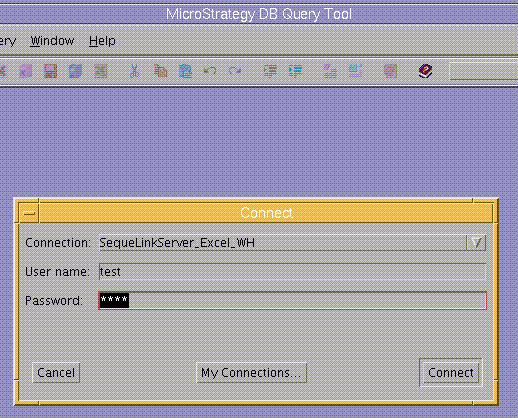
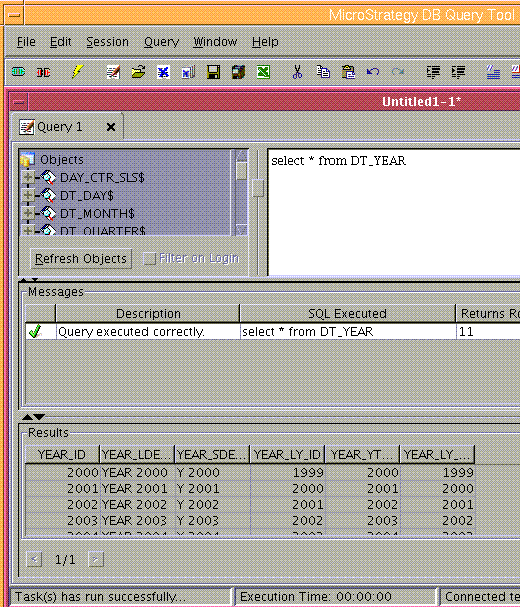
8. Restart the Strategy Intelligence Server before attempting to use the new DSN. The restart is needed to pick up the environment variables.
Part III. Configuration of the Microsoft Driver for Access
The previous example demonstrated how to configure a connection to an Excel spreadsheet residing on a Windows machine. This section describes how to configure a connection to an Access database on a Windows machine. Since the details on creating a new Data Source are in Part I, this section will contain only the necessary additional details to configure connectivity to the Access database.
1. On Windows, open the 'SequeLink Management Console Snap-in' and create the Data Source using a local System ODBC DSN.
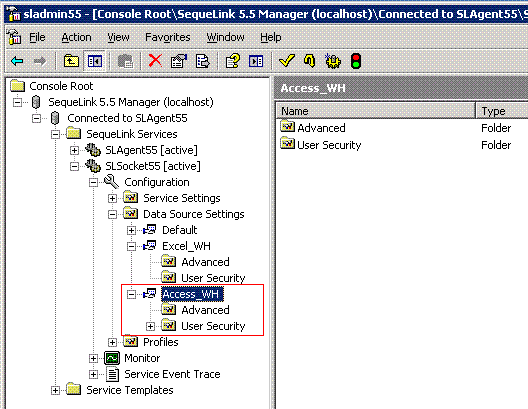
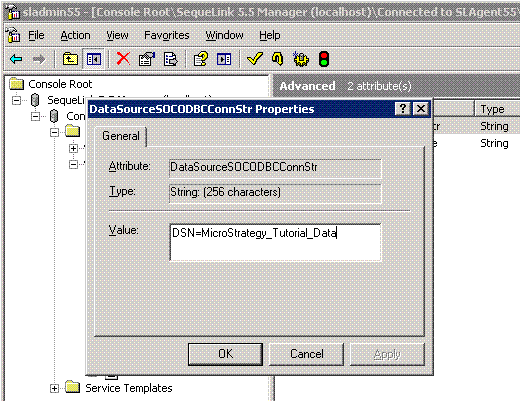
2. On UNIX/Linux, edit the odbc.ini and create a DSN in the same manner described in Part II (make sure to configure the ODBC.sh file as well). For the DSN definition, the user needs to make sure the ServerDataSource value matches the name of the Sequelink Data Source that points to the Access database. For example:
[ODBC Data Sources]
SequeLinkServer_Access_WH=Strategy ODBC Driver for SequeLink 6.0

[SequeLinkServer_Access_WH]
Driver=/usr/odbc/sequelink/MYslk22.so
Description= Strategy ODBC Driver for SequeLink 6.0
Host=10.16.31.6
Port=19996
ServerDataSource=Access_WH
UseLDAP=0
DistinguishedName=
Encrypted=0
LoadBalancing=0
AlternateServers=
ConnectionRetryCount=0
ConnectionRetryDelay=3
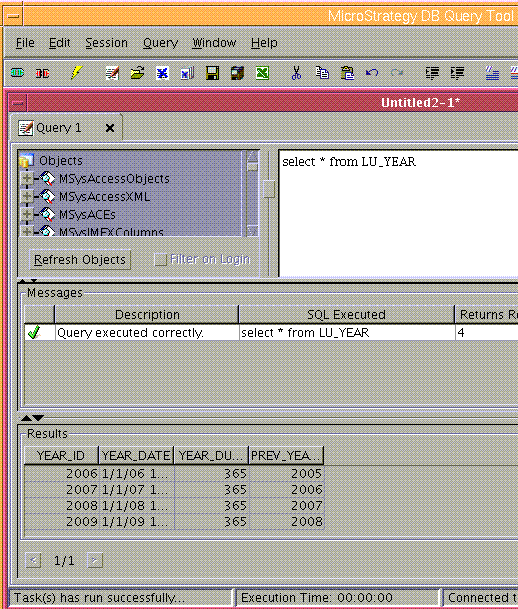
4. Restart Strategy Intelligence Server Universal before attempting to use the new DSN.
Third Party Software Installation WARNING
The third-party product(s) discussed in this technical note is manufactured by vendors independent of Strategy. Strategy makes no warranty, express, implied or otherwise, regarding this product, including its performance or reliability.
Disclaimer: The utility application is provided "as is" and without warranty of any kind. Strategy expressly disclaims all warranties, express, implied or statutory, including, without limitation, the implied warranties of merchantability, fitness for a particular purpose, satisfactory quality and no infringement.
Limitation of Liability: Strategy shall have no liability to licensee for any damages of any kind, including, but not limited to, liability for direct, indirect, special, incidental or consequential, damages (which shall include, but not be limited to, loss of data or information, loss of revenue or anticipated profits or lost business).
